
If you're receiving the following error, see the steps below to troubleshoot.
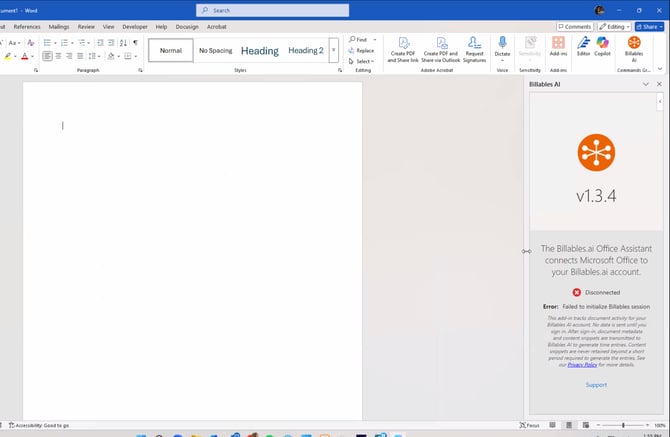
Root Cause
This error usually occurs if the wrong version of the Add-in was installed. When deploying the Add-in via the Microsoft Admin Center, the admin should use the manifest link that corresponds to their region.
Resolution
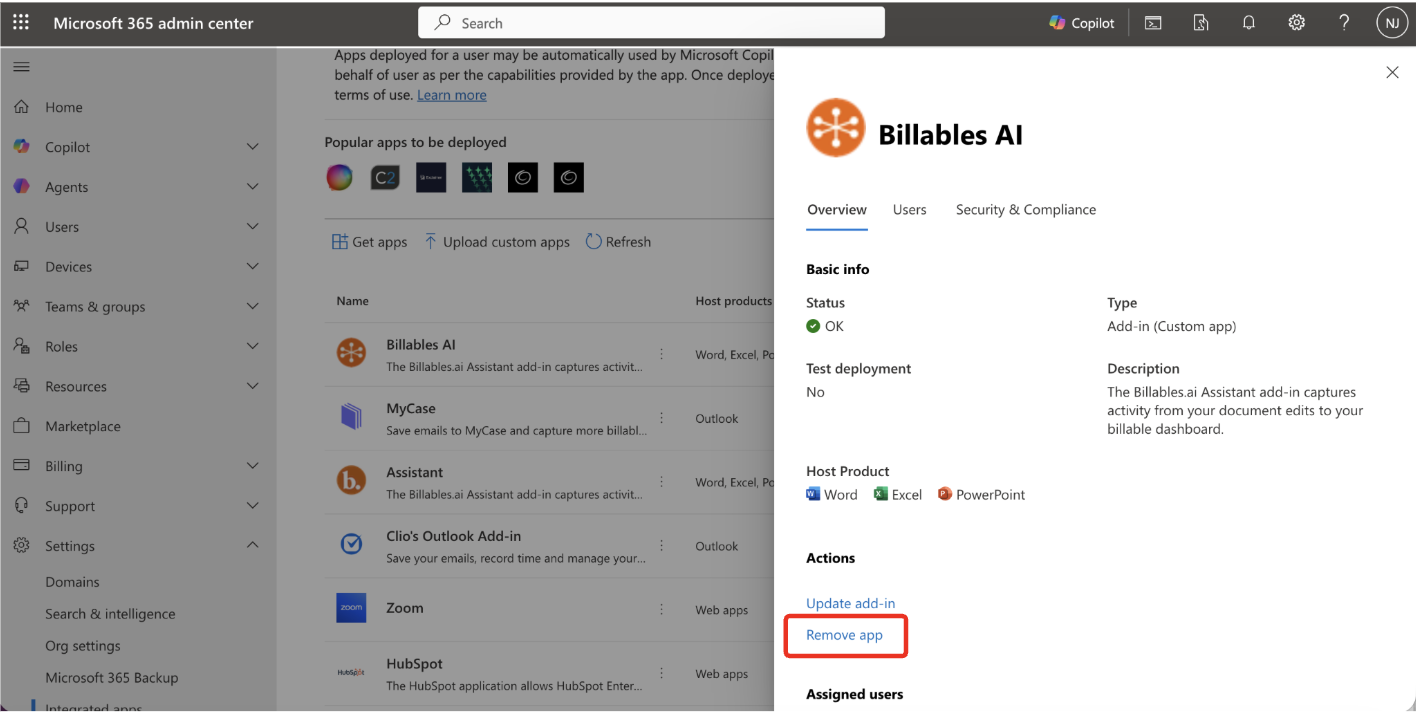
1. Uninstall the Microsoft Docs Add-in. Go to the Microsoft Admin Portal, select the Billables AI app and click Remove app:
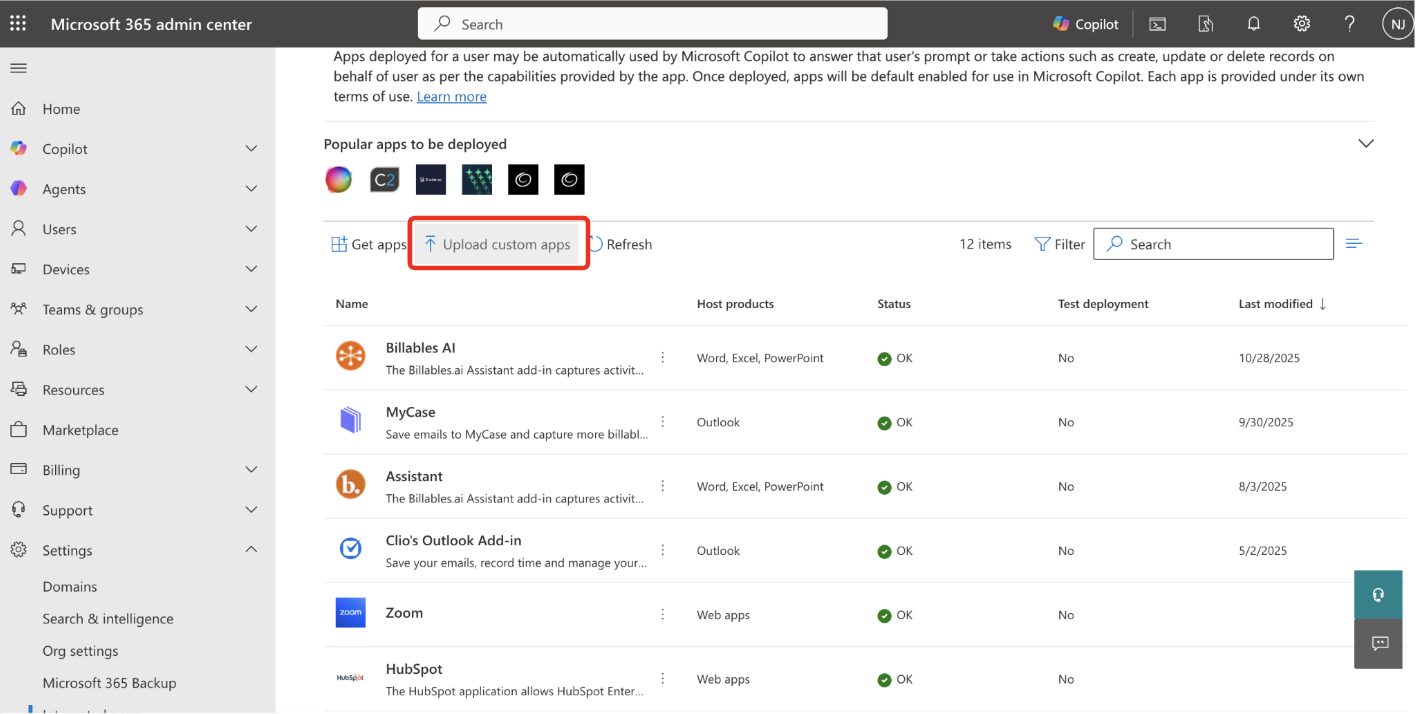
2. Back on the Microsoft Admin Portal page, click Upload Custom Apps:
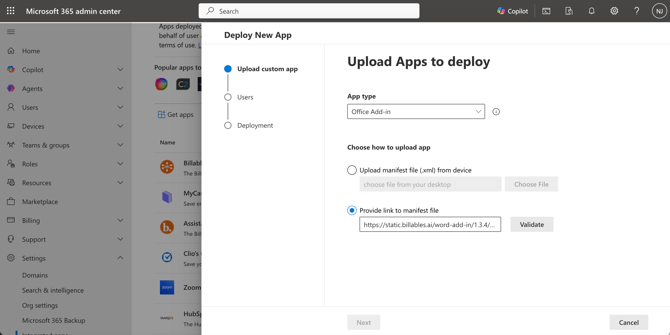
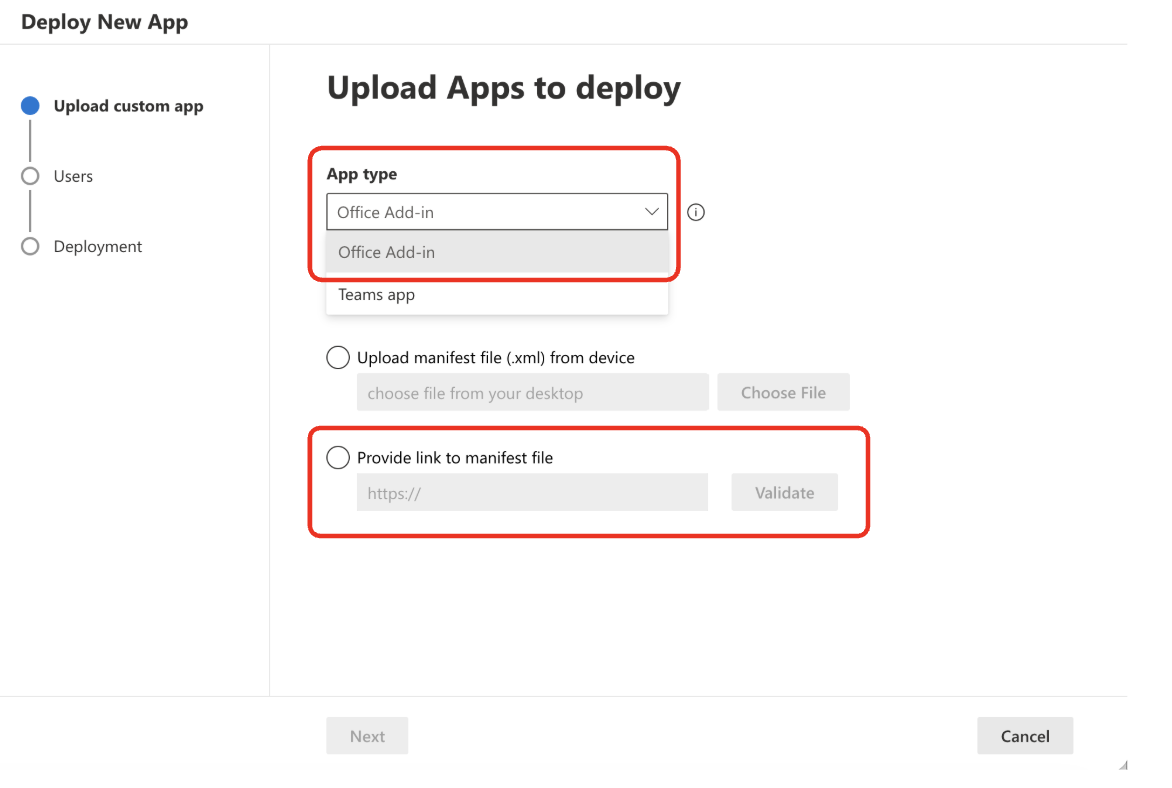
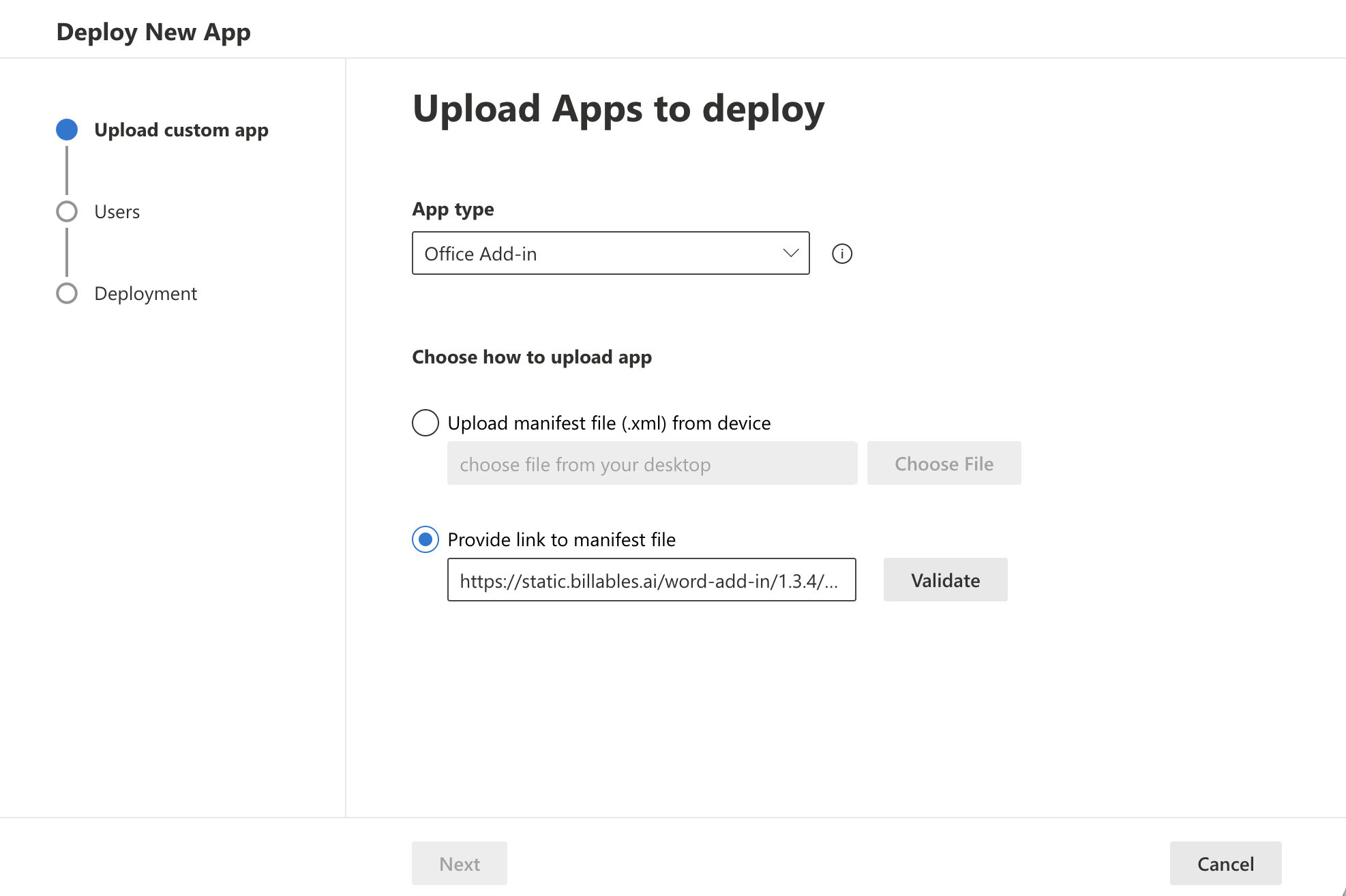
3. Select Office Add-in as the App type, then select "Provide link to manifest file".
-
US, Canada, Global (account login at https://app.billables.ai): https://static.billables.ai/word-add-in/1.3.4/manifest.xml
-
EU/UK (account login at https://app.eu.billables.ai for EU data residency requirements): https://static.billables.ai/word-add-in-eu/1.3.4/manifest.xml
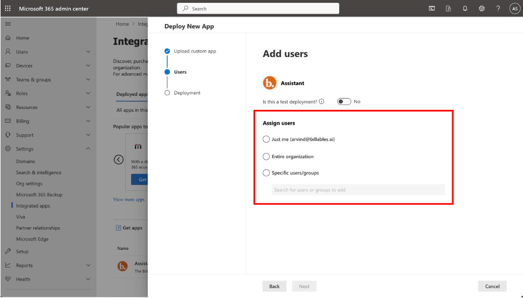
5. Select which users to install the Add-In for.
-
If you plan on onboarding most members of the firm, we recommend choosing 'entire organization' to avoid having to repeat this step for new users that join.
-
If you only want to Billables to be used for select users, you can specify users or groups.
-
To enable the Add-in for additional team members, scroll down to section below titled "Enabling the Add-in for new users".
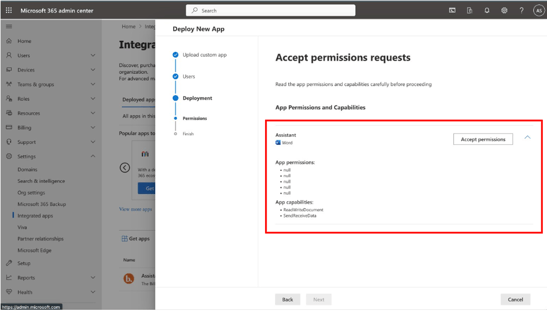
6. Click Accept Permissions
7. Click Next
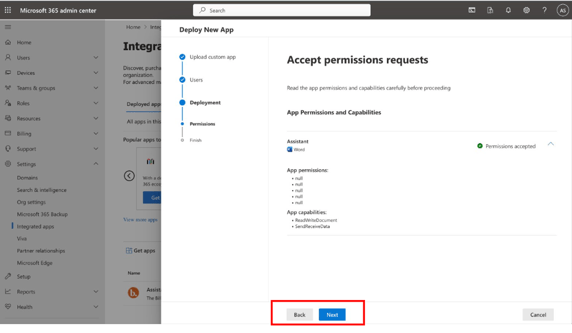
8. Finish Deployment
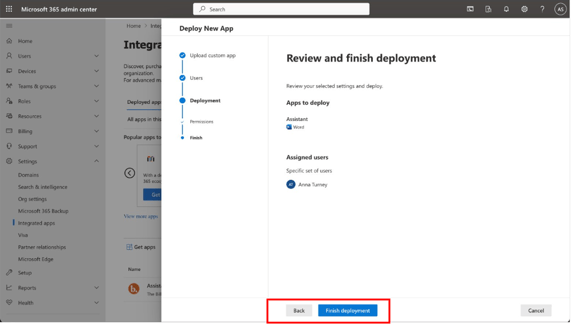
9. Clear your cache so the new version takes effect. See instructions from Microsoft here: https://learn.microsoft.com/en-us/office/dev/add-ins/testing/clear-cache