Time Entry Export to Tabs3
Last updated: October 15, 2026
If your firm bills in Tabs3 and exports time from Billables AI, this article is for you.
Time entries go into Tabs3 through the PracticeMaster Import Data Wizard. The wizard loads your CSV into the PracticeMaster Fee file, and the entries sync to Tabs3 automatically. These steps follow Tabs3 article R11724, which is also the place to look for everything else related to fee imports in Tabs3.
Import definition alert: the import definition is the saved mapping between your CSV columns and PracticeMaster fields, and most import problems come from it. Every Import Field must sit next to the correct PM Field, the definition name can be 8 characters max with no spaces, and system definitions like PMFILE cannot be overwritten, so always save under a new name. Steps 4 and 5 and the last section cover this in detail.
Before you begin
Work in PracticeMaster, not Tabs3 Billing. The PracticeMaster version must be compatible with the Tabs3 version for the sync to work.
Save your time entries as a CSV with these columns: Client ID, Timekeeper, Date, Hours to Bill, Hours Worked, and Description.
Make sure every Client ID and Timekeeper matches Tabs3 exactly.
Close the CSV in Excel. A file that is still open causes error 32.
Add timekeepers and export from Billables AI
Tabs3 needs each biller's timekeeper ID to import time entries correctly, so add your billers in the Export settings before your first export. After that, export your approved entries whenever you are ready.
Add your billers' timekeeper IDs
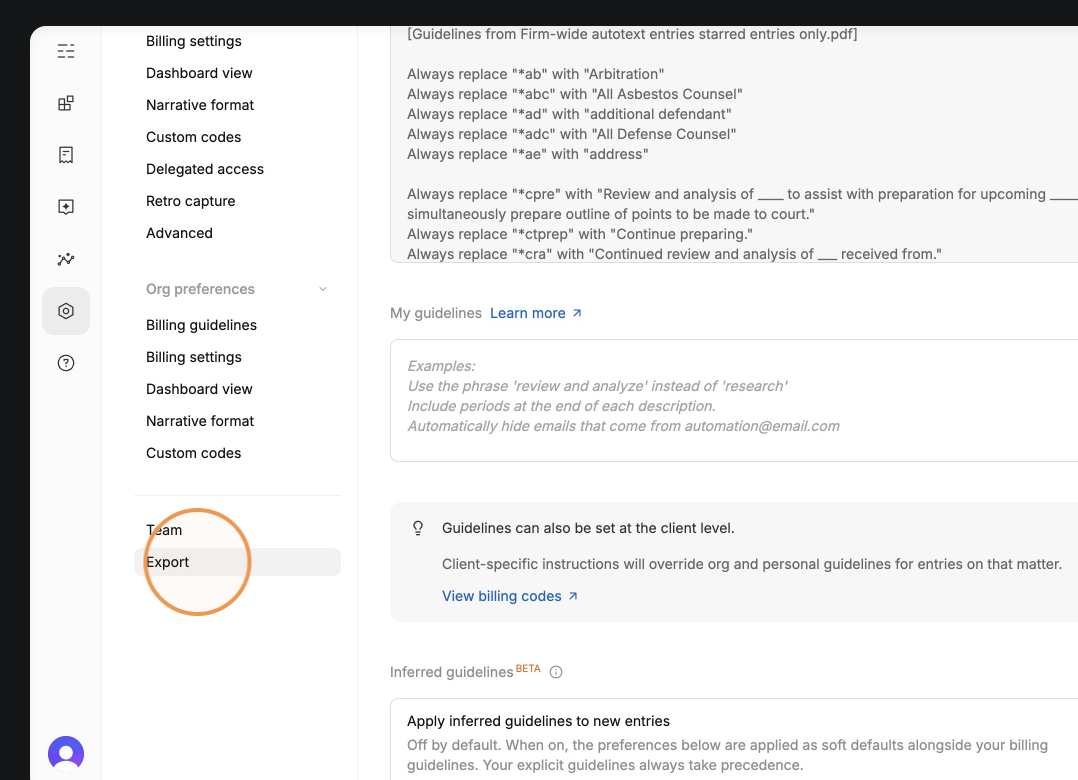
In Billables AI, click Settings, then click Export at the bottom of the left menu.
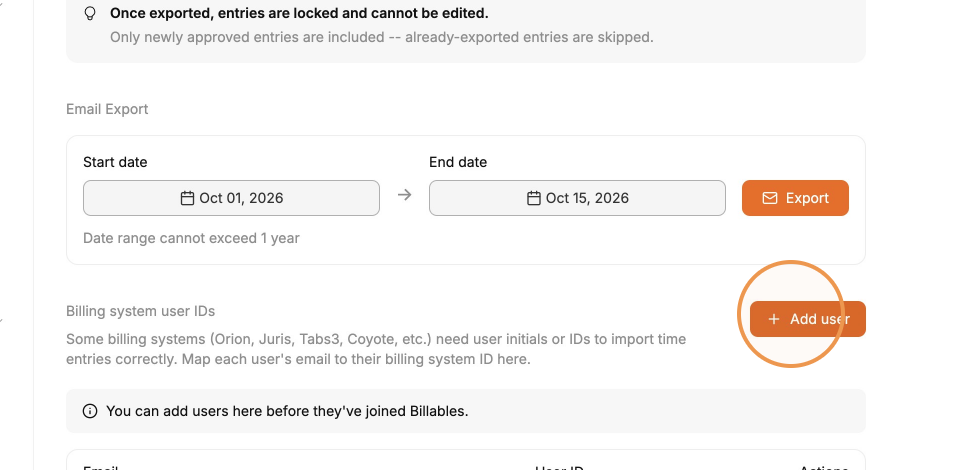
Scroll to Billing system user IDs and click Add user.
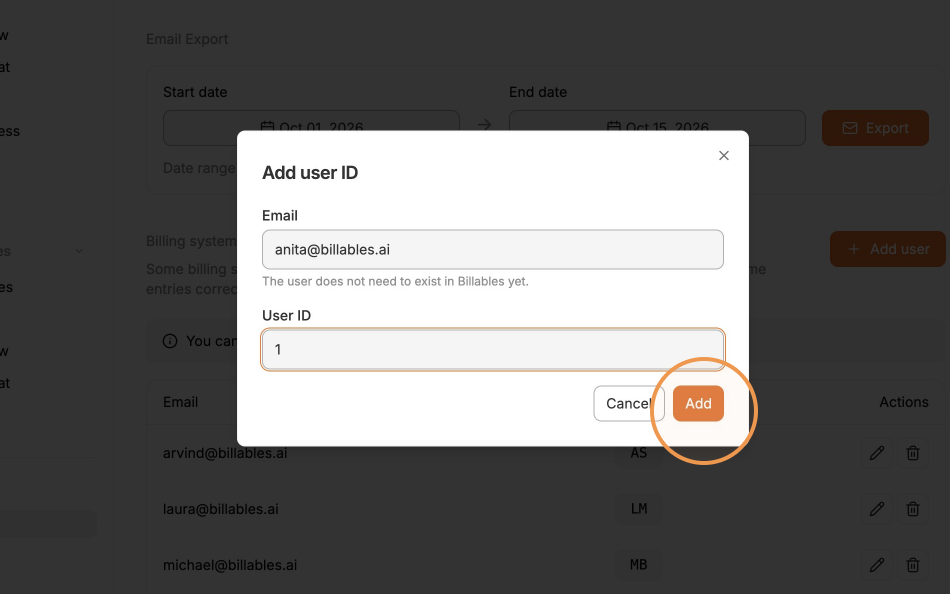
Enter the biller's Billables AI account email and their timekeeper ID from PracticeMaster, then save. Repeat for each biller.
To change an ID later, click the pencil icon next to that user in the same list.
Export your approved entries
Review your dashboard and make sure the entries you want are approved.
Under Email Export, set the Start date and End date. The date range cannot exceed 1 year.
Click Export.
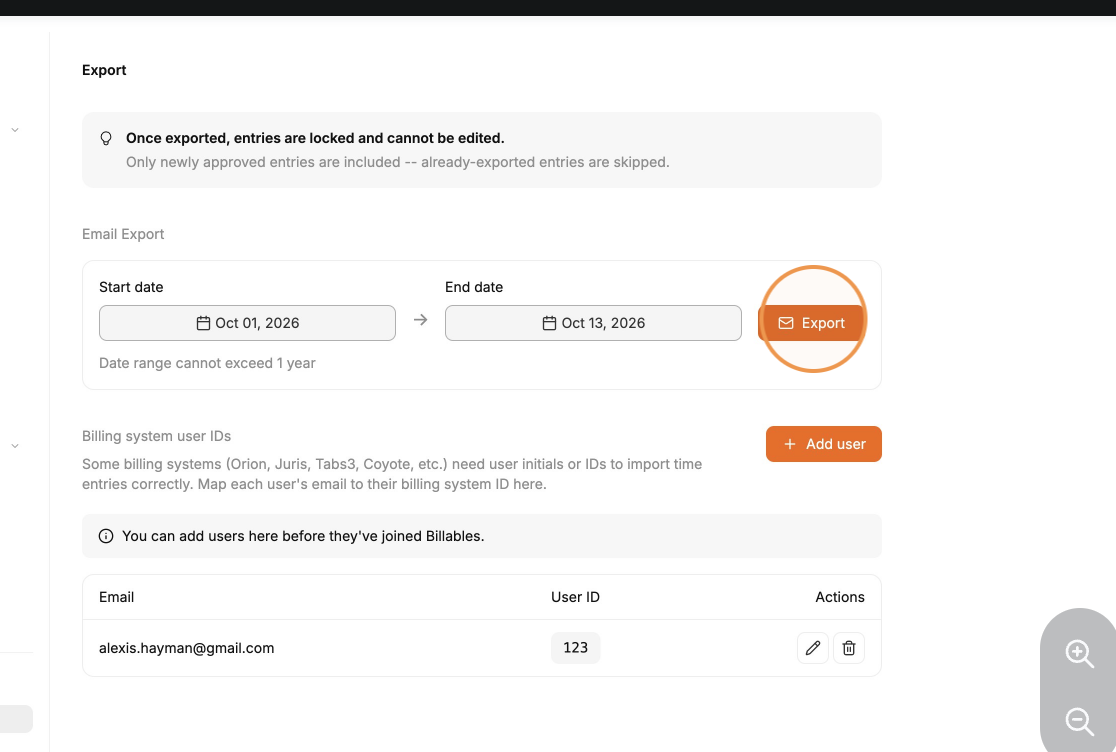
Important: once exported, entries are locked and cannot be edited. Only newly approved entries are included, and entries that were already exported are skipped.
The file you import into PracticeMaster must be a CSV with Client ID, Timekeeper, Date, Hours to Bill, Hours Worked, and Description.
Select the Fee file and your CSV
Step 1: Open the Import Data Wizard
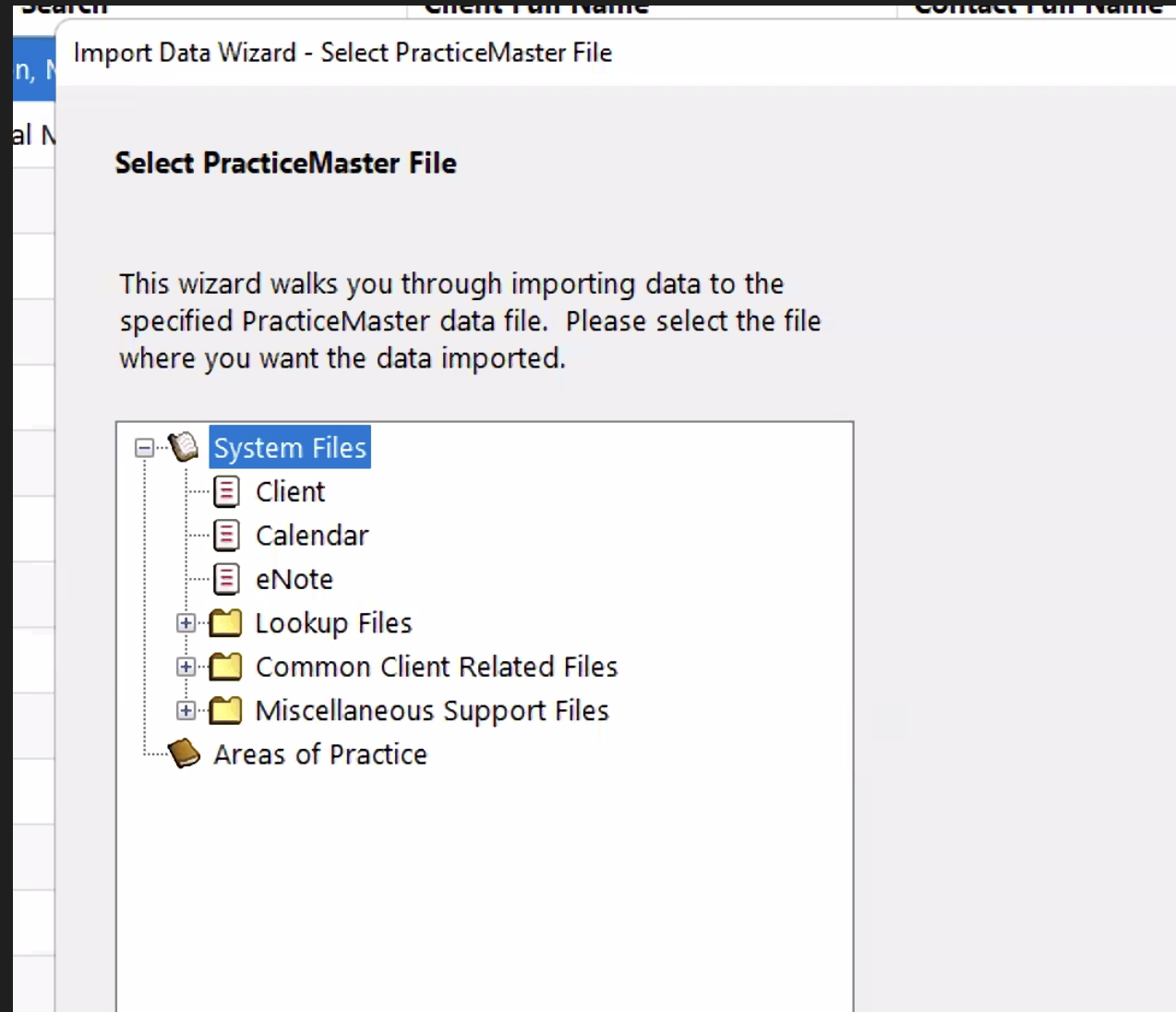
Open PracticeMaster and search for Import Data Wizard in Quick Launch. You will land on the Select PracticeMaster File screen.
Step 2: Pick the Fee file
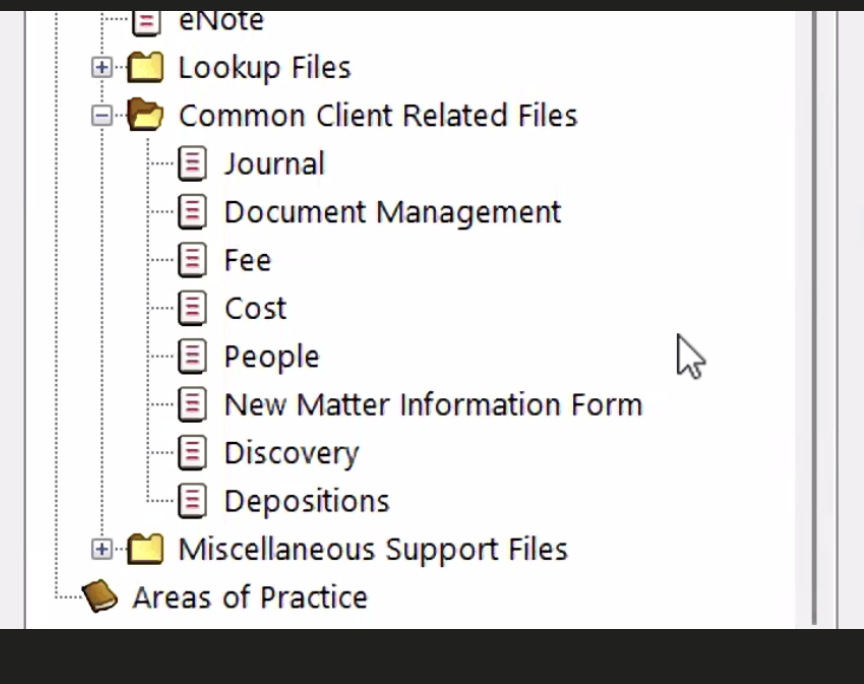
Expand Common Client Related Files, select Fee, and click Next.
Step 3: Choose your CSV
Click Browse, change Files of type to All files, select your CSV, and click Next.
Set up the import definition
Step 4: Map the fields
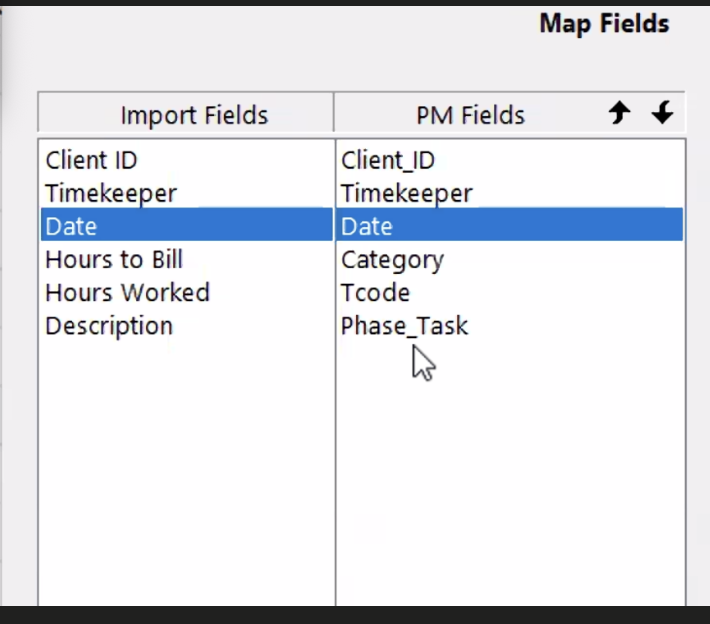
On the Map Fields screen, click each Import Field and make sure the PM Field next to it matches. If it does not, double click the PM Field, use the dropdown to pick the right one, or pick None to skip it.
Import definition alert: the two lists match row by row. In the example below, Client ID, Timekeeper, and Date are correct, but Hours to Bill, Hours Worked, and Description sit next to Category, Tcode, and Phase_Task. That is a bad mapping and the entries will import into the wrong fields.
Step 5: Save the definition
Click Save Definition. Give it a name and a description, check Make this definition the default, and click Save.
Import definition alert: the name can be 8 characters max with no spaces, for example BILLAI. Save under a new name. Existing definitions like PMFILE (a System definition) and other users' definitions cannot be overwritten.
Validate and finish
Step 6: Validate the records
Check Skip first record, then use the > button and Validate Record on each row. Fix anything that shows in red before you move on.
Step 7: Finish the import
Click Next, then Finish. Once the entries sync to Tabs3, spot check a few clients to confirm the dates, hours, timekeeper, and descriptions match your CSV.
Import definition problems and fixes
Check the import definition first when an import saves wrong or will not save. Most of these issues come from how the definition was mapped or named.
Problem | Cause | Fix |
|---|---|---|
"This definition cannot be overwritten" | You tried to save over PMFILE (a System definition) or another user's definition, like ALGFee | Close the Load Import Definition window, click Save Definition, and save under a new name |
Definition name will not save | The name is over 8 characters or has a space | Use 8 characters max with no spaces, like BILLAI |
Fees import into the wrong fields | A PM Field sits next to the wrong Import Field on Map Fields | Double click the PM Field and pick the right one from the dropdown, or pick None to skip it |
Rows show in red | Validate Record found a problem on that row | Fix the mapping or the CSV, then validate that row again |
Error 32 on the CSV | The file is still open in Excel | Close it and click Yes to try again. If it persists, copy the CSV to a simple folder like C:\Temp and browse to that copy |