Intro to Billing Guidelines
Last updated: October 1, 2026
Billing guidelines are plain-language instructions that tell Billables AI how to draft your time entries. This article is the complete reference: where to set guidelines, what they can shape, what they can't, and where to learn more.
New to Billables AI? Start with 📄 Best Practices for Effective Billing Guidelines. It covers what to do in your first week, with sample guidelines you can copy.
Where to set billing guidelines
Guidelines can be set in three places, and you can use any mix of them.
Level | Where it's set | Who can set it | Who it applies to |
|---|---|---|---|
My Preferences | Settings → My Preferences | Any user | Just you |
Organizational Preferences | Settings → Organizational Preferences | Admins | Everyone at your firm |
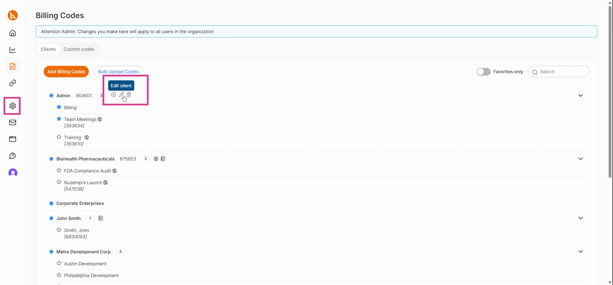
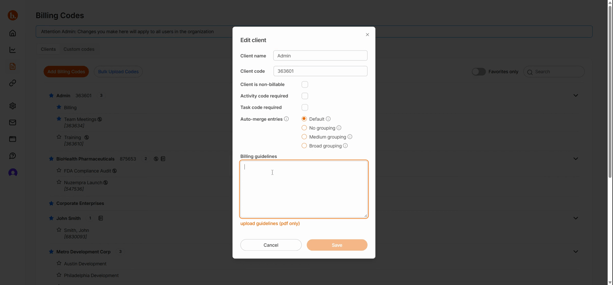
Client-specific | Billing Codes → pencil icon next to a client | Admins | Entries for that client |
My Preferences (individual users)
Step 1: Open your billing guidelines.
Go to the Settings page. In the My Preferences tab, find the billing guidelines section.
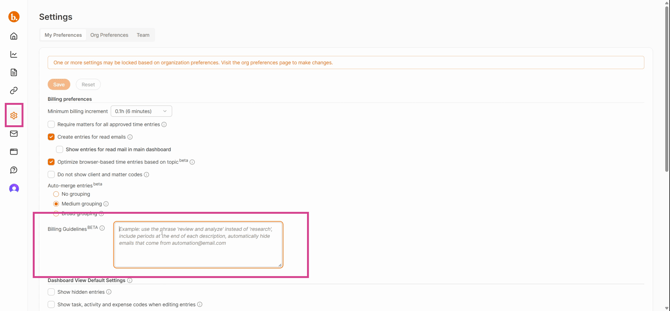
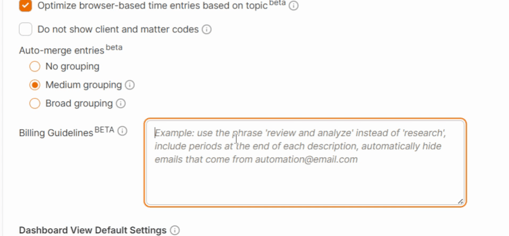
Step 2: Add your guidelines.
Type your instructions into the guidelines box, one per line. Billables AI uses them each time it drafts an entry for you.
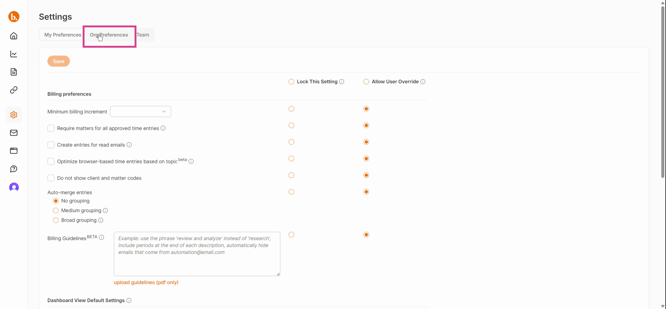
Organizational Preferences (admins)
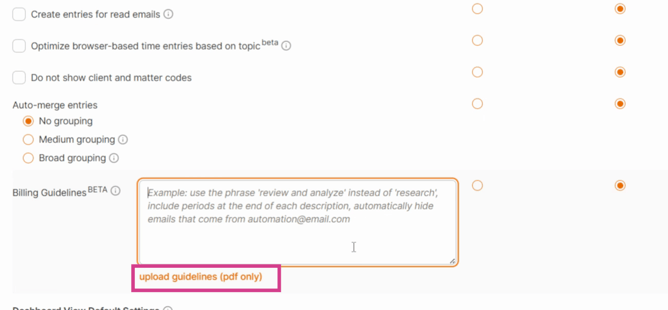
Admins can switch to the Organizational Preferences tab in Settings to set guidelines for the whole firm. If your firm has written billing guidelines, you can upload them as a PDF and Billables AI will pull out the rules it can apply.
Setting up guidelines for your firm for the first time? 📄 Onboarding: Use Billables Intelligence to write your org-level Billing Guidelines walks you through drafting a firm-wide set from your best existing time entries.
Client-specific guidelines (admins)
Go to the Billing Codes page and click the pencil icon next to a client. Add any rules unique to that client, such as formatting that client's billing terms require.
When guidelines conflict
If guidelines at different levels say different things, Billables AI follows a set order of priority, and admins can lock the firm's guidelines.
For how this works, see 📄 Billing Guidelines: How the Hierarchy Works.
What billing guidelines can shape
You don't have to label or sort your guidelines. Write them as clear instructions, and Billables AI works out what each one applies to. It still helps to know the four areas guidelines can shape, so you can cover your bases.
Area | What it shapes | Example |
|---|---|---|
Narratives | How your time entry descriptions are written | "Replace the full names of firm employees with their initials." |
Hidden vs. shown entries | Which entries appear on your dashboard | "Hide calendar entries labeled Internal." |
Client-matter matching | Which client and matter an entry is assigned to | "Assign all emails from name@domain.com to Client X, Matter Y." |
Merging | How related activity is combined into one entry | "Merge all email activity into one entry per client per day." |
Narratives
Narrative guidelines are the most common. They control wording, format, and style, and usually fall into four groups:
Inclusions: end every narrative with a period
Exclusions: remove case names, case numbers, and anyone CC'd on an email
Replacements: use "review and analyze" instead of "research," or initials instead of full names
Style: write in present tense, or start each entry with a verb
Action-oriented wording works best. "Remove references to internal staffing and generalize to the legal task" works better than "Don't include internal discussions."
Hidden vs. shown entries
Billables AI automatically hides low-relevance activity, much like a spam filter. You can see hidden entries anytime with View All on your dashboard.
Guidelines let you fine-tune that filter based on the activity behind an entry, including emails, calendar events, and calls. For example:
Hide email entries where every recipient uses your firm's domain
Hide emails from an automated sender
Always show calls with "Client Call" in the title
For more, see 📄 Hidden Time Entries.
Client-matter matching
These help Billables AI assign activity to the right client and matter. You can base them on:
People: anyone you email, meet with, or call ("Assign all meetings with x@company.com to Client C.")
Content: a name, keyword, or code that appears in the activity ("Assign anything mentioning xyz12345 to Client D, Matter E.")
Use client and matter names exactly as they appear on your Billing Codes page.
Merging
Merging guidelines control how related activity is combined into a single entry, for example "Merge all email activity into one time entry per client per day."
They work alongside the grouping setting in Settings (no grouping, medium grouping, or broad grouping). The grouping setting decides how much Billables AI merges overall, and merging guidelines add specific rules on top.
For more, see 📄 Automatic Merging of Time Entries and 📄 Best Practices for Block Billers.
What billing guidelines can't do
Guidelines shape how each entry is written and filtered. A few things are handled elsewhere in Billables AI, and a few depend on more than one entry at a time.
Things set outside of guidelines
If you want to control... | Set it here instead |
|---|---|
How durations are rounded | Settings |
How much entries are grouped (no, medium, or broad grouping) | Settings |
Whether an entry is billable or non-billable | Billing Codes page, per client and matter |
Task and activity codes, including UTBMS | Billing Codes page |
A client, matter, or code that doesn't exist yet | Billing Codes page (add it there first) |
Client-matter matching guidelines help Billables AI choose the right client and matter, but they aren't a hard rule. If an entry lands on the wrong matter, reassign it and Billables AI learns from the change.
Something to note: some conventions need both. For example, if internal meetings should be non-billable and worded a certain way, set the billable status on the Billing Codes page and add a narrative guideline for the wording.
Rules that span more than one entry
Billing guidelines work one entry at a time. Each entry is drafted by looking at that activity on its own.
Many firms have outside counsel guidelines (OCGs) from their clients. These often include rules that span a whole invoice, such as staffing limits, rate caps, monthly hour limits, or submission deadlines. Rules like these depend on other entries or totals, so they can't be applied when a single entry is drafted.
If you upload a client's OCG, Billables AI pulls out the rules it can apply to individual entries. Keep your usual pre-bill review for anything invoice-wide.
How guidelines and learning work together
Billables AI also learns from your edits, approvals, merges, splits, and hidden entries. Guidelines give it a head start, and your daily review keeps sharpening it.
Related articles
📄 Best Practices for Effective Billing Guidelines: the first-week guide, with sample guidelines
📄 Billing Guidelines: How the Hierarchy Works: what happens when guidelines conflict
📄 Onboarding: Use Billables Intelligence to write your org-level Billing Guidelines: for admins setting up the firm