
Step 1: Download the Billables AI Desktop from the Integrations page and open the file.
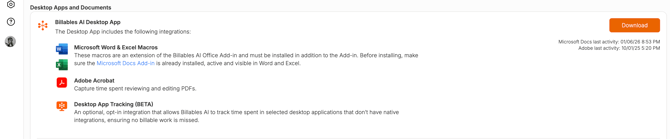
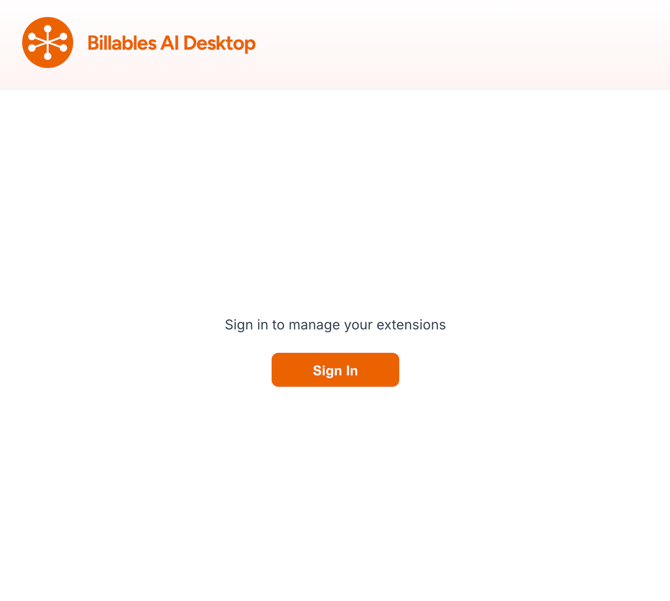
Step 2: When prompted, sign in using your Billables AI credentials.
Step 3: Allow access for the Billables AI app: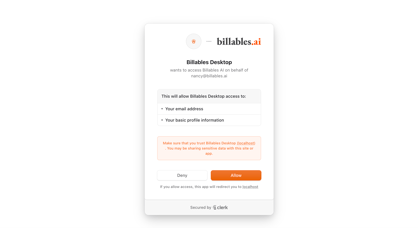
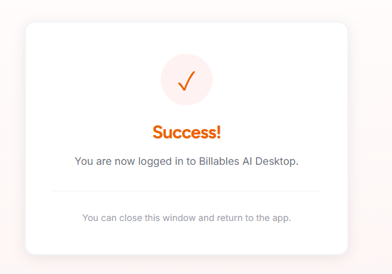
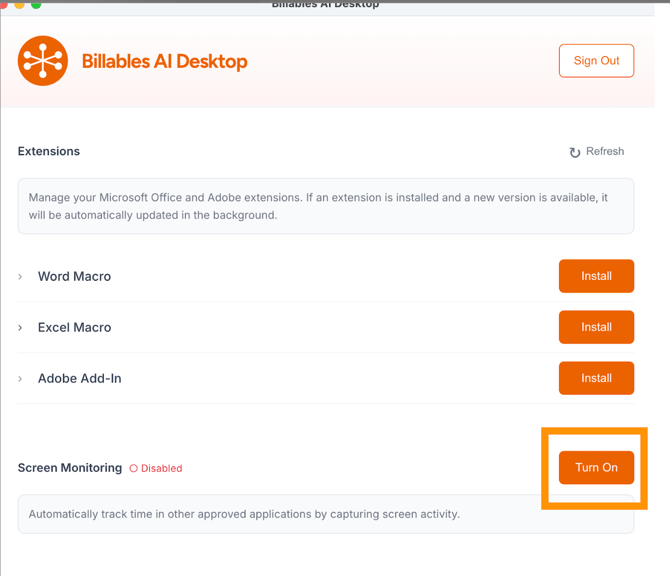
Step 4: In the Billables AI desktop app, scroll down to the screen monitoring section and click to turn on the feature:
Step 5: Open your Microsoft Word program
Step 6: In the search bar, simply type in Microsoft Word. The program will auto-populate Word if you have a Word window open behind the Billables AI Desktop app. 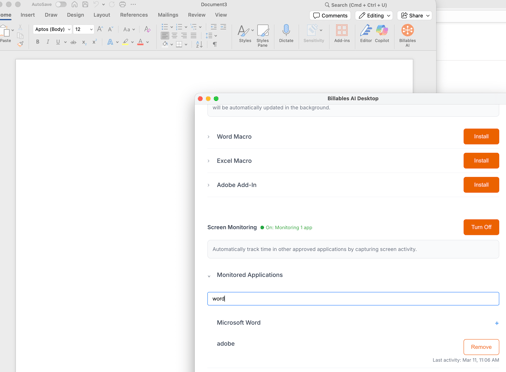
This workflow is used to add Excel, PowerPoint, and any other desktop applications you want Billables AI to track. Once added, each tracked app will appear in the Billables AI desktop program along with a timestamp showing when activity was last detected.