
Desktop App Tracking is an optional, supplemental way to capture activity from specific desktop applications you choose to track. Billables AI will only track the applications you explicitly add, and nothing else.
Before You Begin:
-
You must have an active Billables AI account.
-
Desktop App Tracking is optional and can be enabled or disabled at any time.
-
Activity is captured only from the desktop apps you select.
Implementation
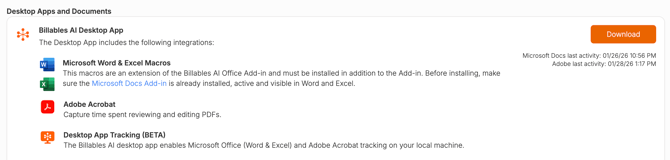
1. Download the Billables AI Desktop from the Integrations page and open the file.
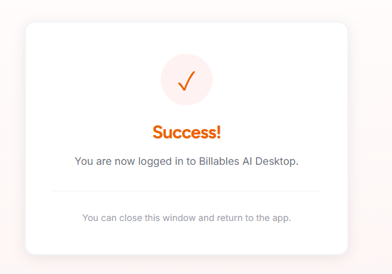
2. When prompted, sign in using your Billables AI credentials.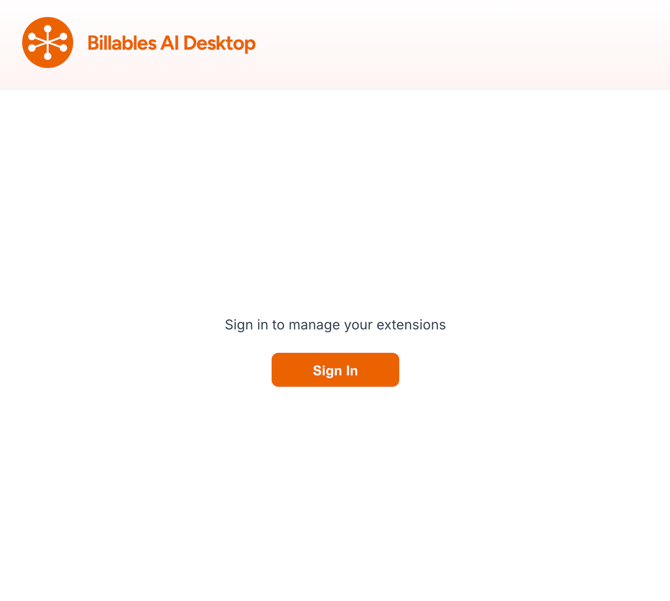
3. Allow access for the Billables AI app: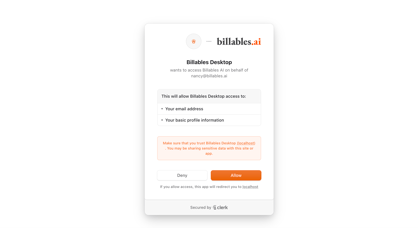
Mac users will need to grant access to accessibility features. Learn more here.
4. In the Billables AI desktop app, scroll down to the screen monitoring section and click to turn on the feature: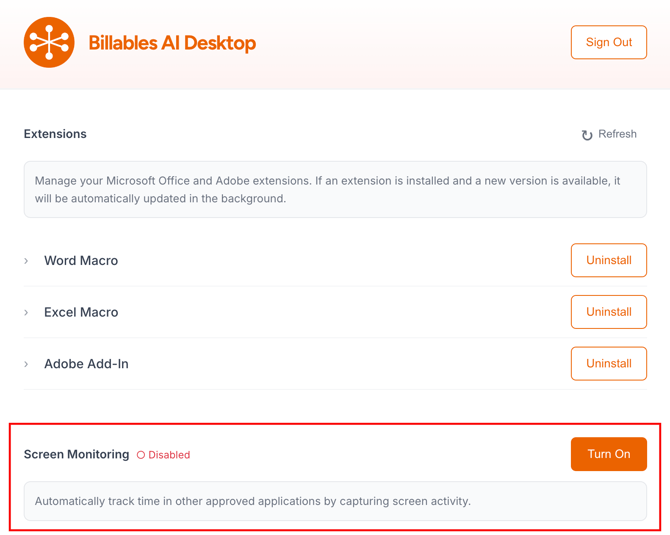
5. Search to add applications you want to track. Billables AI will only track applications you select. Follow the steps below to add additional applications.
-
- Open any application
- Any applications you currently have open will show up in a dropdown selection.
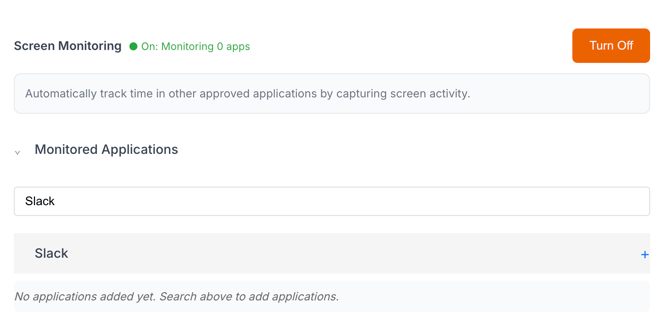
- Otherwise you can enter a keyword and Billables AI will capture any applications with that keyword.
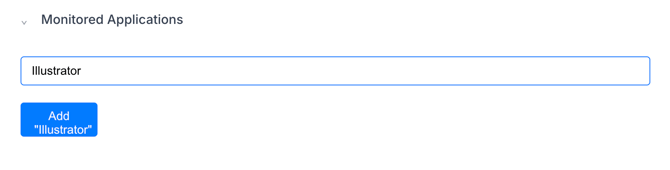
6. Add as many applications as you want. You'll see the list of tracked apps in the Billables AI program along with the timestamp of the last activity detected.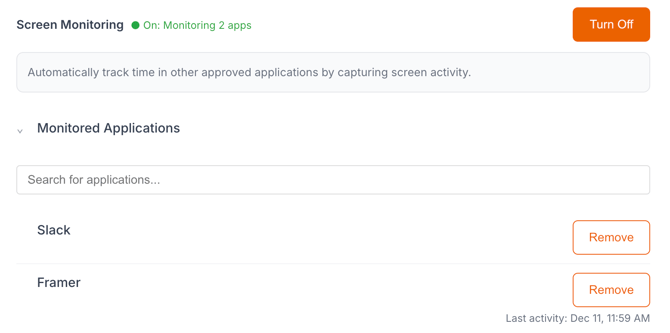
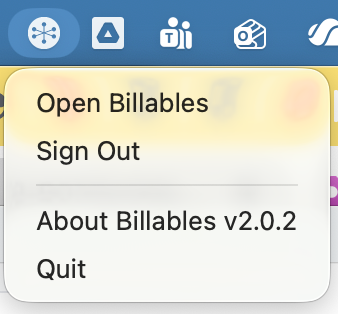
7. Confirm that the app is running in the background (you may see it in your menu bar at the top of your computer or system tray).
Macs:


Important: Billables AI will only track activity from the applications you add. If an app is not selected, no activity from it will be captured.
Mac Users: Enable Accessibility Features
- For Macs, grant access to accessibility features when prompted by Open System Settings:

- Find the Billables AI Desktop app and toggle it on:
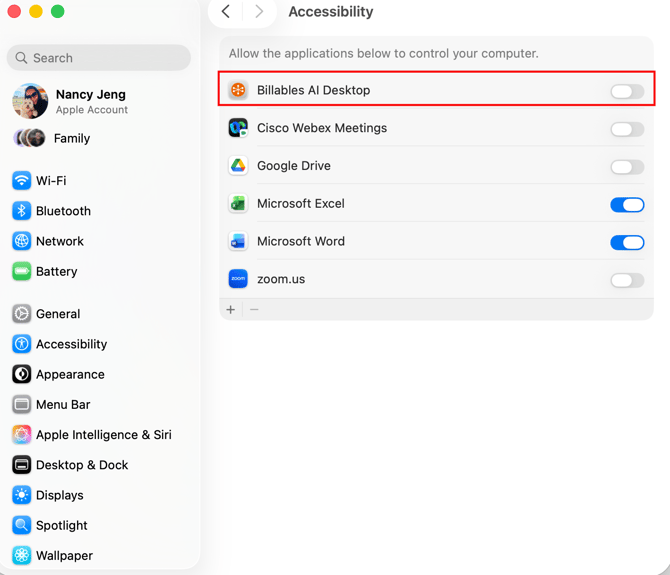
- Quit and re-open for changes to take effect

FAQs
How to I remove or add tracked applications?
To add or remove tracked applications, open the Billables AI Desktop App. Go to the Desktop App Tracking section and click to Remove any currently tracked Apps or search to add new ones.
I got an error: "This application uses a native integration and is not eligible for screen monitoring"
This means that you currently have a direct integration already set up with an existing application (e.g. a Teams integration or Word integration). In this case, we prevent you from enabling screen tracking to avoid duplicate time entries. If you'd prefer to capture activity via desktop app tracking instead of direct integration, simply disable the integration from the Integrations page and try again.
How to I stop Desktop App Tracking Entirely?
To stop Desktop App Tracking entirely, quit or disable the desktop app at any time.
Troubleshooting Tips
-
If you don’t see activity, confirm the desktop app is running and the application you’re using has been added to the tracking list.
-
Make sure required system permissions are enabled.
-
If issues persist, contact Billables AI Support.