
Security Note: This ensures integrations are secure, compliant, and restricted to authorized employees. For more information about Billables AI privacy and protection, see our Security Overview.
Microsoft 365 Mail/Calendar Instructions
Enable delegated permissions: Visit this the integrations page from your Billables AI dashboard. Click on the Authorize text, illustrated below.
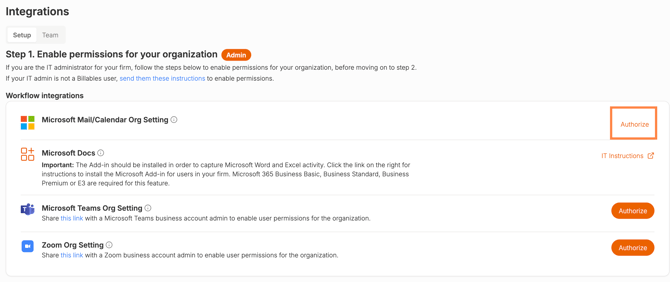
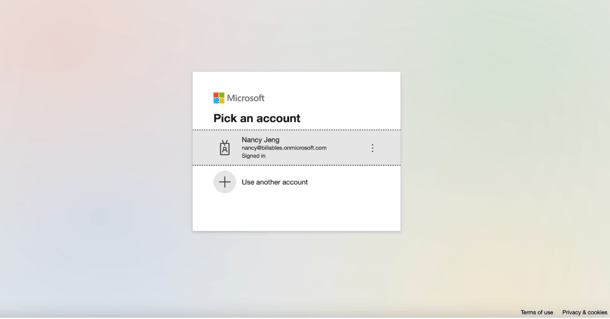
This will load your administration controls. Log in with your company account and click "Accept when prompted:
Please Accept required permissions. These permissions are necessary in order to collect activity data to be processed by Billables AI into actionable time entries. 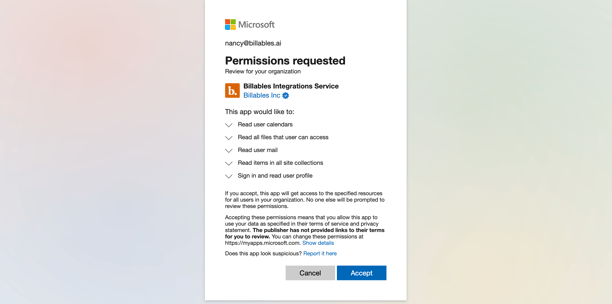
Microsoft Docs IT Admin Deployment
Our recommended approach for most firms is application capture via the desktop app. This method is the most seamless and does not require any additional setup within Microsoft applications.
For firms with specific requirements, we also offer a Documents Add-in, which requires admin deployment of the Word add-in. A step-by-step guide to that process can be found here.

In most cases, the desktop app provides full coverage, so the add-in is typically not necessary.
Microsoft Teams
Navigate to the Integrations page of your Billables AI account and click the Authorize icon on the right hand size.
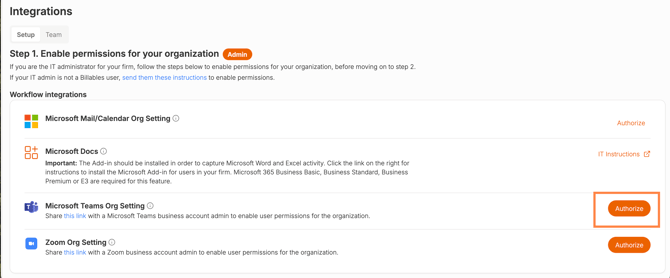
Proceed with instructions as prompted.
Zoom Instructions
To enable organization-wide Zoom integrations, your company or firm must have an active enterprise Zoom license.
Individual users holding a Zoom Pro or higher subscription may connect their personal accounts for individual use.
Navigate to the Integrations page of your Billables AI account and click the Authorize icon on the right hand size.
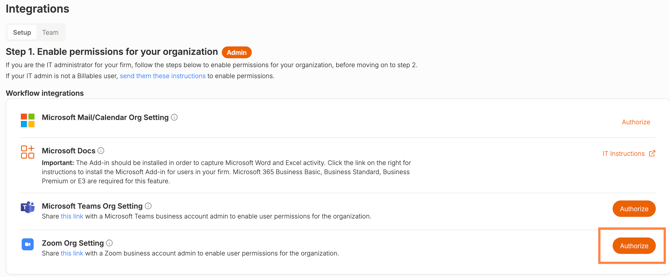
Proceed with instructions as prompted.
Note: User Level Integrations
Once organization permissions are enabled, individual users can proceed to the Integrations page to turn on their own integrations. These connections let Billables AI securely capture activity from your accounts, like email, calendar, and meetings, so your time entries can be created for you automatically.
