Get to Know Your Dashboard
Last updated: October 1, 2026
This guide walks you through the dashboard’s essential features and functions so you can manage entries efficiently, tailor your workspace, and streamline your billing process.
Approving and Reviewing Time Entries
Time Entry Source
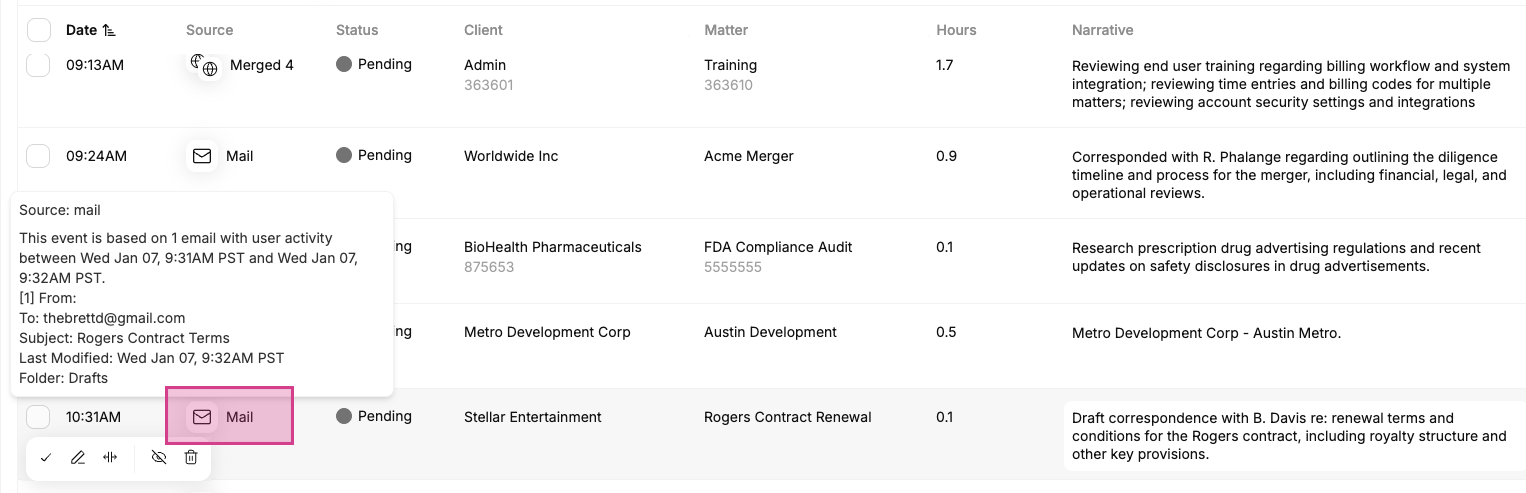
Click or hover over an entry for more details, such as the associated activity, email, calendar event, or document. This transparency helps you understand the context behind each entry.
Time Entry Status
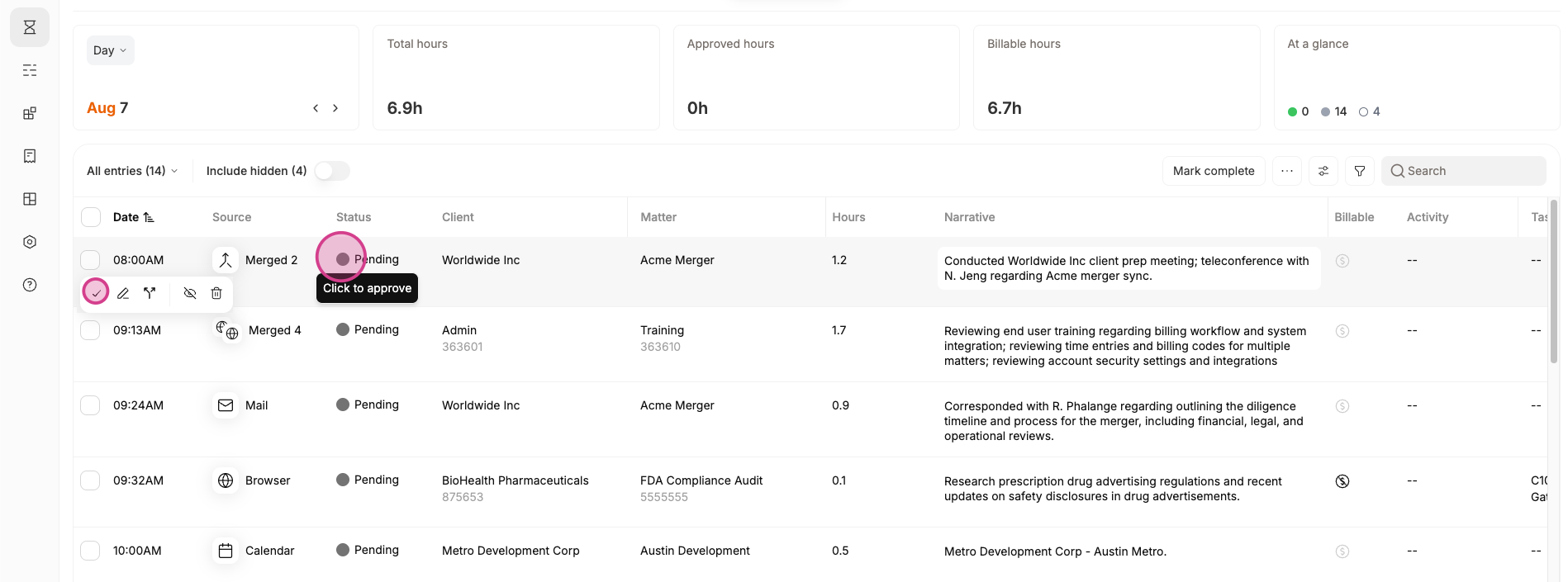
The most important action you can take to improve the AI is to approve any finished and completed entries. To do this, click the check mark icon next to the entry you wish to approve or click on Pending in the status column.
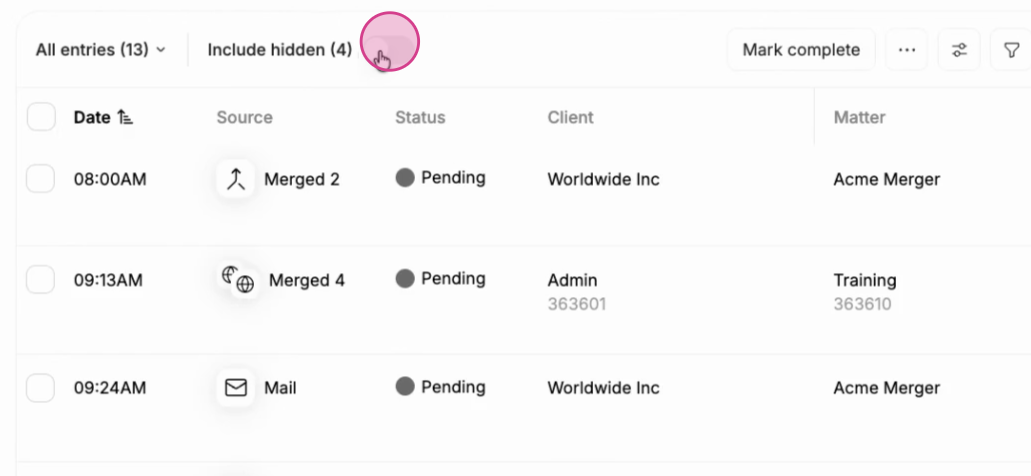
Billables AI hides low relevance time entries by default. To view these, toggle the Include hidden slider.
Read more: 📄 Hidden Time Entries
Customize Your Billables Dashboard: Filter, Sort and Reorder
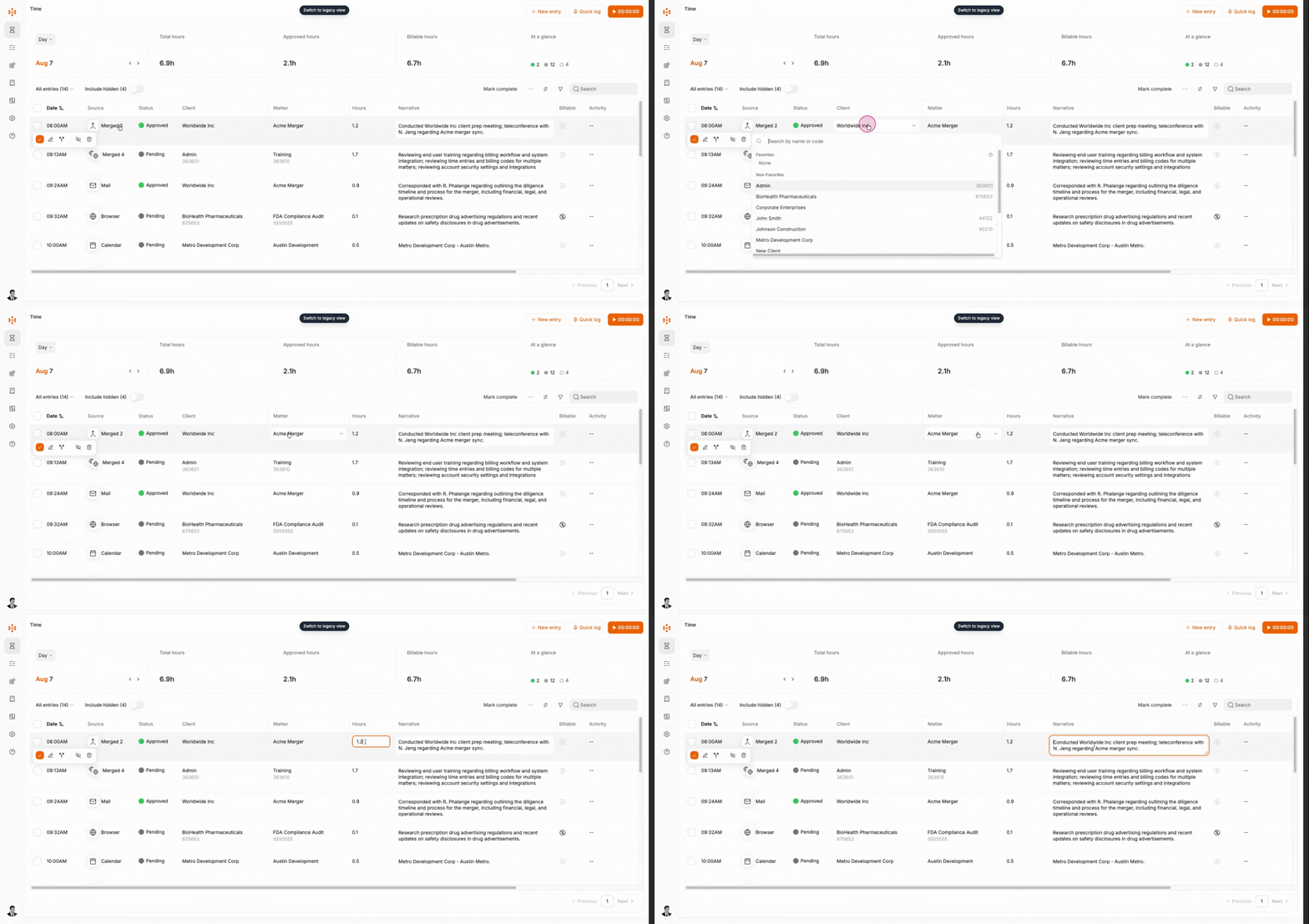
The dashboard is a fully in-line editable and customizable table.
Click into fields to edit entries directly from the dashboard:
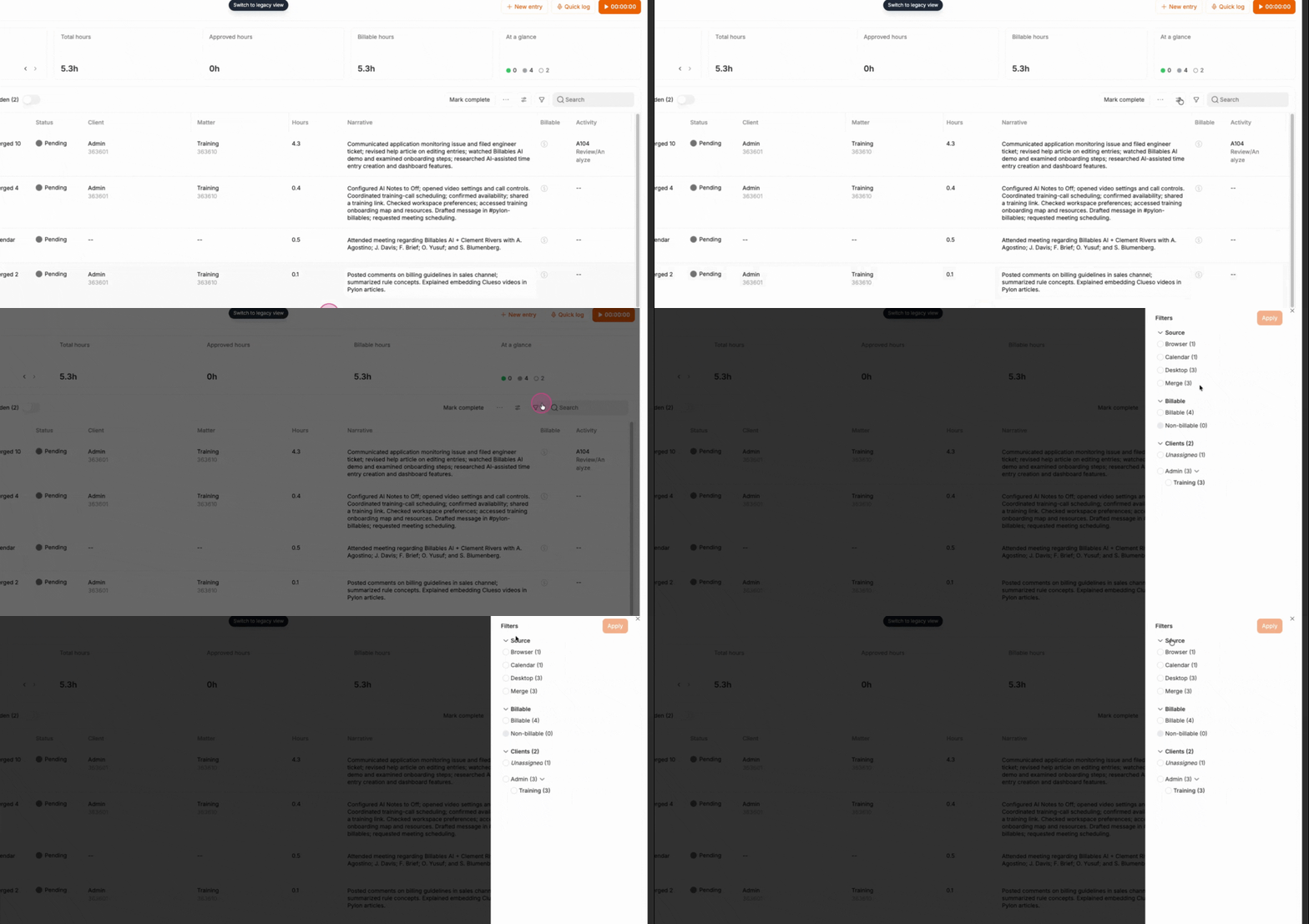
Any column can be filtered with the far-right filter button. Status is filtered by the far-left All entries picker and Include hidden toggle.
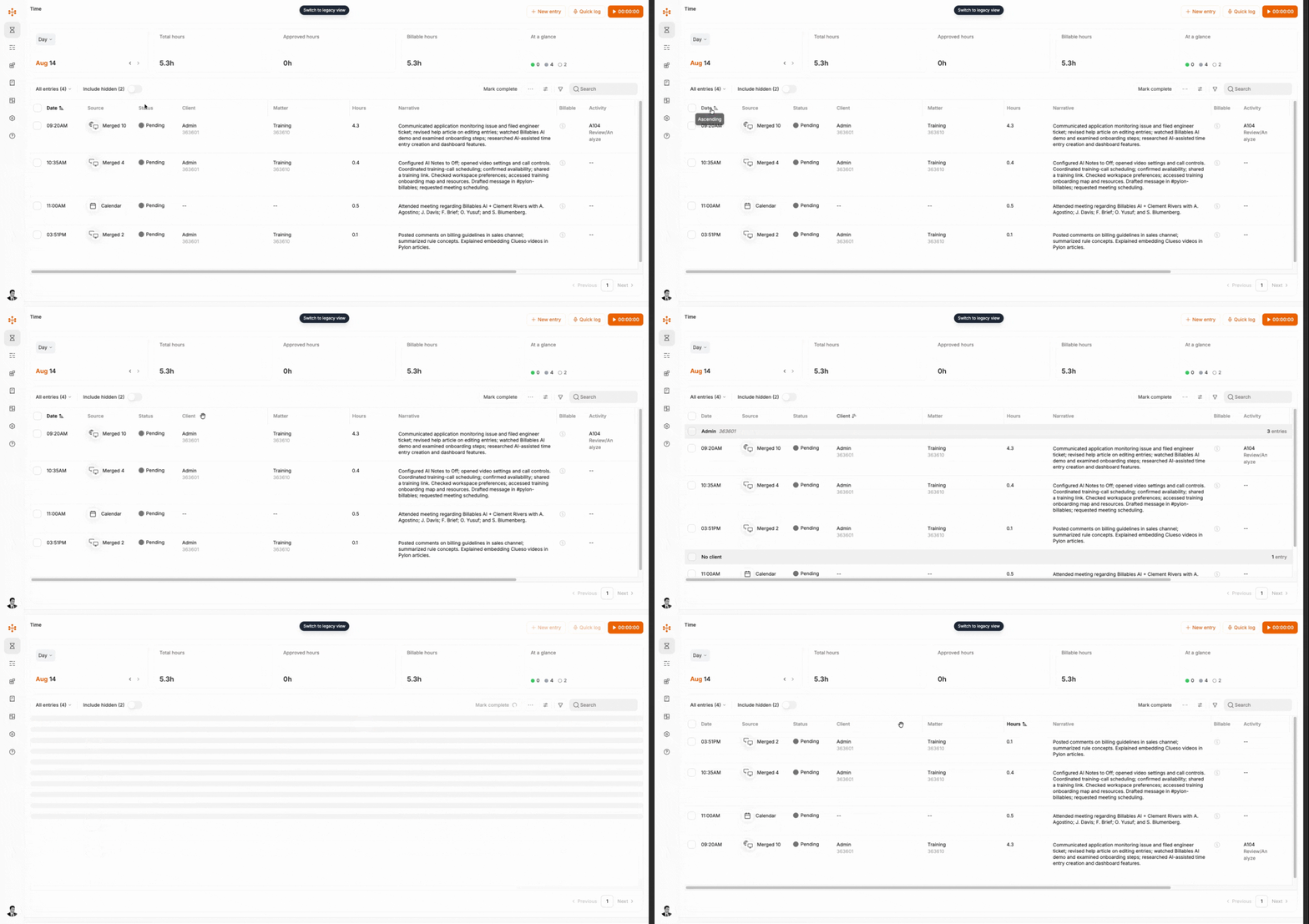
Entries can be sorted by any column type:
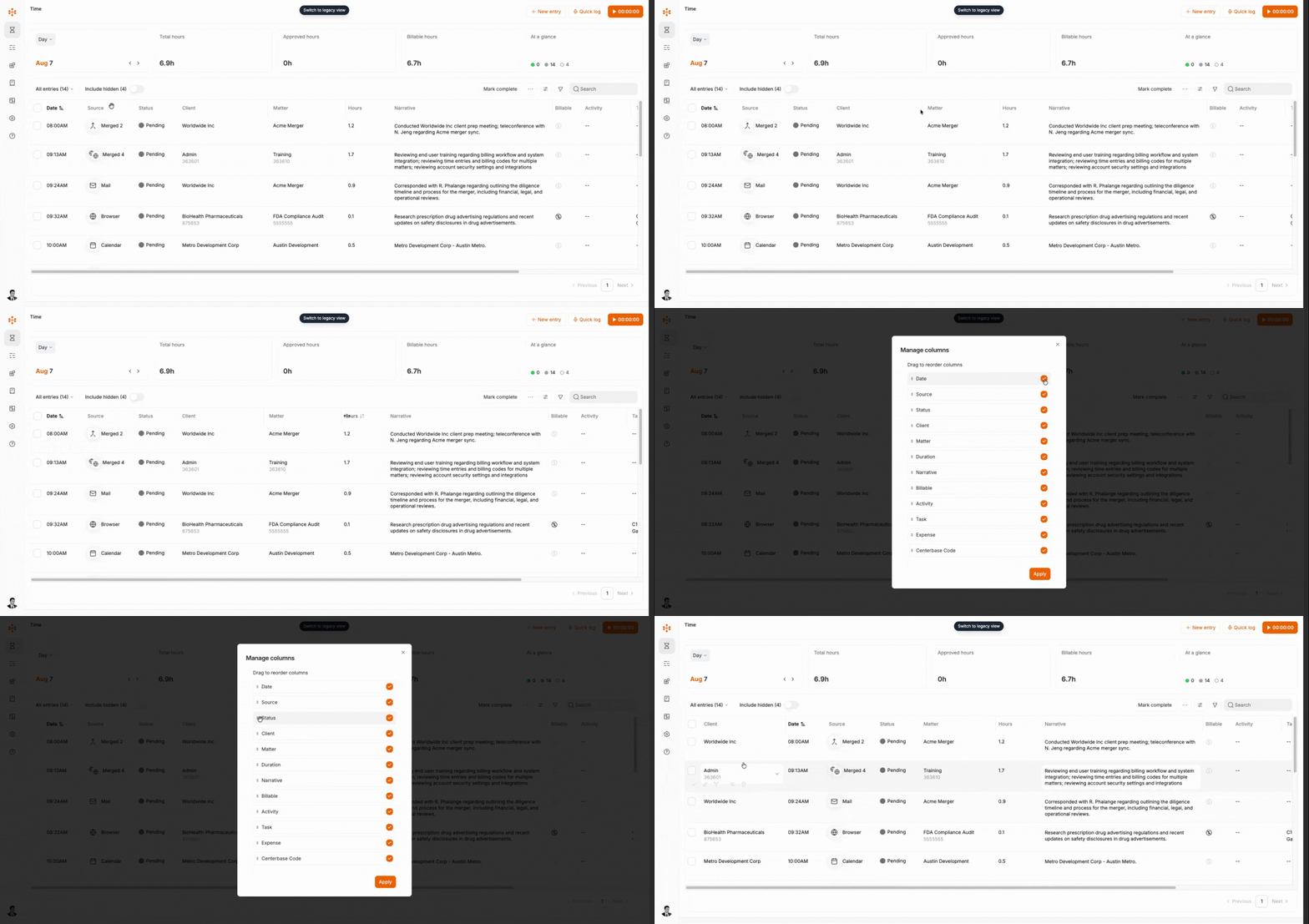
Columns can be reordered and hidden from the Manage columns button. Also their widths can be adjusted:
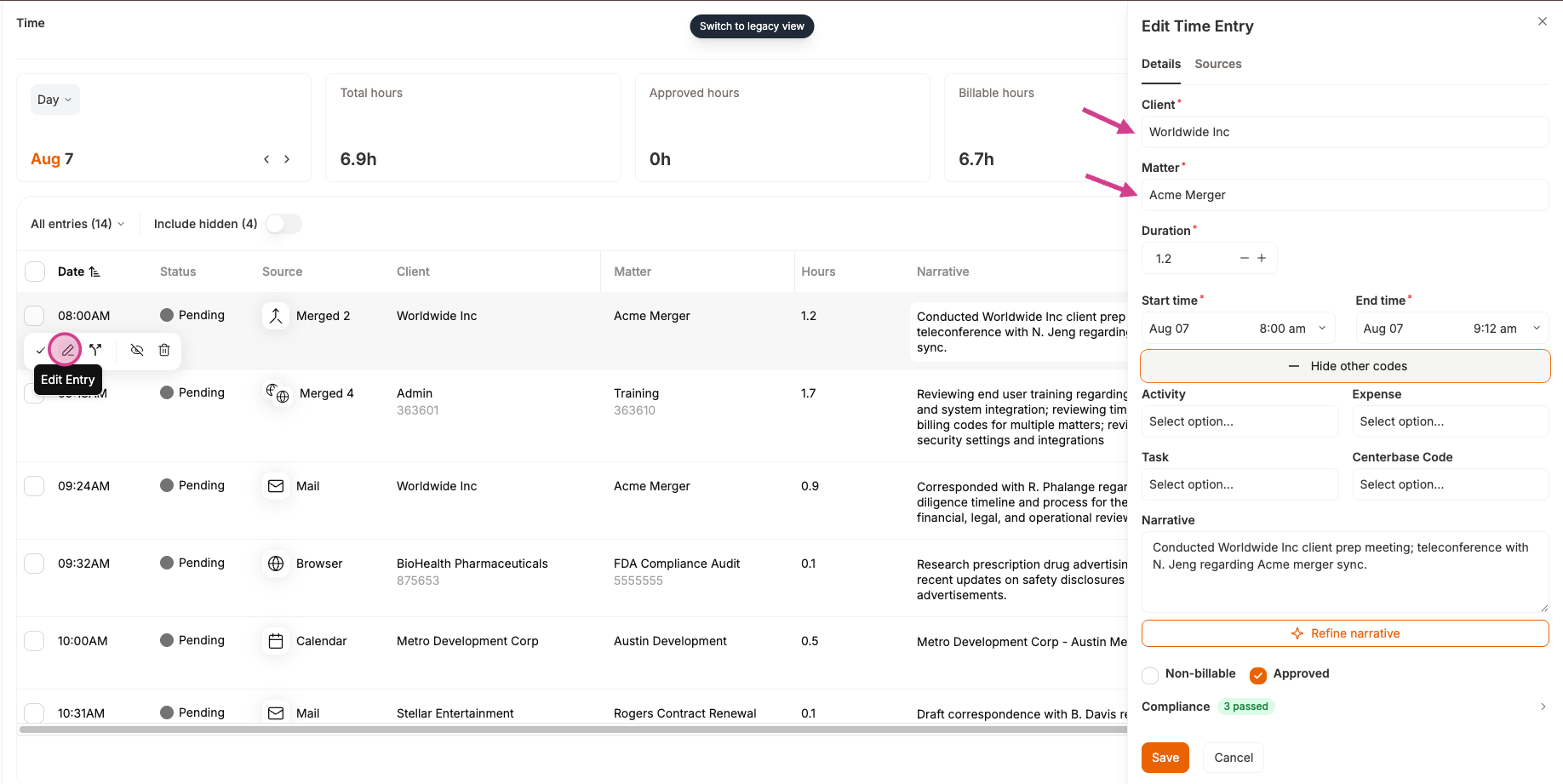
Editing Entries
Clicking the pencil icon will bring up the full time entry editing menu. Adjust client, matter, billing codes, or the narrative to ensure entries are accurate before approval or export.
Manually Merging Entries
Select at least two entries and use the Merge button to manually combine their durations and narratives. This is helpful when multiple activities relate to a single billing event.
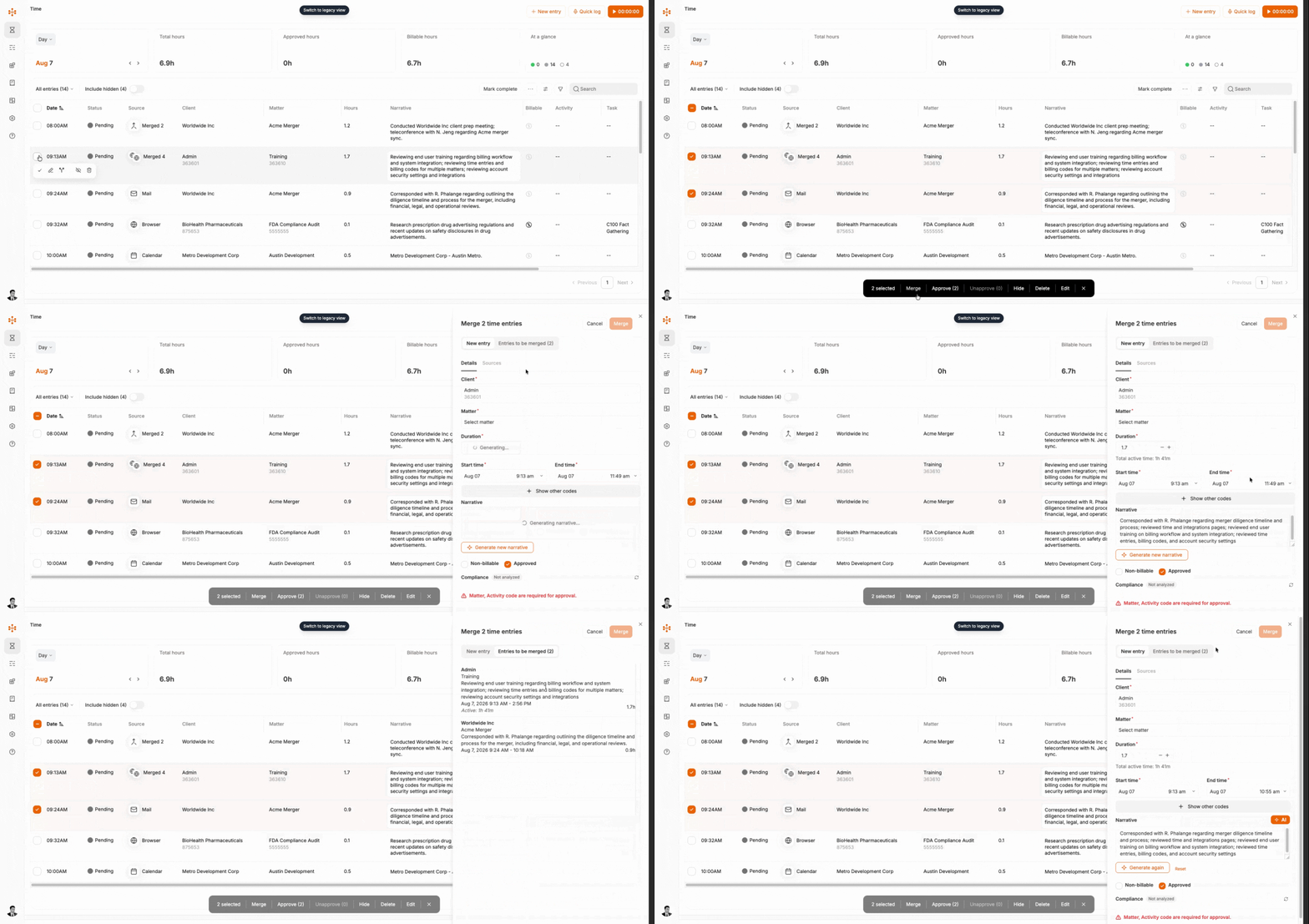
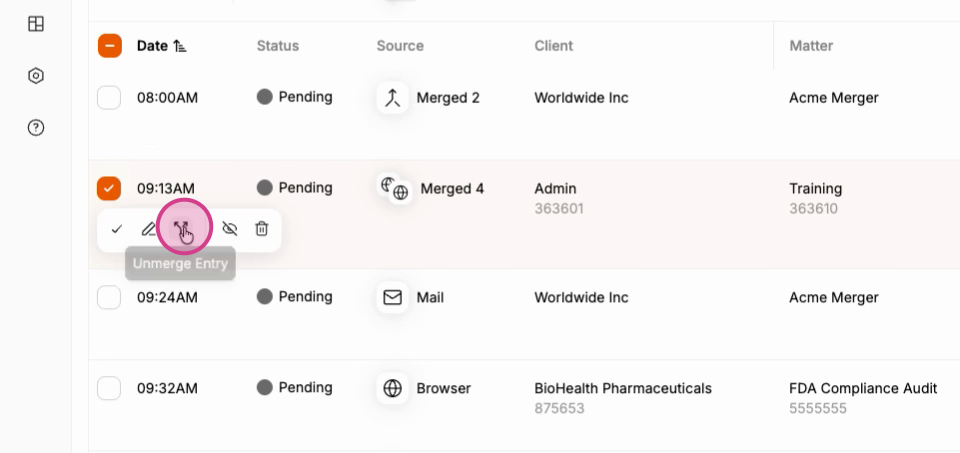
Unmerge entries by clicking on the Unmerge Entry button on a merged entry.
Read more: 📄 Automatic Merging of Time Entries
Splitting Entries
Splitting entries is distinct from merge/unmerge. Splitting effectively duplicates a given entry. A merged entry cannot be split.
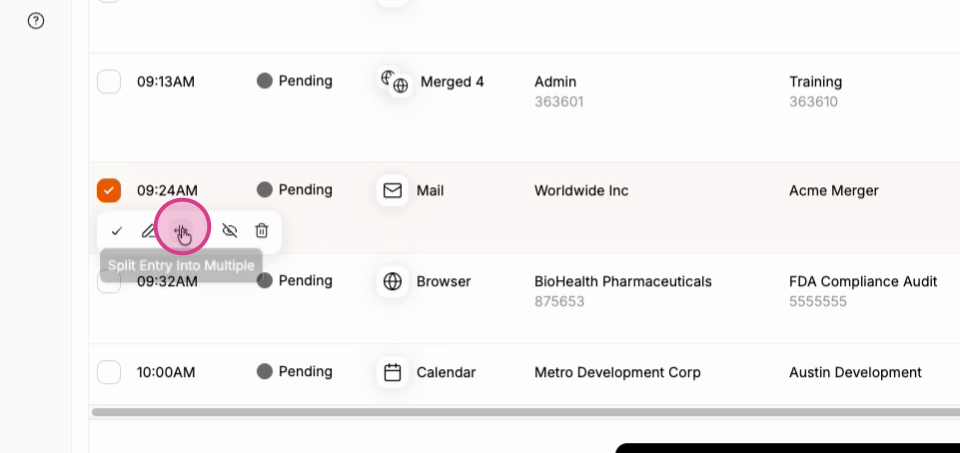
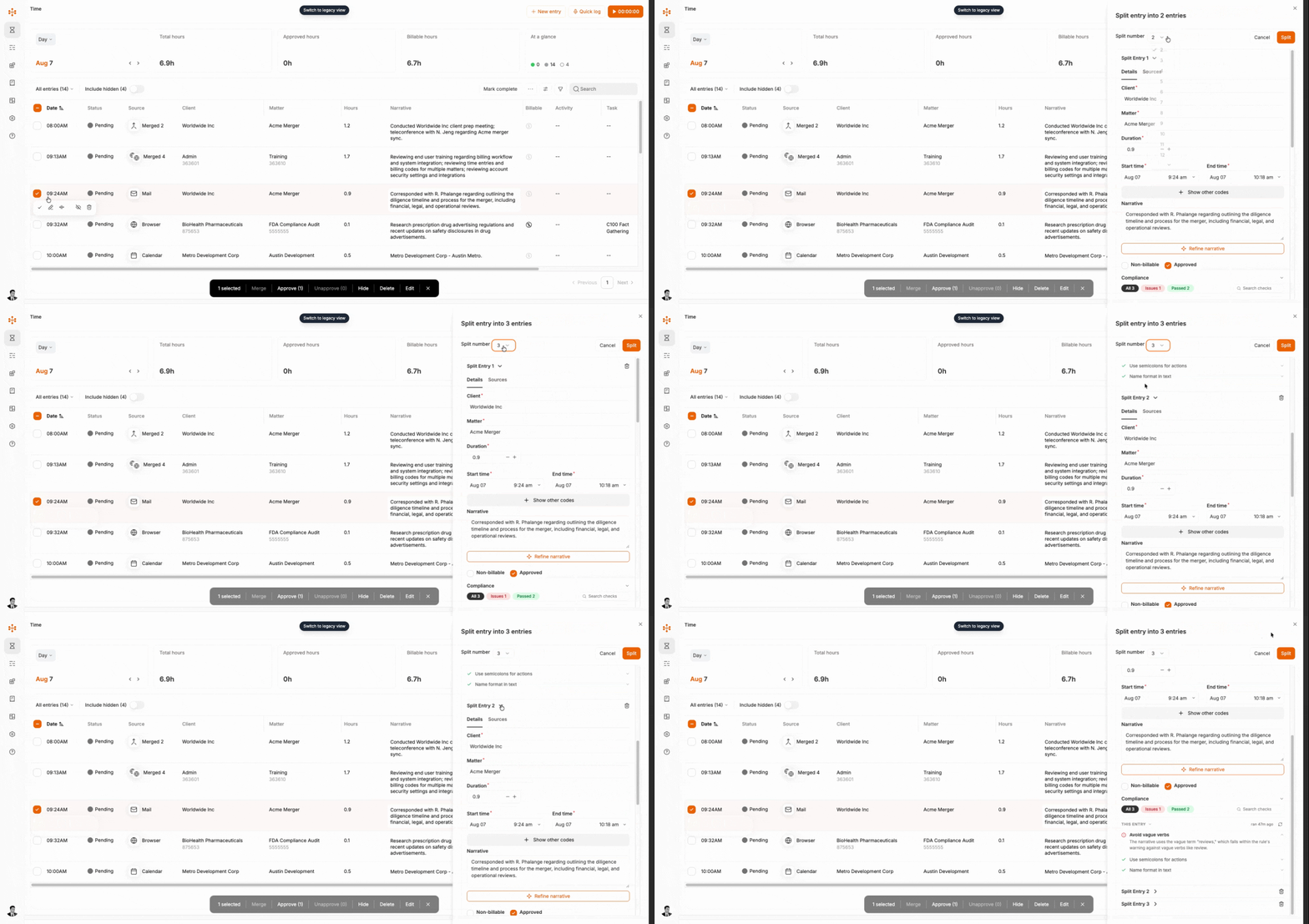
If a time entry covers more than one task, click the Split Entry Into Multiple to split the singular entry into multiple entries.
Specify how many entries to create and edit each new entry for accuracy.
Dashboard Settings
Access your Settings page to tailor dashboard behaviors. Start by configuring narrative description preferences, then decide whether to enable automatic merging of similar entries.
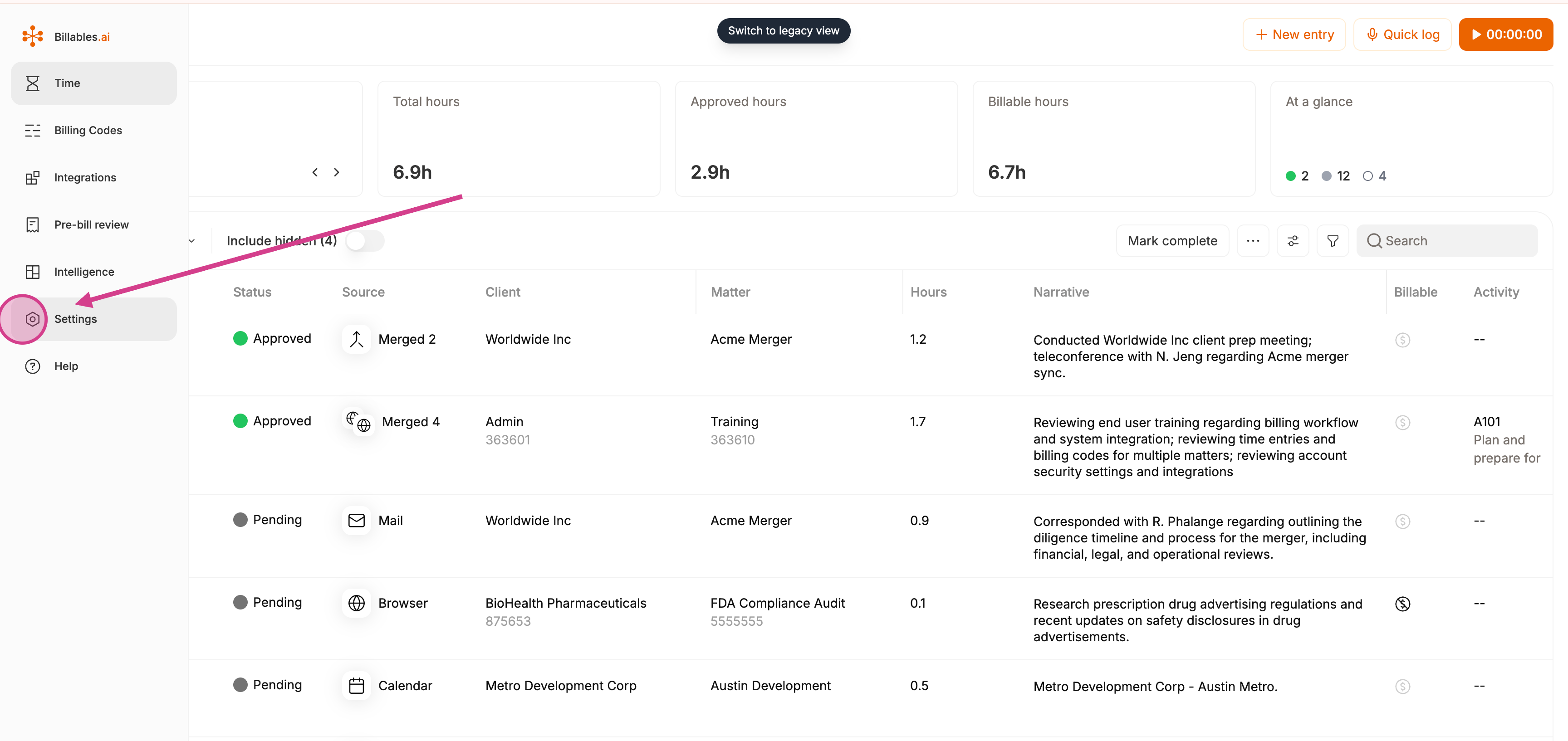
Read more: 📁 Settings
Exporting Approved Entries to Your Billing Platform
Once finalized, time entries become ready for export.
If you are a Clio, MyCase, LeanLaw, SurePoint, Orion or Centerbase user, we recommend using the direct billing integration instead. This can be found on the Integrations page.
Read more: 📁 Billing Platform Integrations
Exporting May Require Manual Action
Review your dashboard to ensure all desired entries are accurate before you proceed.
Click the three dots
...Click
Download entriesTailor start and end date and download format and click
Download
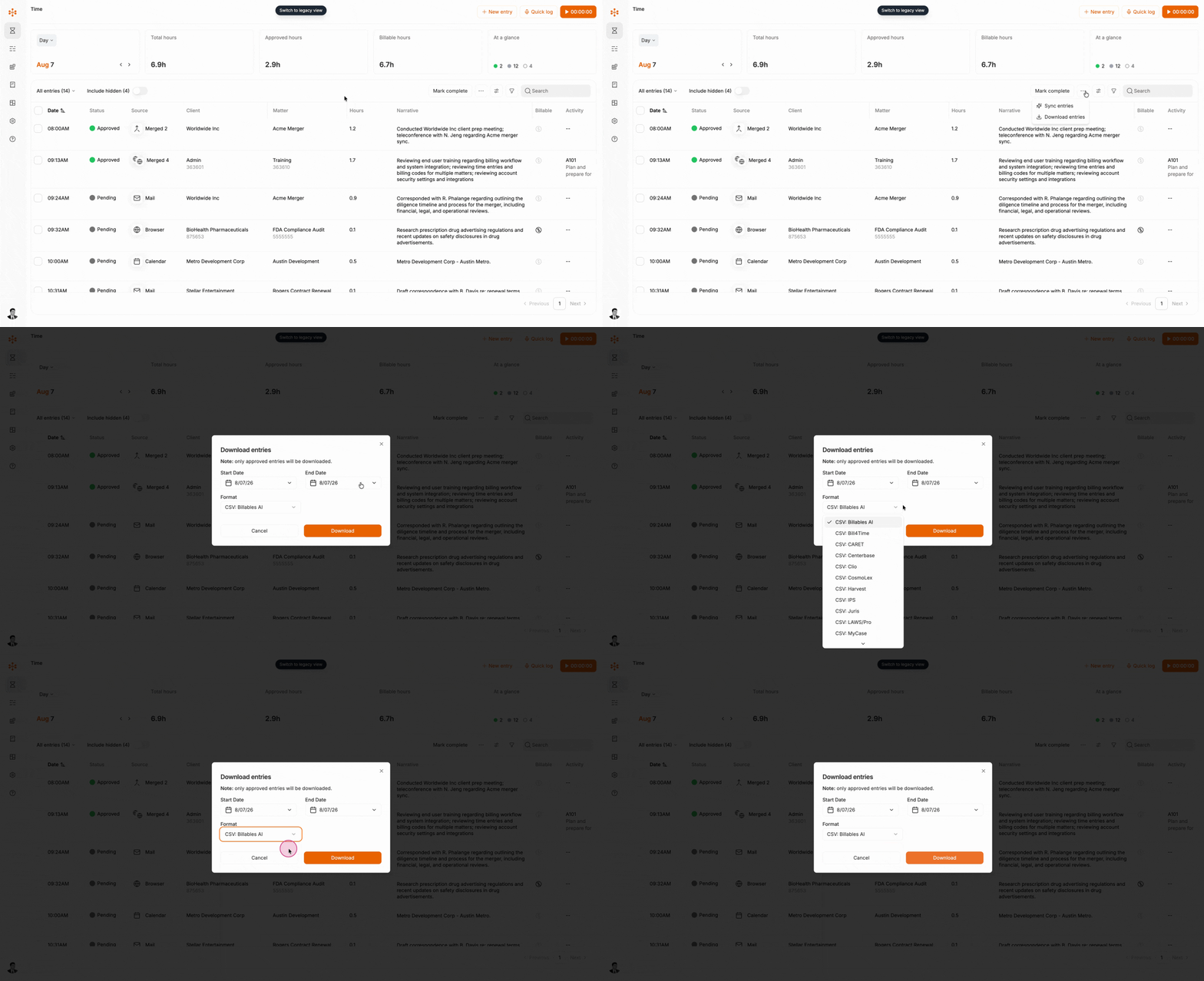
Only approved entries will be downloaded.