
Billables AI makes it straightforward to set up custom codes tailored to your firm’s needs.
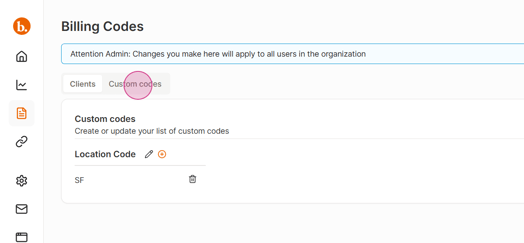
Step 1) To begin, navigate to the Billing Codes page (highlighted in orange on the left-hand panel) and select the Custom Codes tab.
Step 2) Enter a descriptive name for your new custom code. These are often a specific office location, or specific activity category.
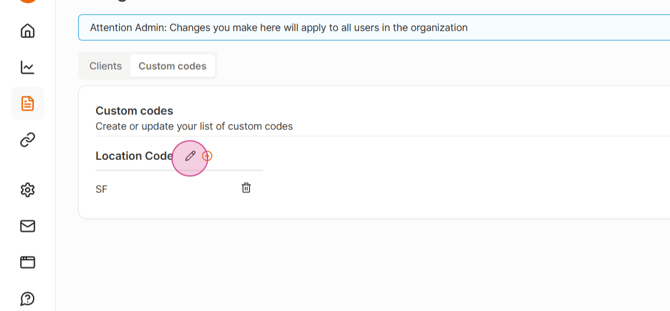
Step 3) Then click Add Code Value plus icon to include your desired custom fields.


Your custom codes are now ready for use. They will appear as selectable options on your time entries and can be assigned whenever appropriate.