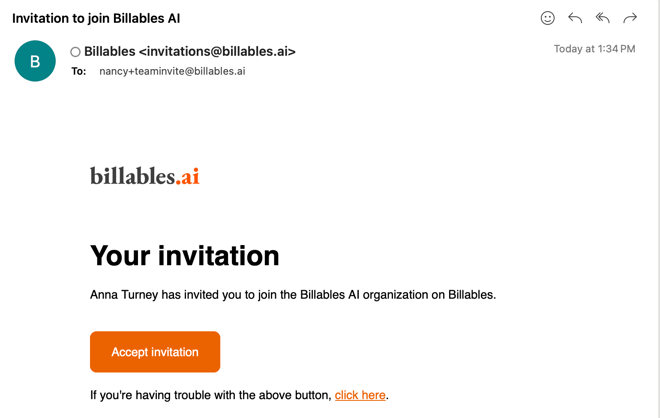
Admins can invite new members to join their organization directly from the Billables AI settings page. Once invited, users will receive an email invitation to create their account and can begin using Billables AI right away.
How to Invite a New Member
-
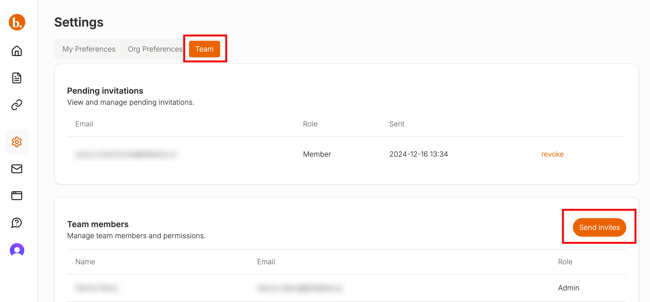
Go to Settings in your Billables AI account.
-
Select the Team tab.
-
Click Send Invites.
-
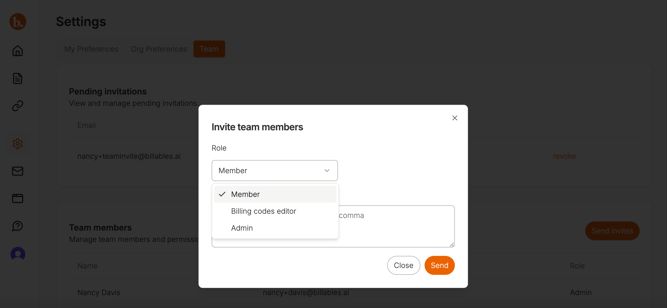
Choose the appropriate role for the member(s). Learn more about roles here.
-
Enter the member(s) email address(es).
-
Send the invitation(s).
What Invited Members See
-
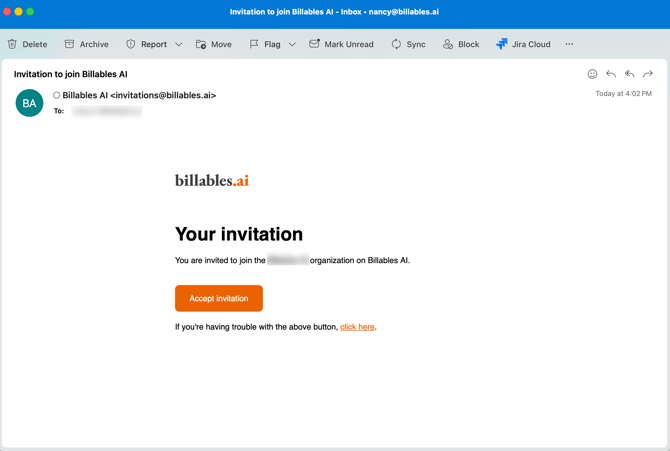
The invited member will receive an email invitation with a link to create their Billables AI account (see example below).
-
They must accept the invitation and set a password to activate their account.
-
Once completed, they’ll have access based on the role assigned.
Billing for New Users
Any new users added to your organization are automatically updated in billing based on your current plan rates.
Need Help?
If an invited member doesn’t receive their email, ask them to check spam or junk folders. If you need further assistance managing users or roles, contact Billables AI support: support@billables.ai
Invited members will receive an email with instructions to Accept their invitation: