
Enabling the SurePoint Integration
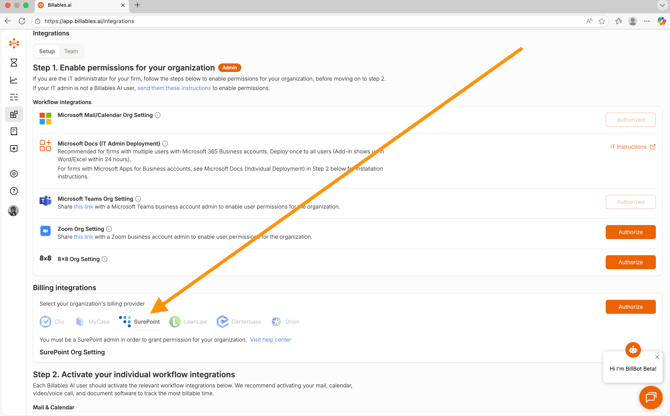
Step 1: Select SurePoint from the Billing Integrations section of the Integrations Page:
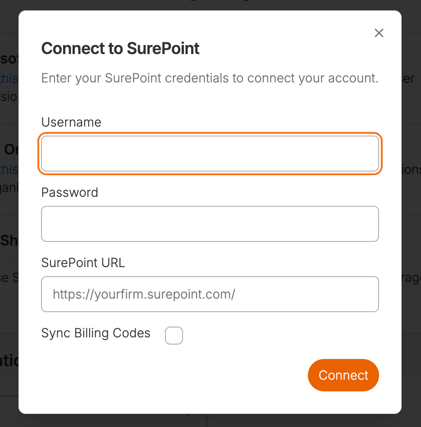
Step 2: Login with your SurePoint credentials:
SurePoint requires a service account for API access. If you don’t have one, contact your SurePoint account manager.
Step 3: Allow the upload of your client matters. This may take some time, up to a few hours, but Client Matters will begin to populate on your Billing Codes page. 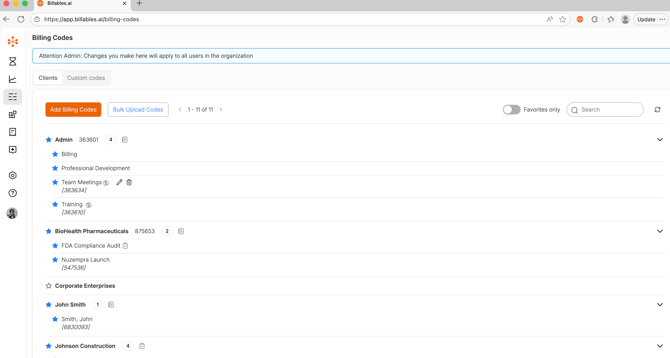
Important: For Billables AI to successfully release time entries to SurePoint, each attorney's email address must be entered in the correct field within LMS.
To verify you are configured properly, please see instructions below
- Open LMS on your desktop.
- Navigate to the Attorney Maintenance File: Typically, this can be found following this path: Master File Maintenance → Attorney → Attorney Maintenance, however the path may differ in your configuration.
- Search by the attorney name
- Open the attorney’s record
- Navigate to the Personal section
- Add or confirm the attorney's email address in the designated email field.
- Save the record.
⚠️ Note: The email entered in SurePoint must match the attorney's email in Billables AI for the integration to function correctly. If a user has been unable to export to Surepoint, please confirm their credentials are entered correctly in LMS before reaching out to support@billables.ai
For more tips on integrating Billables + SurePoint, visit the Time Entry Export to SurePoint FAQ.