
How It Works
- A one-time setup is all it takes to connect Orion to Billables.
- Once connected, an initial sync will import your client and matter codes.
- Your billing codes will be managed via Orion instead of Billables.
Before you begin: You will need specific credentials from Orion before getting started. See Step 1 below for details.
Step 1: Gather Your Orion Credentials
Before anything can be configured in Billables, you will need the following from Orion:
- Relay name (unique to your firm)
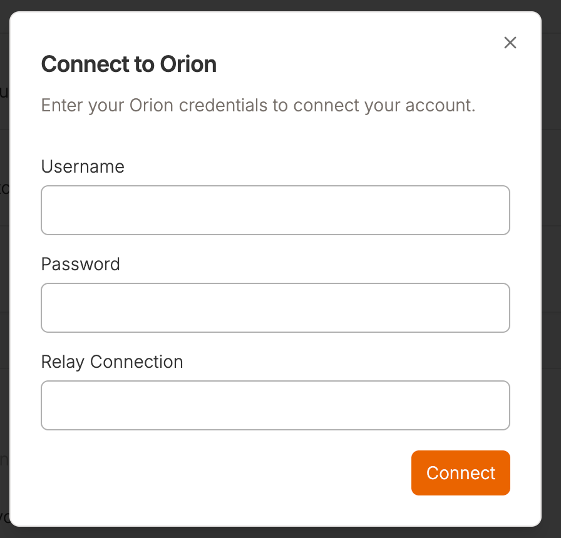
- THPA (Third Party Authorization) username and password
If you don't have these yet, reach out to your Orion account representative or contact Orion support at support@orionlaw.com to request them.
Note: A relay name is required for all Orion firms — there are no exceptions. Setup cannot proceed without it.
Step 2: Connect the Integration
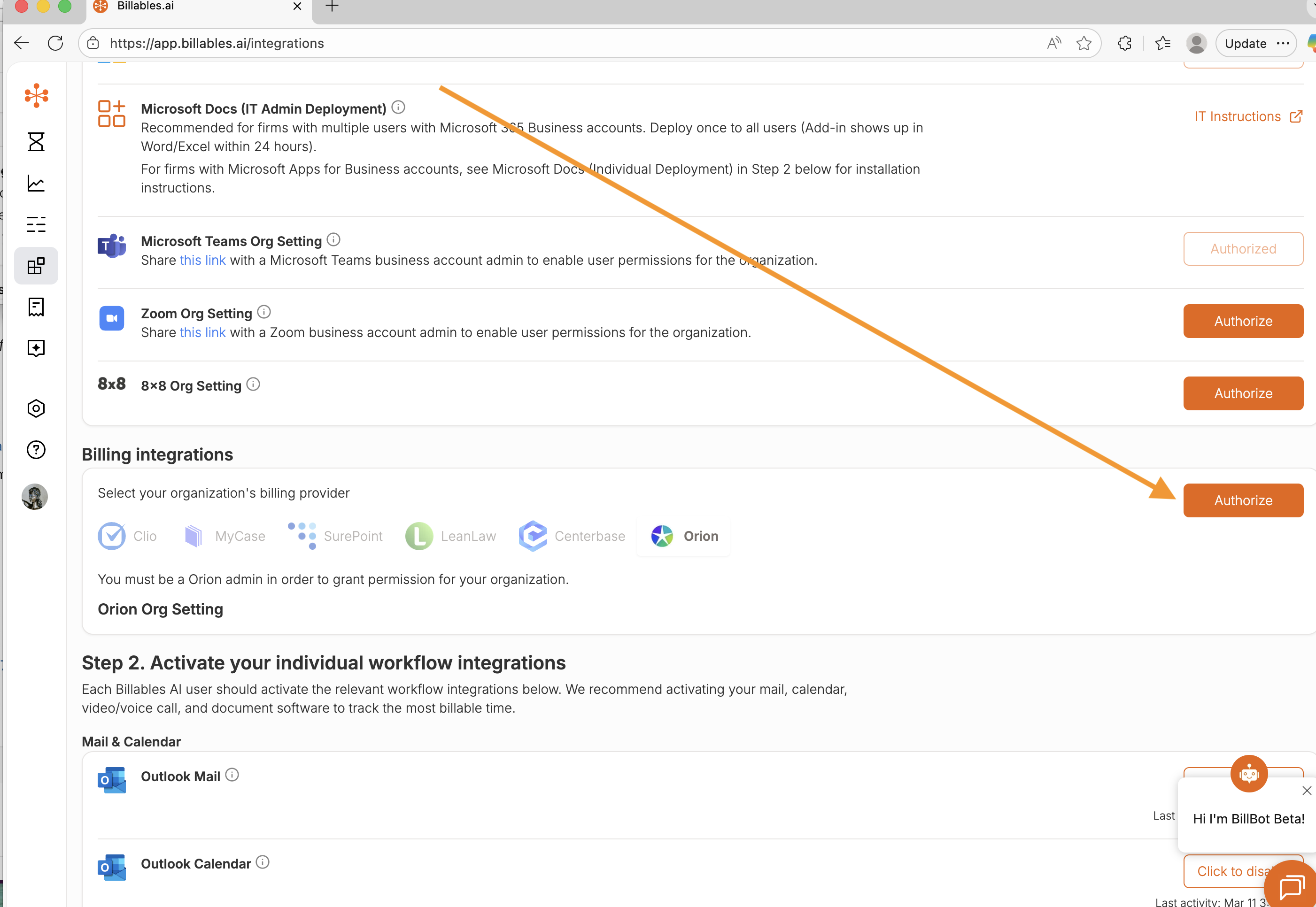
Once you have your relay name and THPA credentials in hand, navigate to the Integrations Page on Billables and select “Orion” from the “Billing Integrations” section.
Enter your credentials.
Step 3: Run the Initial Sync
After the integration is connected, an initial sync will be run to import your client and matter codes into Billables.
Your account manager will coordinate timing with you and let you know once the sync has been initiated. The sync is monitored end-to-end to ensure all your codes are captured correctly.
Your client and matter information will populate on the Billing Codes Page on Billables.
Your Orion integration is fully set up and ready to use. Expect clients/matters to take up to several hours to integrate into Billables.
Step 4: Release to Orion
Once you’ve approved your time entries on your Dashboard, you will click “Release to Orion” from the Dashboard Page.
Important: After you release to Orion, a designated person must also release these time entries in Orion.
Questions? Contact your Billables account manager or reach out to us at support@billables.com.