
Organization Authorization and Implementation
This must be completed before any users can enable their individual integrations and only needs to be completed once for your organization.
During this step, your admin will agree to the required permissions for an API integration or Application Monitoring with various applications such as M365 Outlook Mail.
What you'll need:
- Admin login credentials for Office365, Teams, Zoom and your Billing Platform.
If you do not have access to your organization’s admin-level settings, loop in your internal or third-party IT team to assist with this step. - Admin Billables AI account: Billables will send an account setup invite to your designated admin via email from invitations@billables.ai.
Setup Process: Step-by-Step
Step 1: Access your Billables AI account
Log in to your Billables AI account to begin setup.
Step 2: Navigate to the Integrations tab 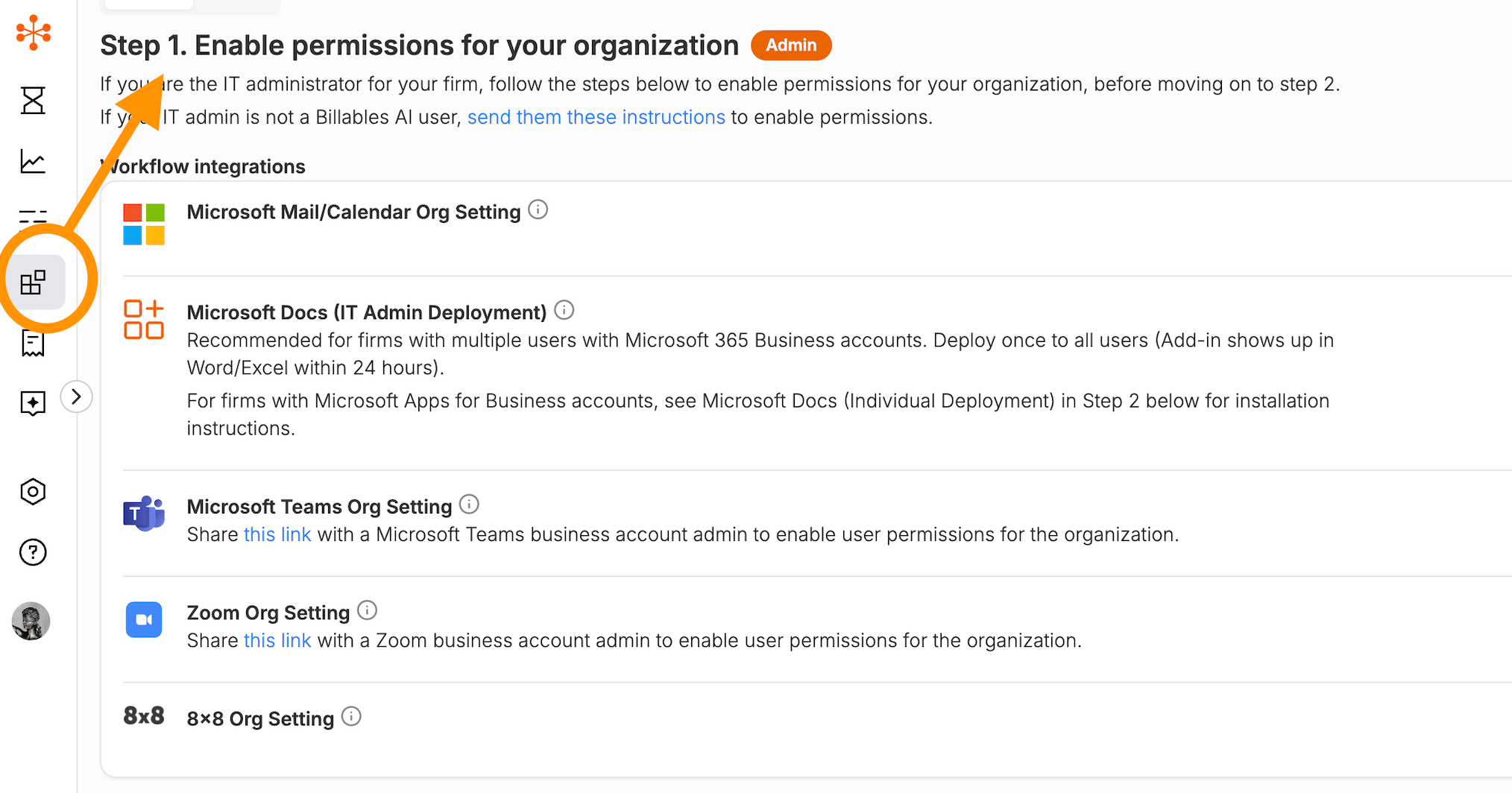
Step 3: Authorize organization-level applications
From Step 1 of the Integrations page, click Authorize next to any applications that require organization-level authorization.
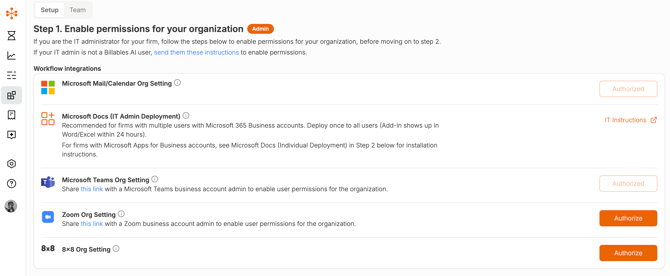
Step 4: Set up billing integrations
Connect your billing platform to Billables AI. Follow linked instructions below.
Orion Integration | Clio | MyCase | LeanLaw | SurePoint | Centerbase
Step 5: Confirm desktop app permissions
Ensure your organization allows users to download applications to their desktops. This is required for installing the Billables AI Desktop App.
If there are restrictions in place, flag this early with your Billables AI team.
For questions, please reach out to support@billables.ai.