Bulk Upload and Manual Entry of Billing Codes
Last updated: August 21, 2026
If your firm's billing platform is not yet supported as a direct integration, fear not, you can manually bulk import clients and matters directly into Billables AI. This process allows you to efficiently migrate your client and matter data without manual entry, ensuring your records are accurate and up-to-date from the start.
Bulk upload billing codes via .csv file
Billables AI supports the import of the following fields via a template .csv file:
Required fields
ClientMatter
Optional fields
Client_CodeMatter_CodeMatter_DescriptionExternal_Client_IdExternal_Matter_IdNon_BillableUser_EmailsTask_Code_RequiredActivity_Code_RequiredExpense_Code_RequiredStatusOpen_Date
It is key the column headers match the exact format as the above. A pre-filled example .csv can be accessed HERE.
To upload:
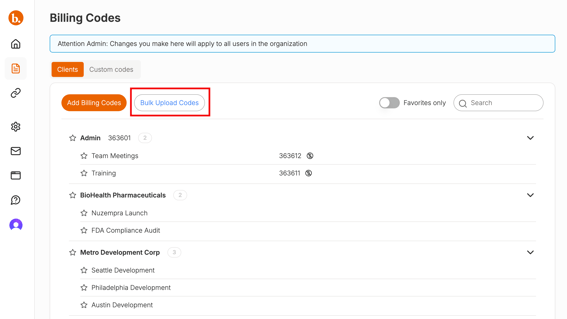
Go to the Billing Codes page and click
Bulk Upload Codes.
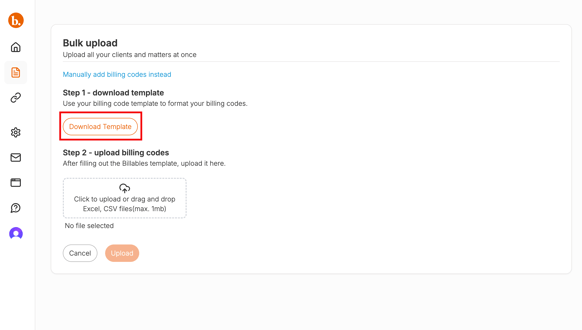
Download the template.
Fill in your billing codes using the downloaded template.
The terminology for clients, matters, cases, etc. may vary depending on firm and practice management software. If you need help figuring out which field should map to the Billables template, reach out to us.
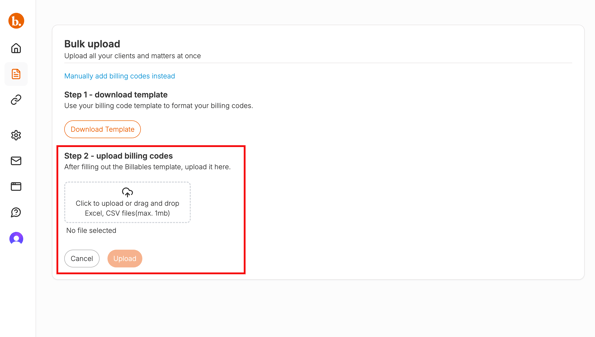
Save your completed template as a CSV or Excel file and upload it into Billables.
Manually Enter Billing Codes
An alternative to bulk upload, this is a good workflow for uploading or adjusting billing codes on a one-off.
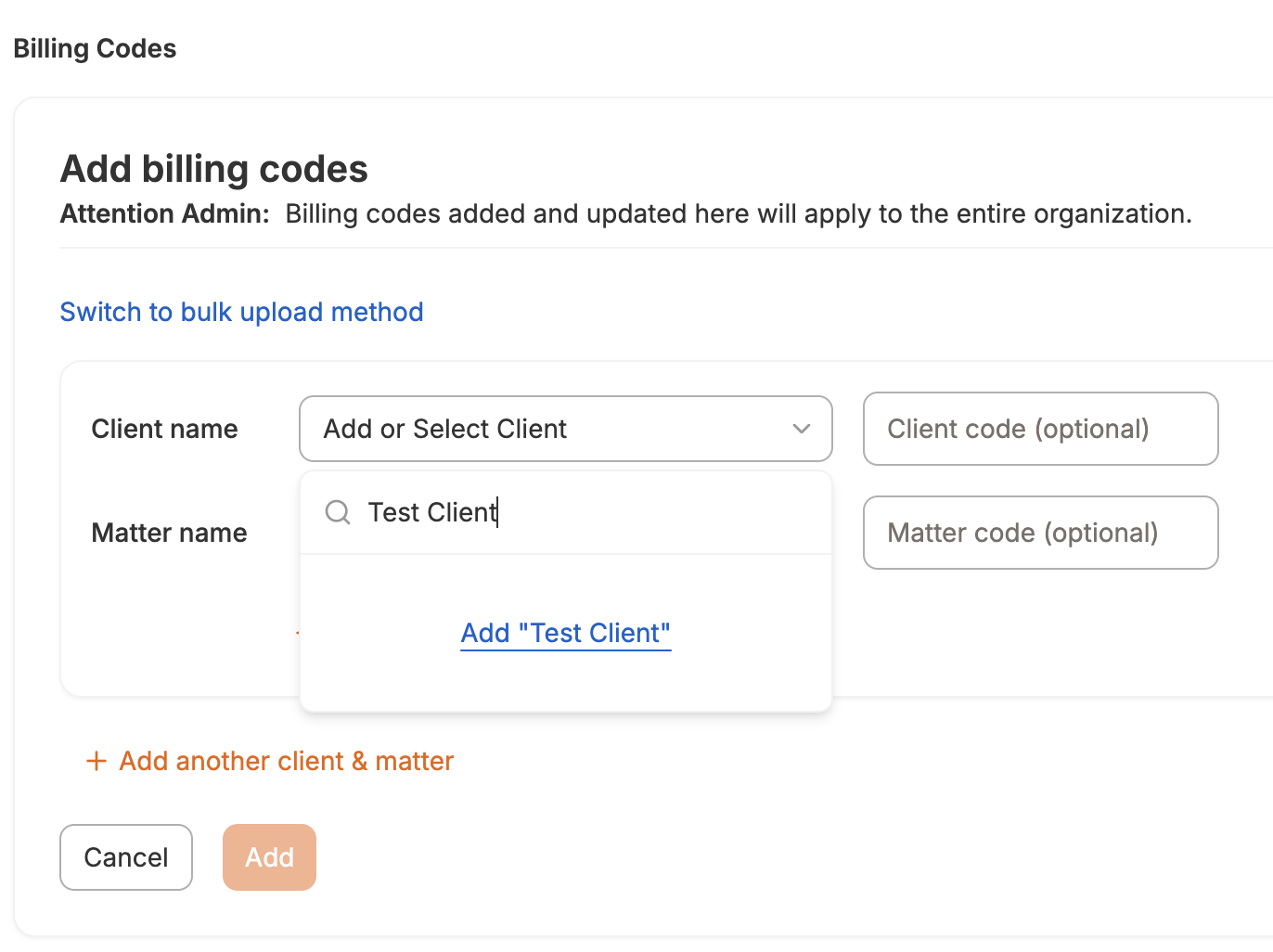
To manually add new clients and matters directly to Billables AI:
Select
Add Billing Codes.You will be prompted to select or add a client:
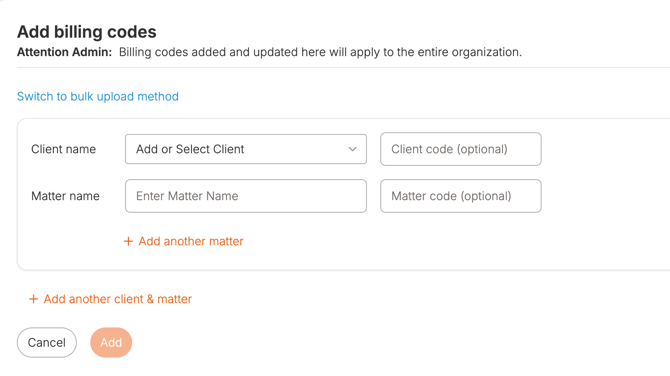
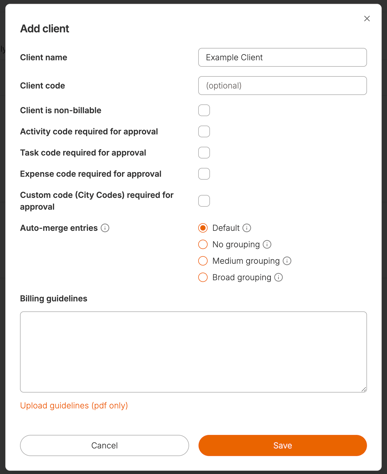
If you are adding a new client, type the client name, click the blue
Addbutton and complete the billing code setting.
FAQs
What happens if I upload a new list of billing codes that includes previously existing codes?
Billables AI automatically de-duplicates your entries, ensuring only new billing codes are added. Existing codes spelled the exact same are recognized, so duplicate codes are not created.
How do I change a client or matter name?
If you want to make changes to an existing client or matter, we recommend manually updating on the Billing Codes page instead of uploading a spreadsheet.
When uploading a CSV template, Billables AI will only de-duplicate clients and matters if they are spelled exactly the same. If you previously uploaded a matter named "John Doe Case" then changed the name to "Jon Doe Case" and re-uploaded, it will create a new matter instead of replacing the original.
Is there any automation I can leverage for this process?
For enterprise engagements, we may be able to establish a custom automation to sync billing codes through email export from your practice management system.
To learn more about this, please reach out to our sales team at hello@billables.ai