Importing Clients and Matter Billing Codes via Integration
Last updated: October 8, 2026
Learn how to connect your eligible billing platform with Billables AI.
How to Import via Your Billing Platform
Automatic updates to the Billing Code page is currently only supported with the following billing platforms. Select a platform below to review key integration details and platform-specific considerations.
Orion 🚧
General Instructions:
Step 1: If you are use of an eligible billing platform, you should authorize the direct billing integration on the Integrations page.
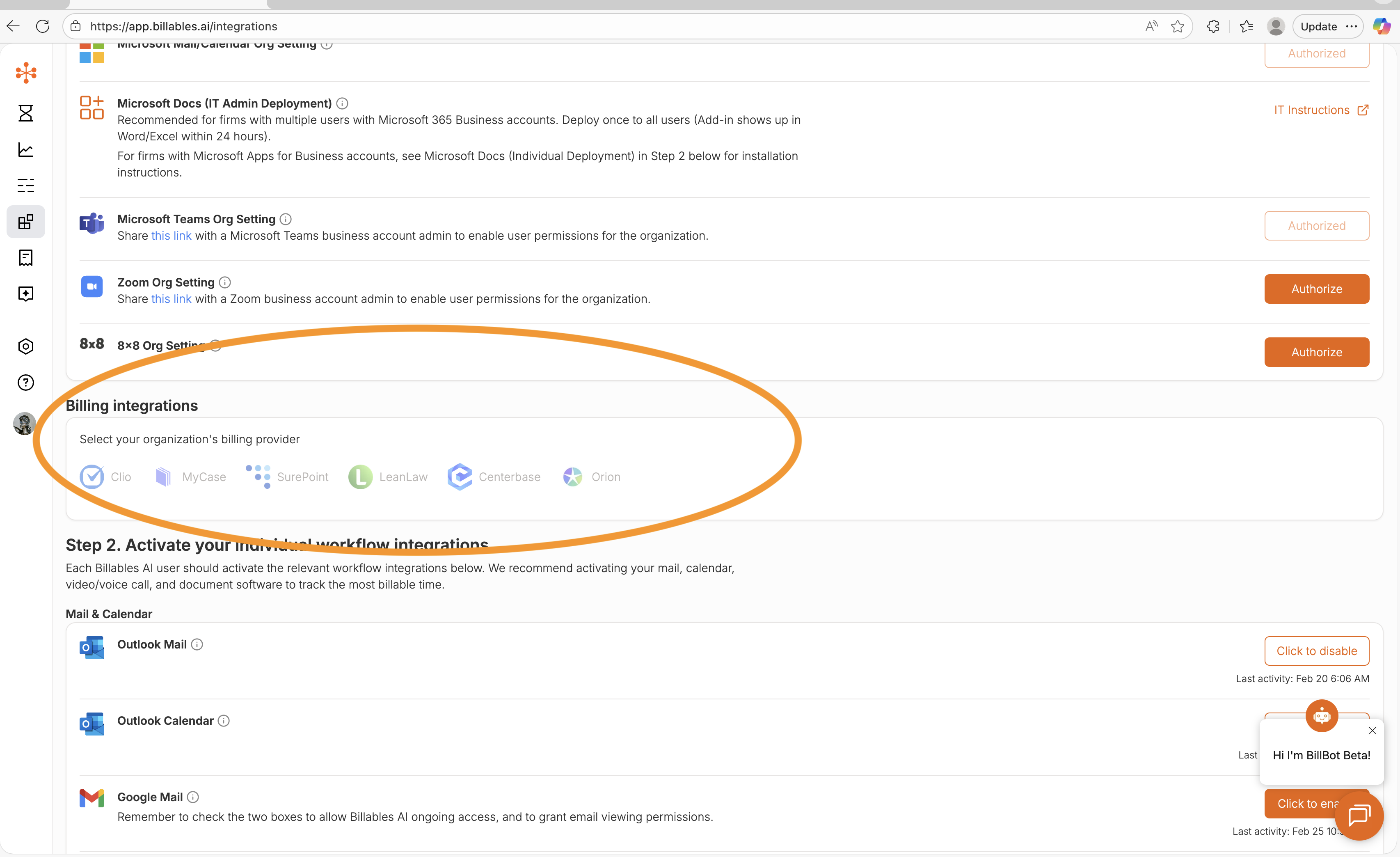
Step 2: Once you connect your billing integration to your account, clients and matters will start populating on your Billing Codes page.
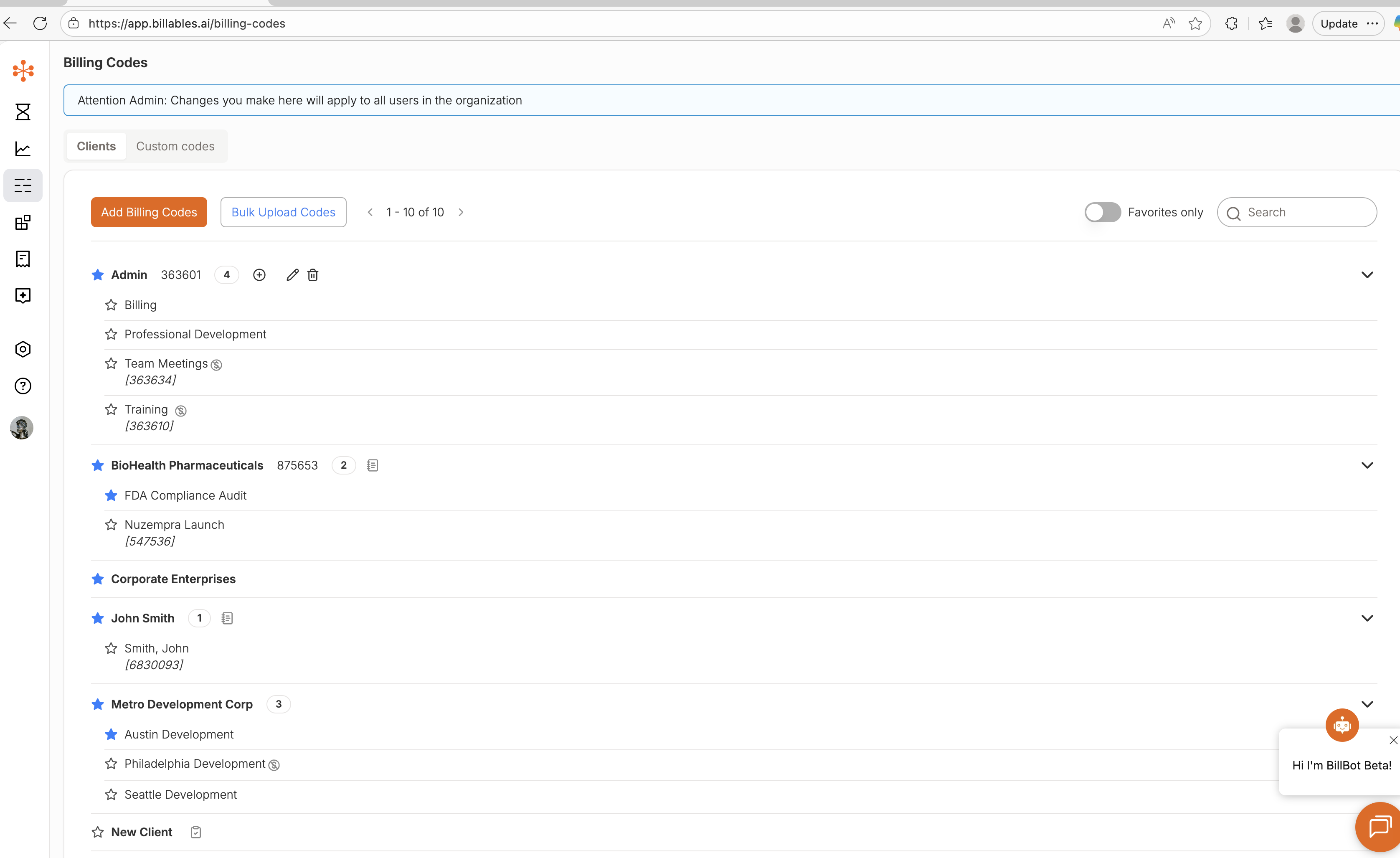
Note: This may take a few hours if you have a very large number of clients/matters.
Tip: If recently added clients or matters are not appearing on the Billing Codes page, click the refresh button in the top-right corner of the page to pull in the latest billing codes from your connected integration. You do not need to log out and log back in.