SurePoint Billing Integration
Last updated: October 12, 2026
The Billables AI & SurePoint integration allows for seamless syncing of client matters from SurePoint to Billables.
Enabling the SurePoint Integration
Step 1: Select SurePoint from the Billing Integrations section of the Integrations Page:

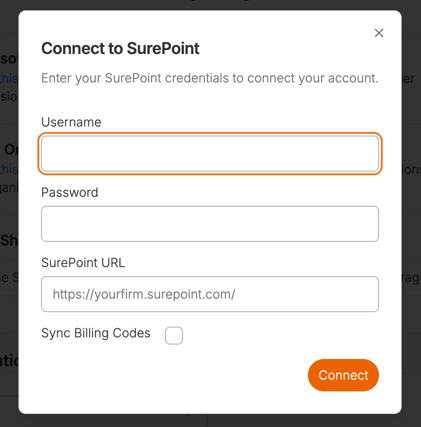
Step 2: Login with your SurePoint credentials:
SurePoint requires a service account for API access. If you don’t have one, contact your SurePoint account manager.
It's recommended to set up a separate service account for Billables AI that is different to user accounts or any other service accounts used by other integrations like SurePoint Payments.
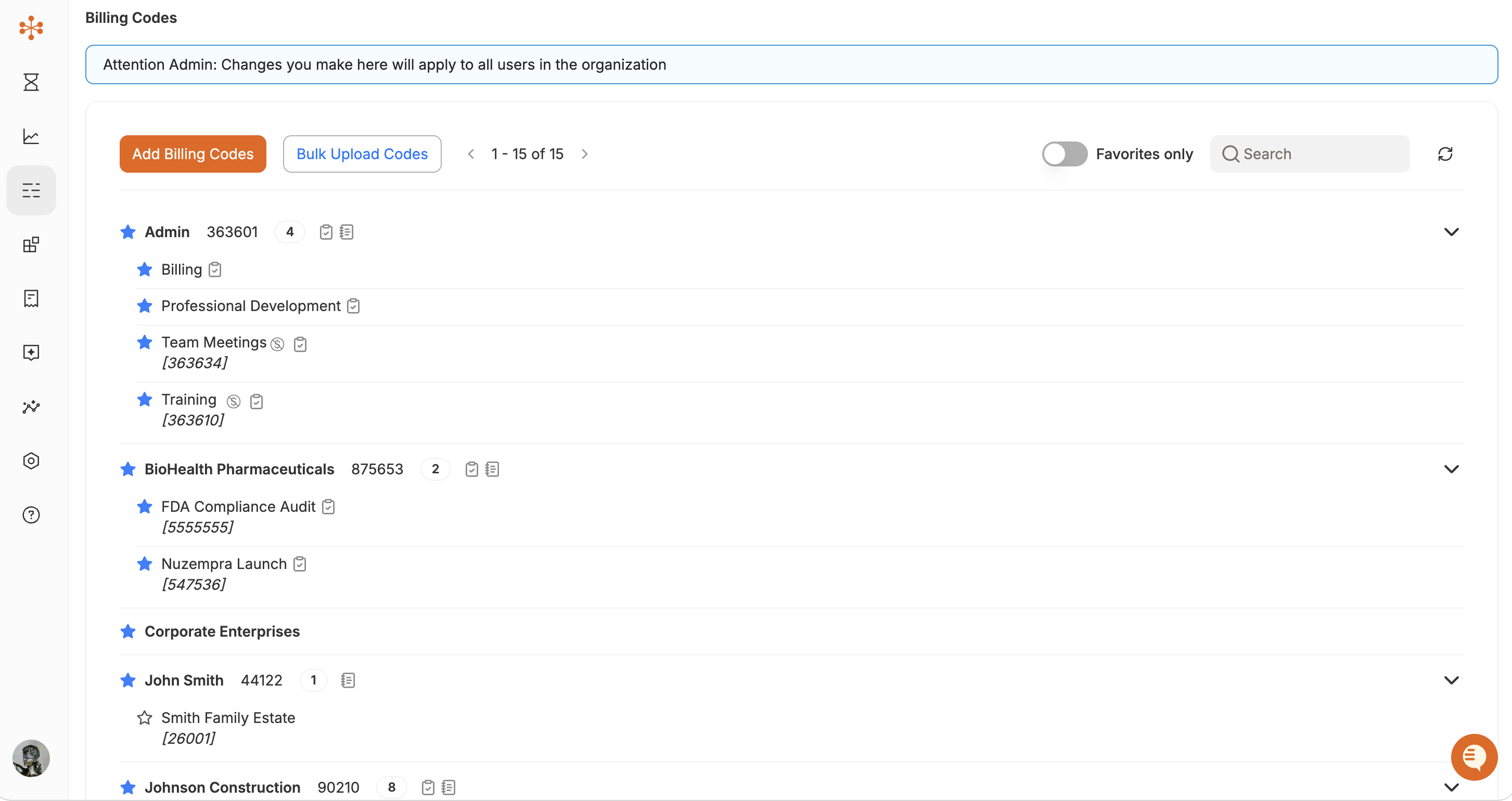
Step 3: Wait as your clients and matters start to populate on the Billing Codes page. This may take up to a few hours.
Important: For Billables AI to successfully release time entries to SurePoint, each attorney's email address must be entered in the correct field within LMS. Learn more here.
Why am I getting “You are not authorized to the requested resource” when releasing time to SurePoint?
This error means the SurePoint service account used by the Billables AI integration is missing one or more required permissions. Your time entries are not lost. They stay in Billables AI and can be released once permissions are updated.
To fix it, contact your SurePoint account manager and ask them to confirm the integration’s service account can sign in, read data and create time entries.
After the permissions are updated, go back to Billables AI and release your time again.