AI Explanations: Understanding How Your Time Entries Are Created
Last updated: August 6, 2026
Billables AI automatically generates time entries from your connected workstreams. AI Explanations let you see exactly how and why the AI made the decisions it did for any given entry — so you always know where the client, matter, and narrative came from before you approve it.
What AI Explanations show you
Every AI-generated time entry includes a "Why was this entry created this way?" panel. Opening it breaks the entry down into the individual decisions the AI made, with a plain-language explanation for each one.
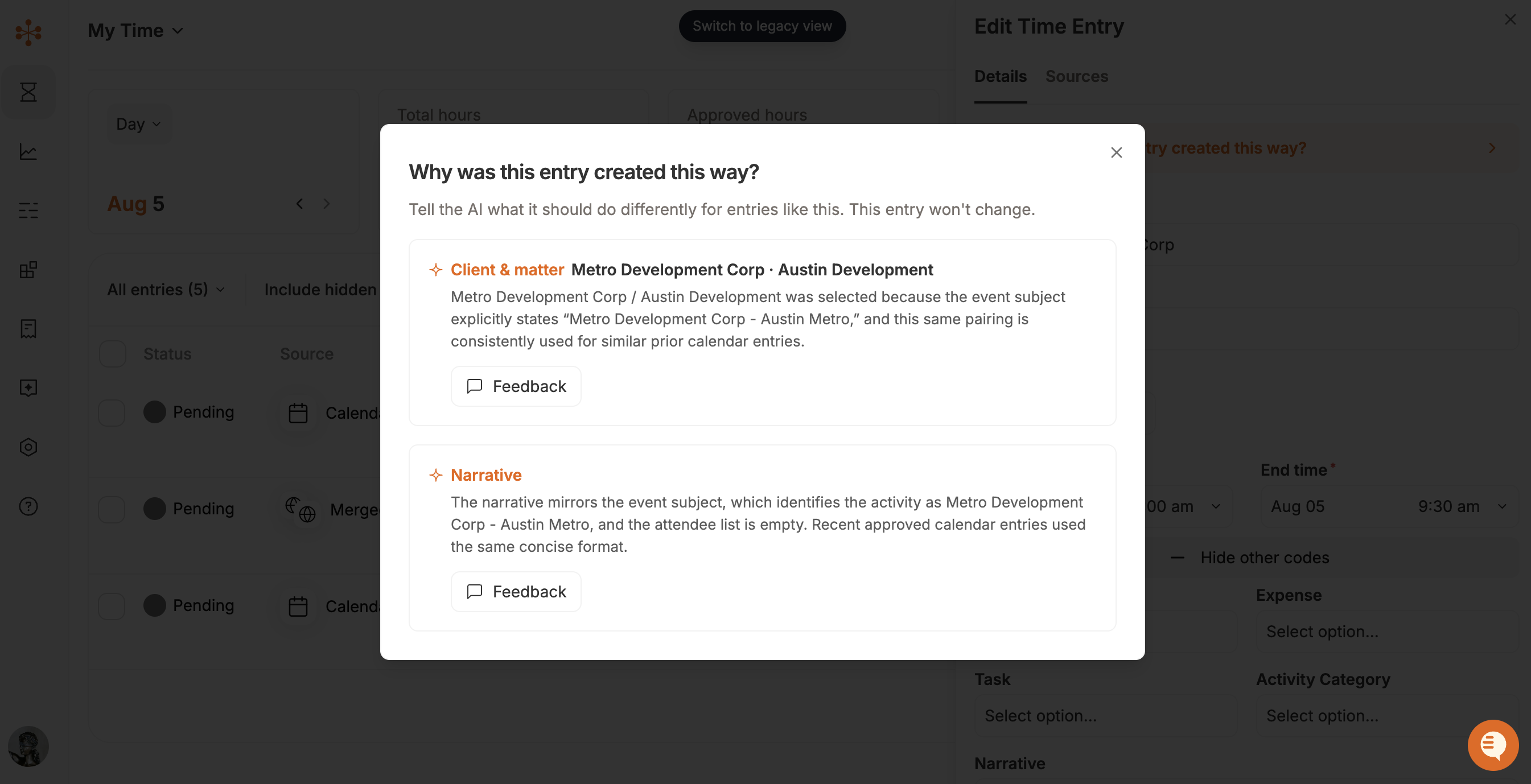
Two types of explanations appear most often:
Client & matter — Explains why the AI assigned the entry to a specific client and matter. This typically references specific evidence from the source activity, such as a calendar event title, email subject, or attendee list, along with any pattern from your prior entries that reinforced the match. For example, the AI might explain that it matched an entry to "Harborview Logistics · Trademark Renewal" because the attendee list included the client's in-house counsel, and because emails from that same contact have consistently been logged under that matter in the past.
Narrative — Explains how the AI worded the entry's description. This usually notes which source details the narrative draws from (such as the event subject or attendee list) and whether the phrasing follows a format you've used or approved before. When an entry consolidates multiple activities, this section also explains how those activities were combined into one narrative — for example, noting that several related review actions were merged because they shared a common focus, and that each was summarized in a single sentence to match your preference for concise narratives.
Merged entries — Appears when the AI has combined multiple underlying activity records (such as several browser or app events) into a single time entry. It explains which records were merged and why, typically because they occurred during the same session and represented the same continuous piece of work.
Depending on the entry, you may also see additional explanation types covering other fields the AI populated, such as duration, date, or activity type.
Where to find it
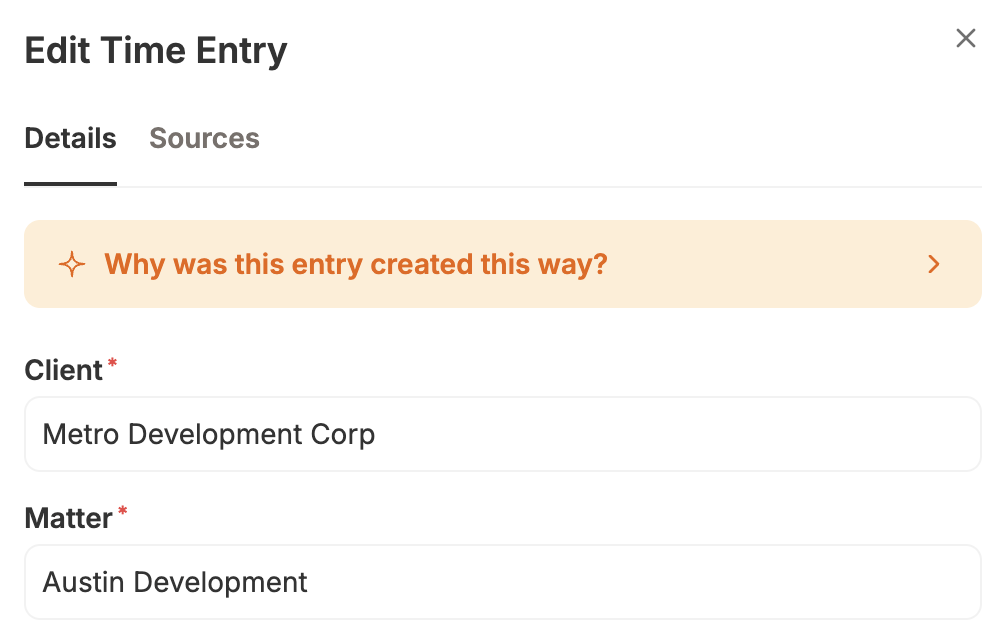
Open any AI-generated time entry.
Click the sparkle icon or the "Why was this entry created this way?" link.
A panel opens showing each decision the AI made, along with its reasoning.
Important: this won't change the entry
The explanation panel is read-only — it tells you why the entry looks the way it does, but opening it or reading it does not modify the entry itself. If you want the entry changed, edit it directly.
Giving feedback
Each explanation card has its own Feedback button. Use it to tell the AI what it should do differently for entries like this one going forward — for example, if it picked the wrong matter, misread the source details, or used a narrative style you don't want repeated.
A few tips for effective feedback:
Be specific about which part was wrong (the client match, the matter, a word choice in the narrative, etc.).
Explain what you'd prefer instead, not just what was wrong.
Feedback applies to future entries with similar patterns — it does not retroactively change the entry you're viewing.
Why this matters
AI Explanations are designed to build trust and transparency into automated time entries. Rather than treating the AI as a black box, you can see the specific signals (calendar text, attendee lists, prior entry patterns) that drove each decision, catch mistakes before they reach a bill, and train the AI over time through targeted feedback.
Frequently asked questions
Does every AI-generated entry have an explanation? Yes. Any entry created or populated by the AI includes an explanation panel, even if only one field (like client & matter) was AI-assisted.
Can I edit the entry from within the explanation panel? No. The panel is for understanding the AI's reasoning only. Close the panel and edit the entry directly to make changes.
Will my feedback change past entries? No. Feedback shapes how the AI handles similar entries going forward; it doesn't alter entries that have already been created.