Pause Activity Collection
Last updated: September 22, 2026
Temporarily turn off all activity capture
What Pause Activity Capture does
Pause Activity Capture immediately stops all activity collection. While the pause is on, Billables AI records nothing: no applications, no documents, no emails, no meetings, no browser activity.
This is the right control for situations where no capture should happen in the first place, such as:
Working on a matter for a client whose outside counsel guidelines prohibit AI tools
Sensitive internal or personal work that should stay outside the system
Any period where you or your firm have committed to a client that no AI capture will occur
Important: paused activity can never be recovered
Pausing is not the same as hiding or deleting a time entry. When capture is paused, the activity is never collected, so there is nothing to restore later.
If you only want to prevent certain activity from appearing on a bill, use billing guidelines to specify what activity you want hidden. Use Pause only when the requirement is that nothing is captured at all.
How to pause capture
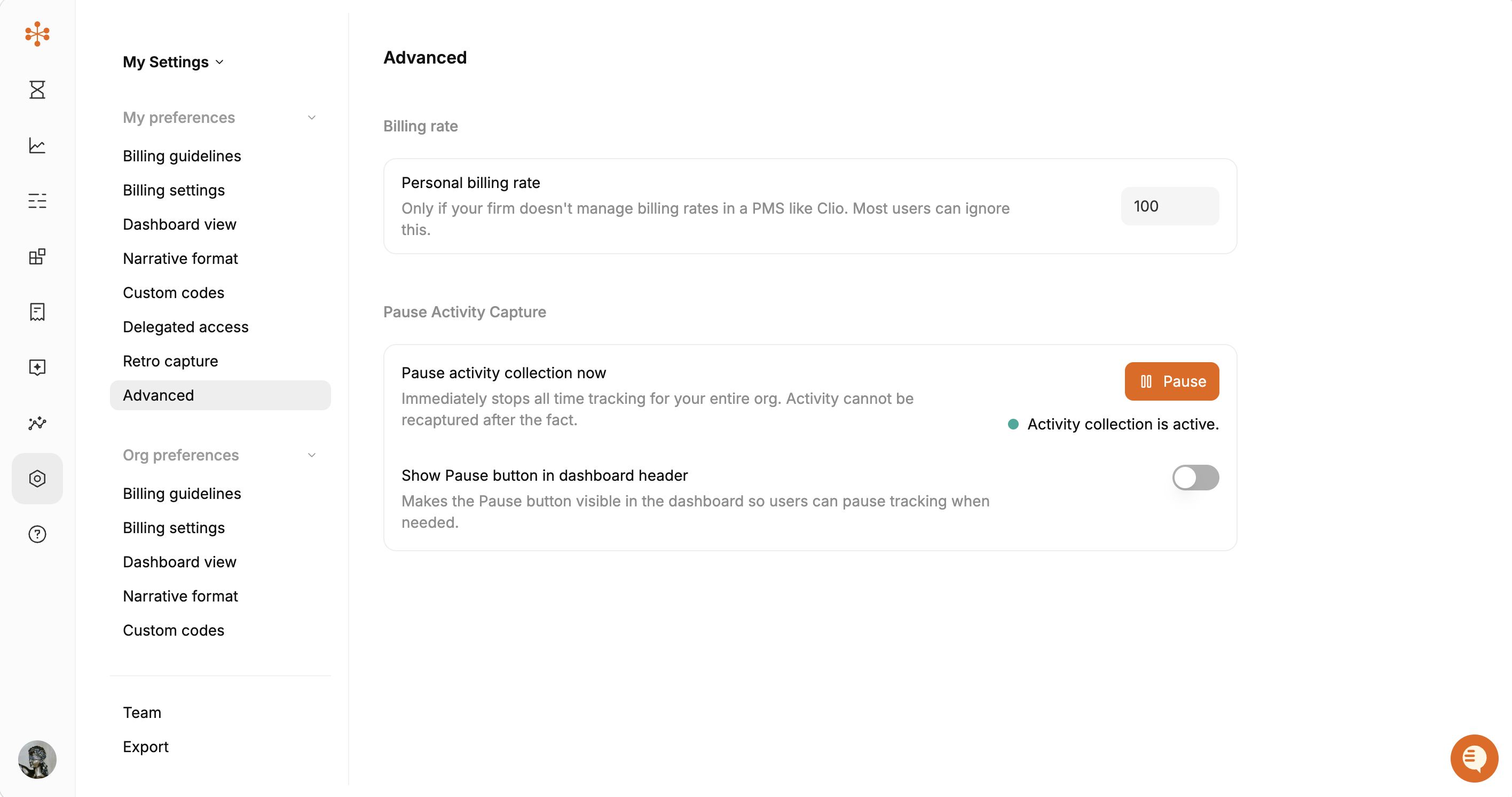
Open Settings (the gear icon in the left sidebar).
Under My preferences, select Advanced.
Find the Pause Activity Capture section.
Click Pause.
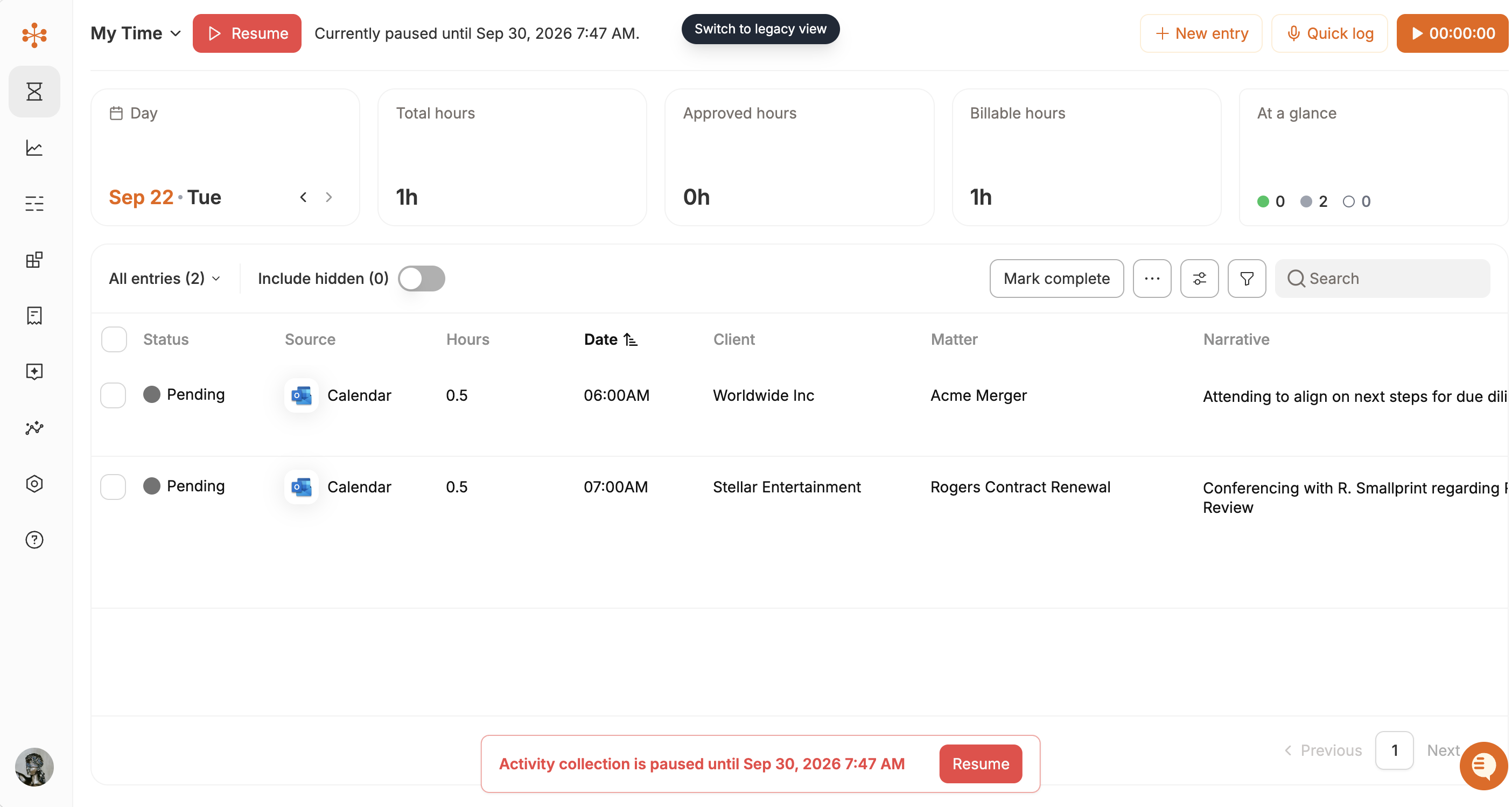
The status indicator next to the button confirms the current state. When capture is running, it reads "Activity collection is active." Once paused, the indicator updates and the button becomes a resume control.
To start capturing again, return to the same screen and resume collection.
Adding a Pause button to your dashboard
If you expect to pause and resume often, you can surface the control on every page instead of going into Settings each time.
Go to Settings → Advanced.
In the Pause Activity Capture section, turn on Show Pause button in dashboard header.
A Pause button now appears in the dashboard header, so anyone who needs to stop capture can do it in one click.
Best practices
Set a reminder to resume. The most common issue is not the pause itself, but forgetting to turn capture back on. Any billable work done while paused is lost permanently.
Pause at the boundary, not mid-task. Turn it on before the restricted work begins and off as soon as it ends, so you lose as little capture as possible.
Enable the dashboard button for teams with recurring restrictions. Firms with several no-AI clients find the header button far more reliable than remembering the Settings path.
Frequently asked questions
Can I pause capture for just one client or matter?
No. Pause is an on/off control for all collection. For client-specific handling of captured work, use billing guidelines and custom codes.
Does pausing delete activity that was already captured?
No. Anything captured before you paused stays exactly as it was. Pause only affects the period while it is on.
Will I be notified that capture is paused?
The status indicator on the Settings → Advanced screen always shows the current state, and the dashboard header button (if enabled) reflects it as well.