Automatic Merging of Time Entries
Last updated: May 26, 2026
Learn how to automatically merge or group related activity into a single time entry.
This feature is helpful if you do not want very granular time entries. For those who want granular entries (e.g. an entry for every doc worked on, every email thread, etc), we recommend "no grouping" for your auto-merge entries setting.
How It Works
Step 1: Navigate to the Settings page on your Billables AI dashboard.
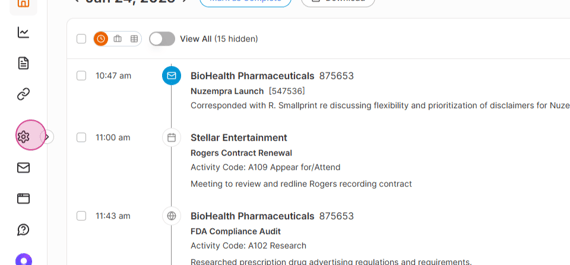
Step 2: Look for the Auto-merge entries setting.
"No grouping" will create time entries for each activity regardless of relatedness to other activities.
"Medium grouping" groups entries describing the same specific task or work stream - e.g. editing a document and researching in a browser on the same topic. This will result in fewer individual time entries per client and matter.
"Broad grouping" merges entries under a single client and matter whenever possible. This will be applied in instances where there is a high degree of confidence for the auto-assigned client and matter.
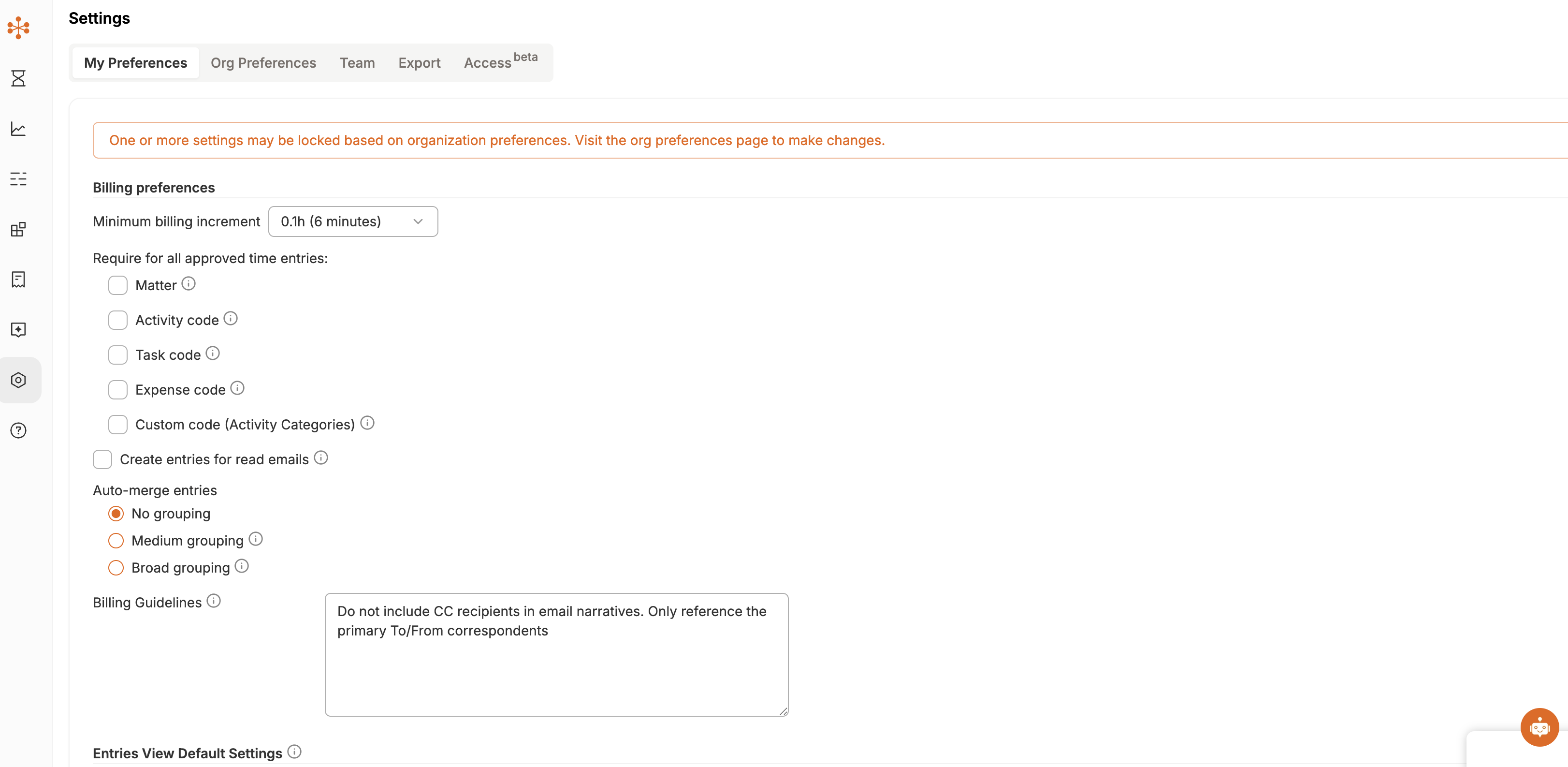
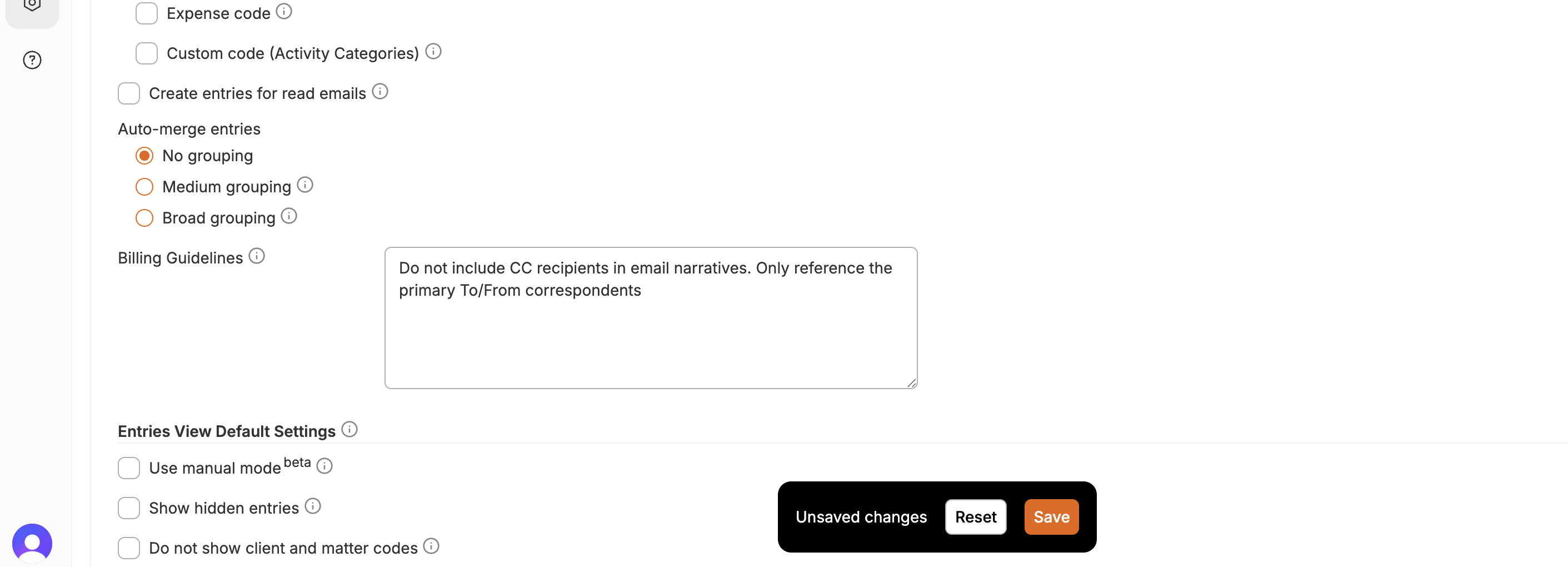
Step 3: Don't forget to click Save after making changes.
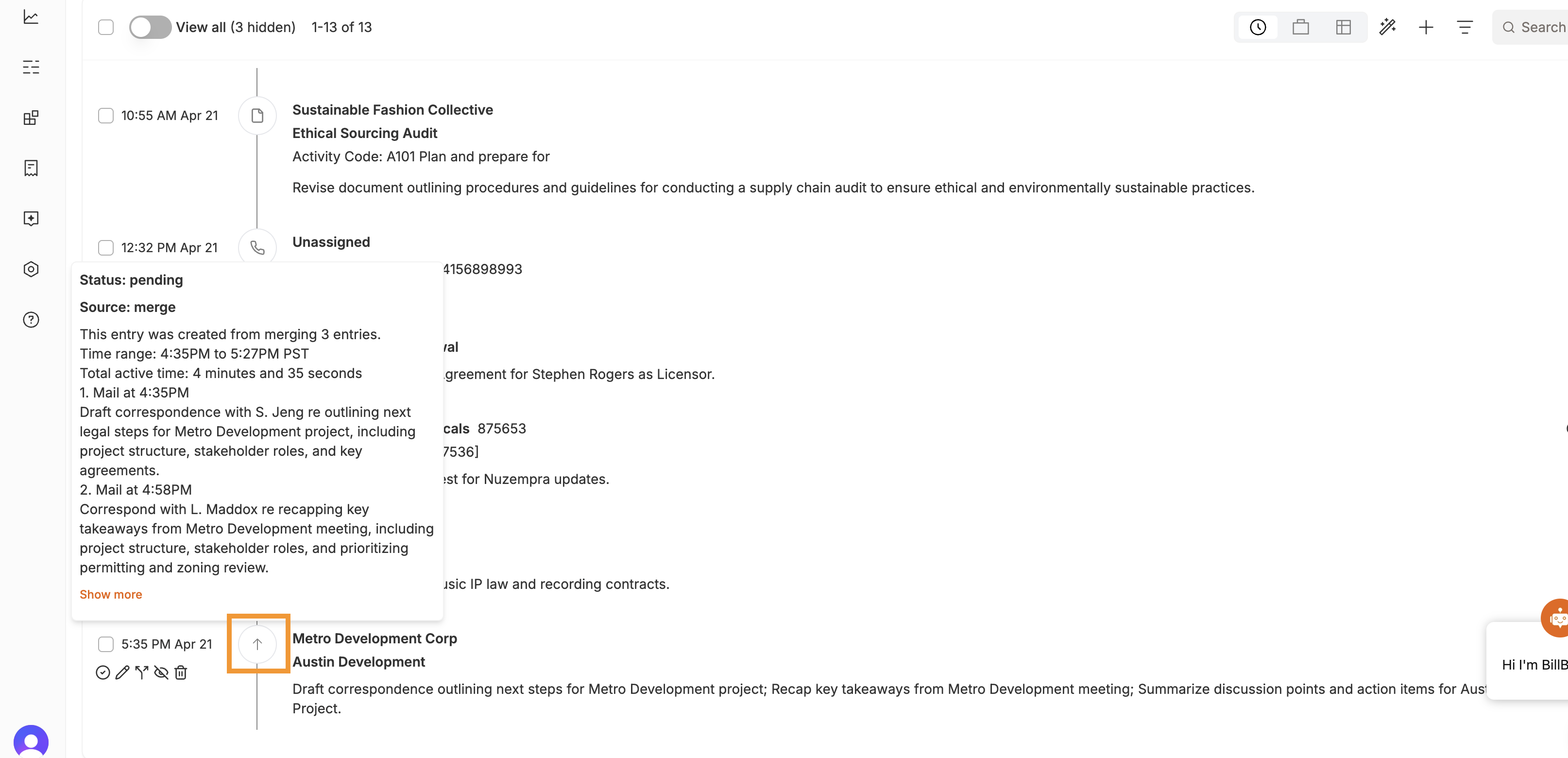
Once you've enabled the automatic merge setting, you'll start to see your entries merging automatically. You can identify these entries by the upward arrow symbol next to them. Hover over an entry for more details and to find the source of the entry.
Step 4: Customize the narratives for your entries in the Narrative Description settings on the Settings page.
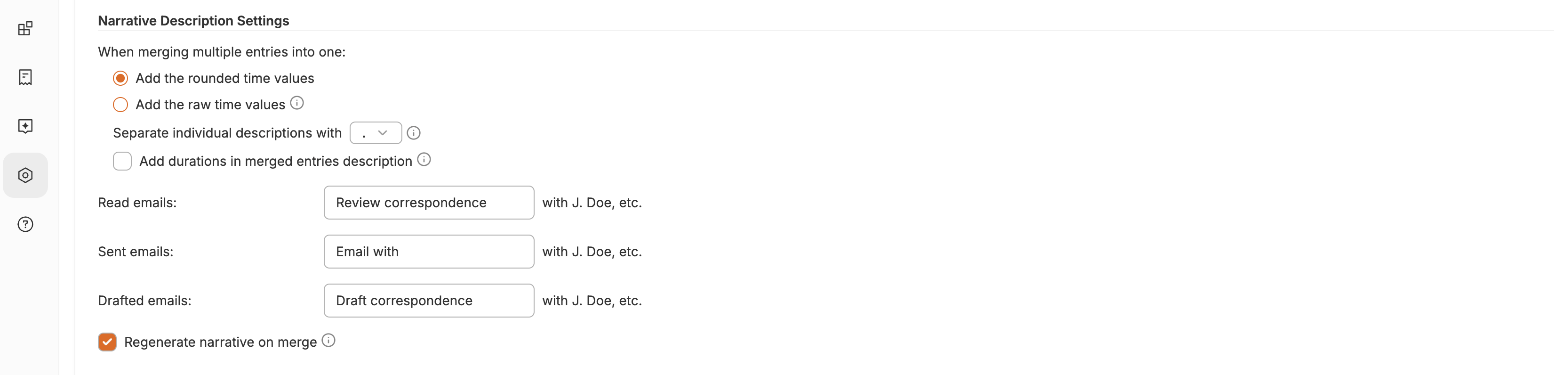
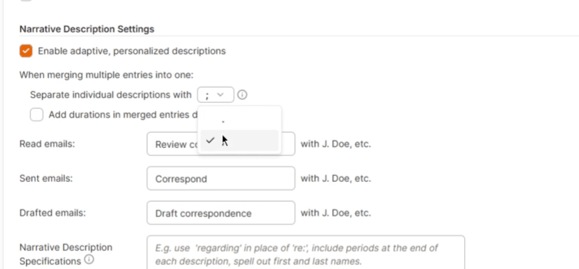
Step 5: In these settings, you can choose how your entries are separated - by a period or semicolon.
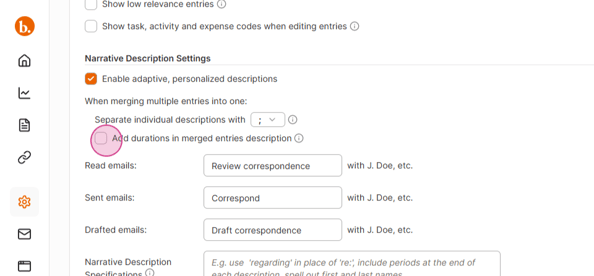
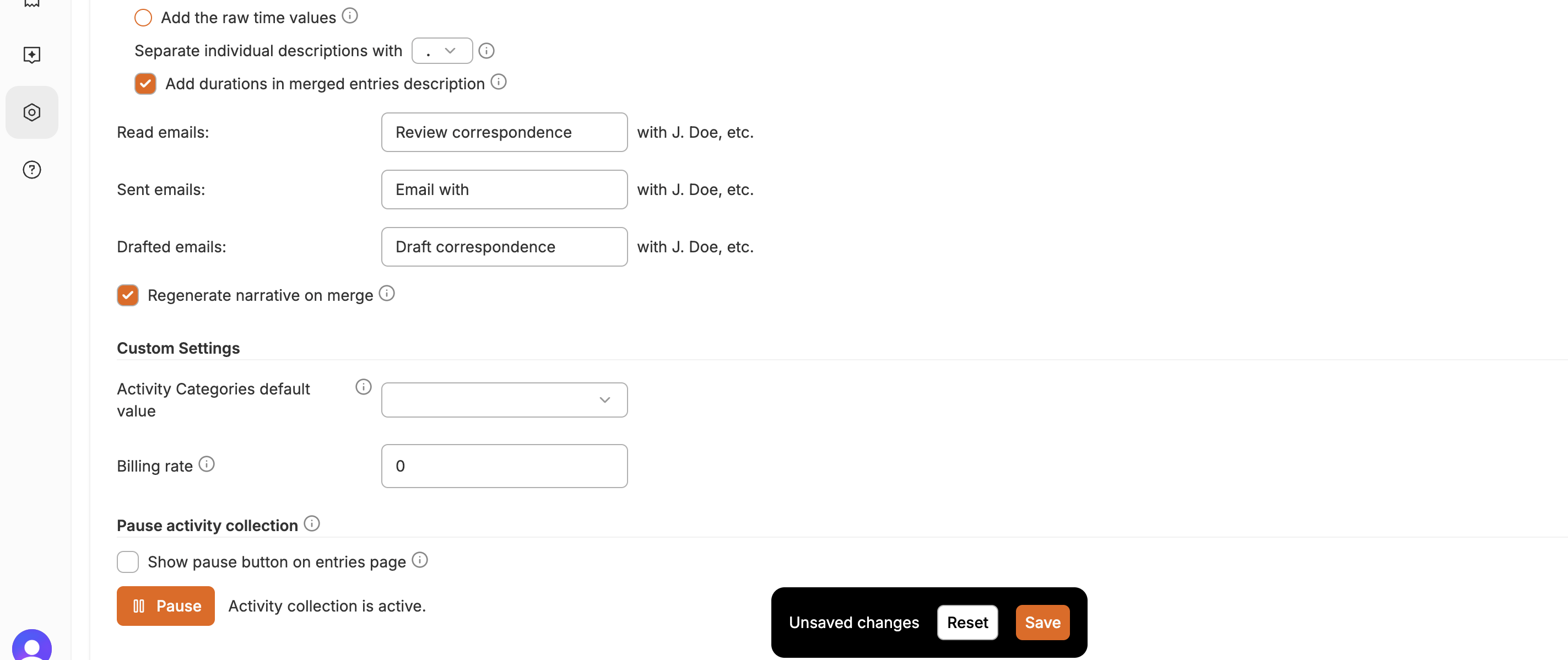
Step 6: Click the check mark to add durations within the entries themselves.
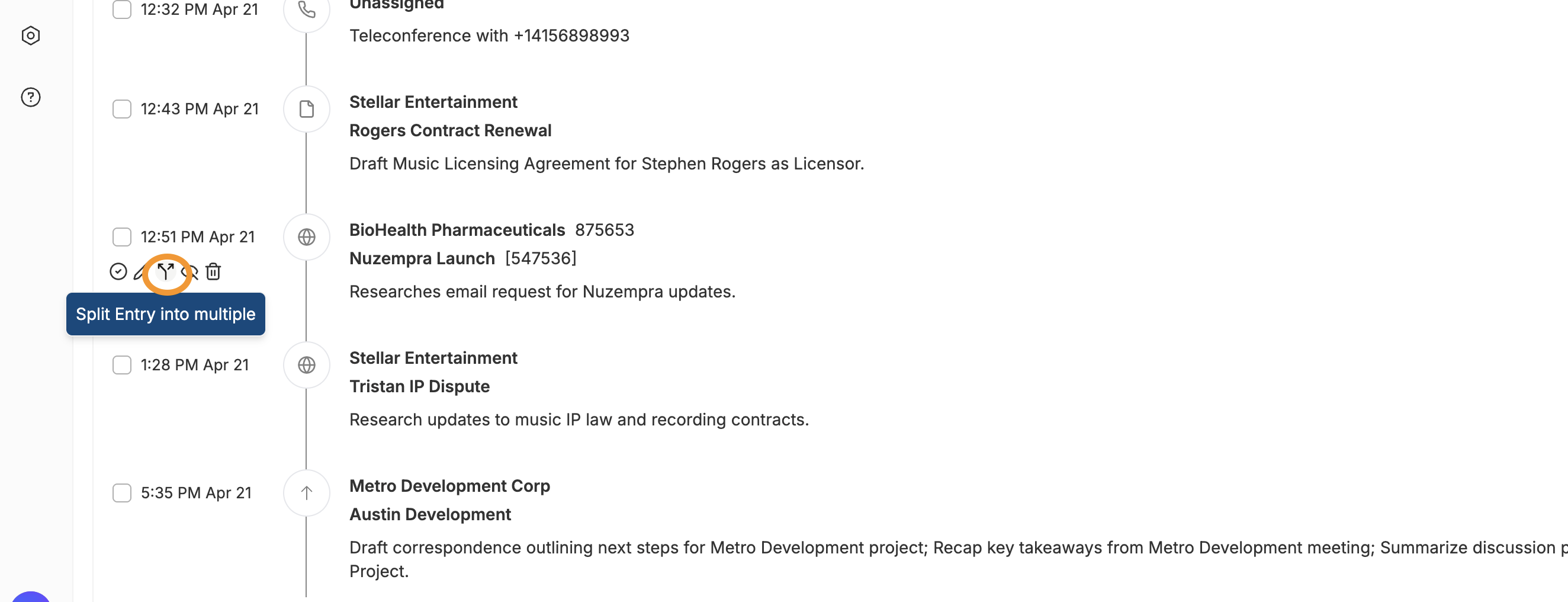
If you need to split or unmerge an entry, simply click on the split arrow symbol next to the entry.
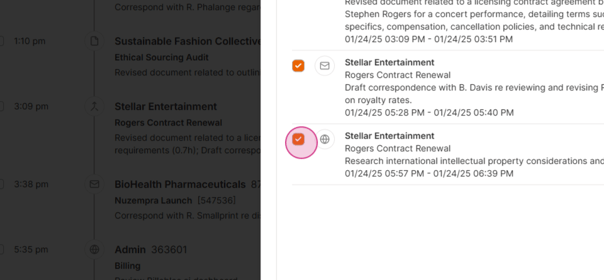
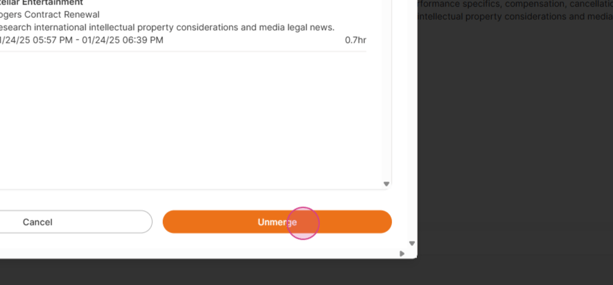
Step 7: Choose which entries you want to separate and unmerge.
We hope this feature makes your billing process more efficient with Billables AI.
FAQ
What types of activities might be auto-merged?
All activity types except for Calendar, Video Calls, VOIP calls and manual entries may potentially be auto-merged when you have this setting turned on. Calendar, Video Calls, VOIP calls and manually-generated time entries will exist as separate entries. You can always manually merge the entries as needed.