Word/Excel Add-in via Microsoft App Store (Individual Workflow)
Last updated: June 2, 2026
Install the Billables AI Add-in through the Microsoft App store to capture your activity in Word, Excel and Powerpoint.
If your organization has already enabled the Microsoft Docs Add-in for you, no further installation is required. You can check if the Add-in has been installed by finding it in your Word or Excel program.
This method for installing the Add-in requires each individual to install on their own through the Microsoft App Store. To deploy the Add-in centrally via an IT admin, see these instructions.
Installing the Add-in directly through the Microsoft App Store
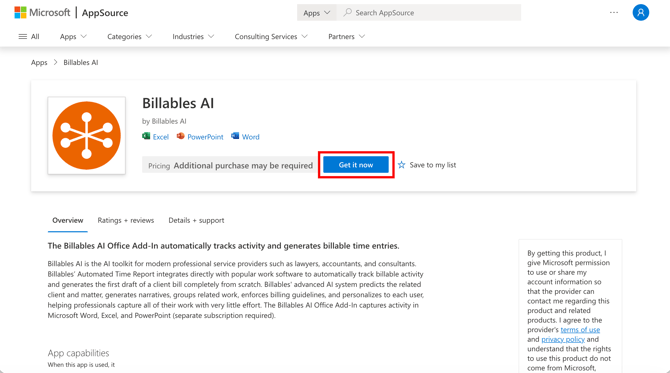
Go to the Billables AI app page in the Microsoft App Store and click "Get it Now":
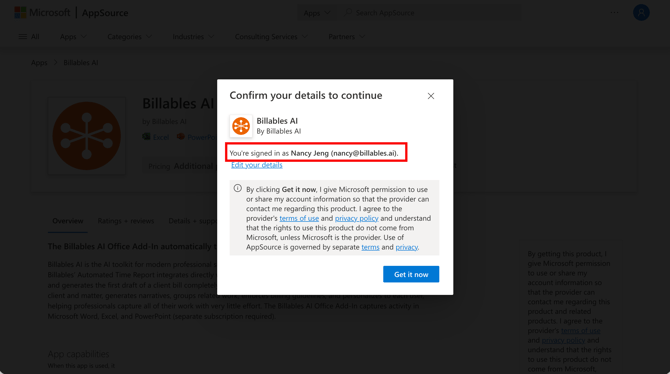
Make sure you're logged into your Microsoft account in Word/Excel under the same email as your Billables AI account:
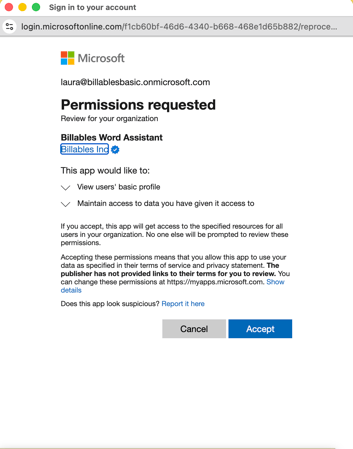
Click Accept to enable the Billables AI assistant:
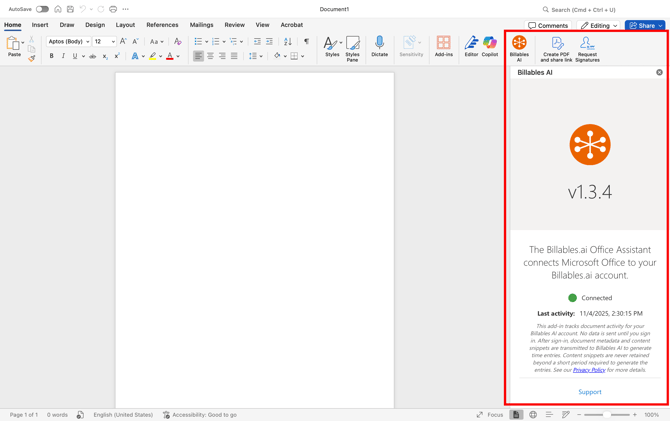
You should now see the Add-in when you open a Word or Excel document: