
Why Use the Add-In + Macro?
Simple! The Microsoft Add-in will allow Billables AI to capture billable work in Microsoft Word, Excel, and PowerPoint. The Macro automates the Billables AI Add-in.
Once connected, the Add-In tracks active time spent working in Word, Excel, and PowerPoint (for example, writing a motion, revising a budget, or updating slides) so your Billables report reflects the true effort behind your work.
REMEMBER - This is a 2 step process: 1) The Add-in to capture activity, 2) the Macro to automate the Add-in application on each document.
So the Add-in is different than the Microsoft 365 Outlook integration?
Yes, the Add-in is a small assistant that you will install in your Microsoft 365 account. 
It will be visible to you in the home ribbon of your documents. You will be able to manually or automatically initiate tracking through Billables AI once it is installed.
I want automatic tracking! How can do I create that option?
1) You will need to install the Add-in, and;
2) You will install the Billables AI Word/Excel Macro.
Note: This macro currently only applies to Word and Excel, and not PowerPoint.
I want to track all of my time. How do I get started?
Step 1) Install the Add-in
There are two paths to installing the Add-in.
- Admin-deployed – For 1) users invited by their firm or 2) those with strict data-permission settings related to Add-ins.
IT administrators can deploy the Add-in for all organization members, making it automatically available to users within 24 hours. See IT instructions. (A Microsoft 365 Business or Enterprise account is required.)
Already have the Add-in from your IT team? You’re all set—no need to install it from the app store. Check if the Add-in is already installed with these tips. - Individually-installed.
Individuals can install the Add-in on their own directly through the App Store. Also recommended for non-Microsoft 365 Business accounts. See instructions here.
Step 2) Installing the Macro
-
First, make sure that the Billables Assistant Add-In is visible in Word and Excel. For the macro to work, the Billables Assistant Add-in must be visible in the home ribbon.
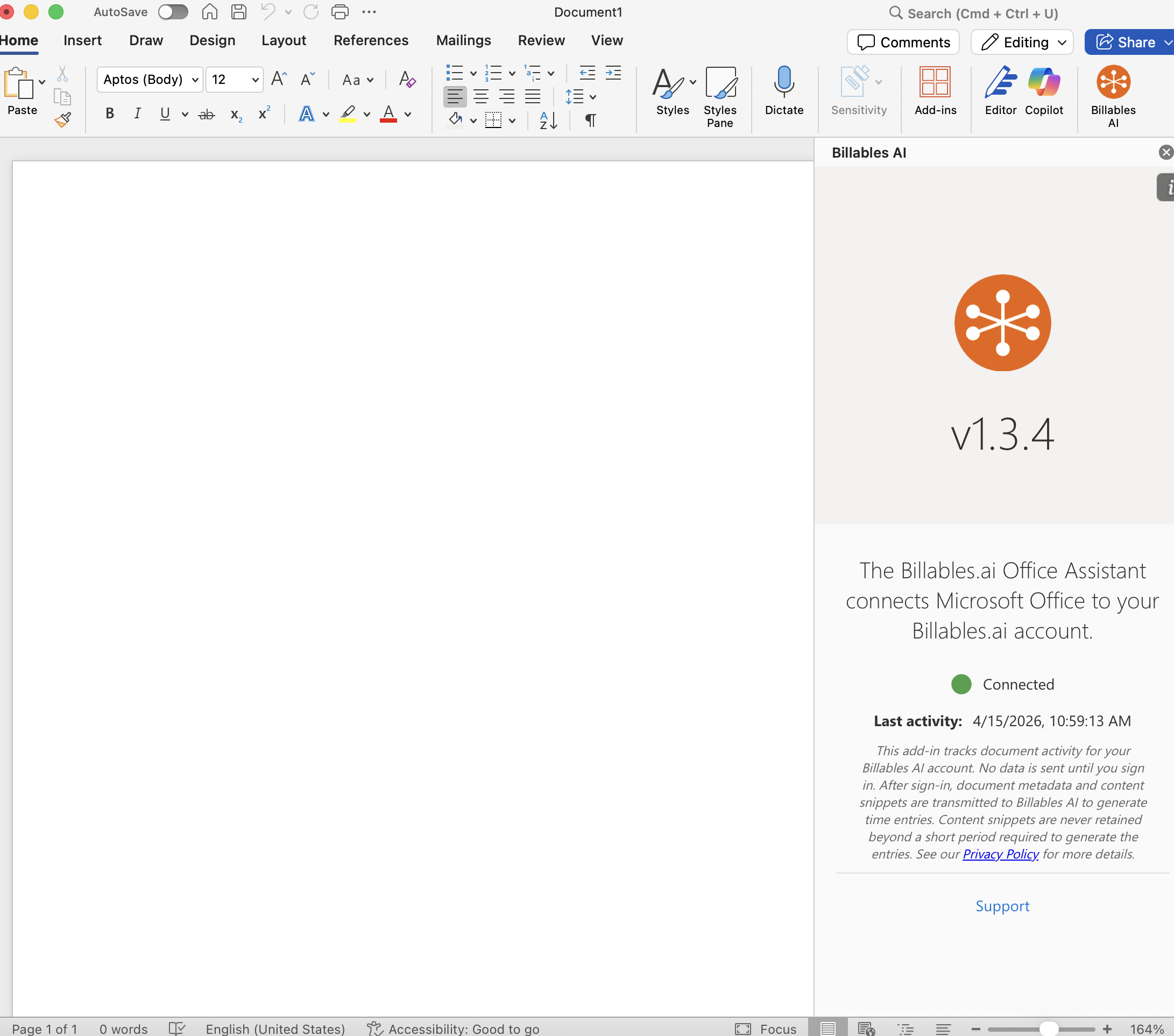
2. Go to the Integrations page on Billables and scroll to the Documents > Desktop Applications section: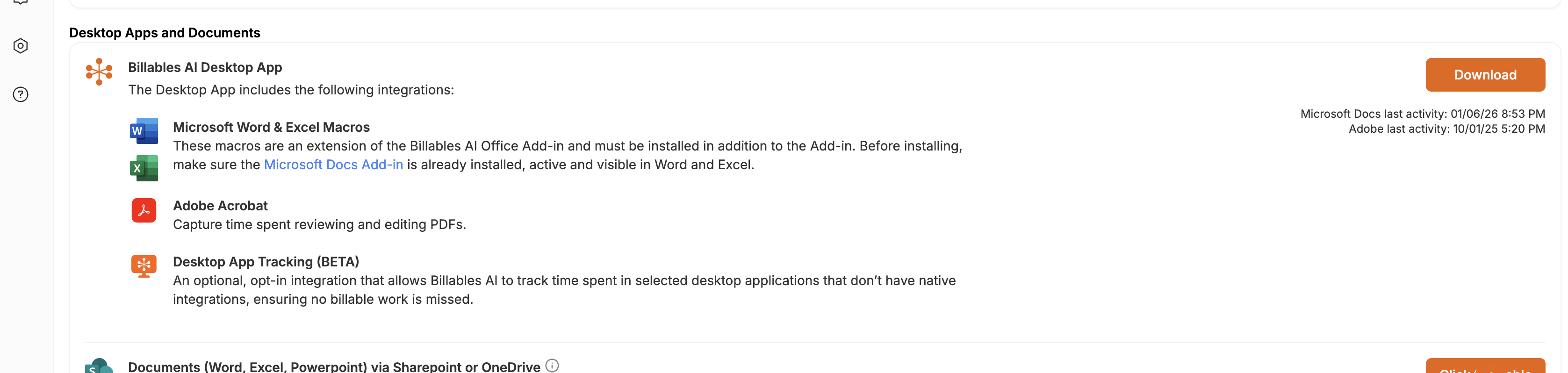
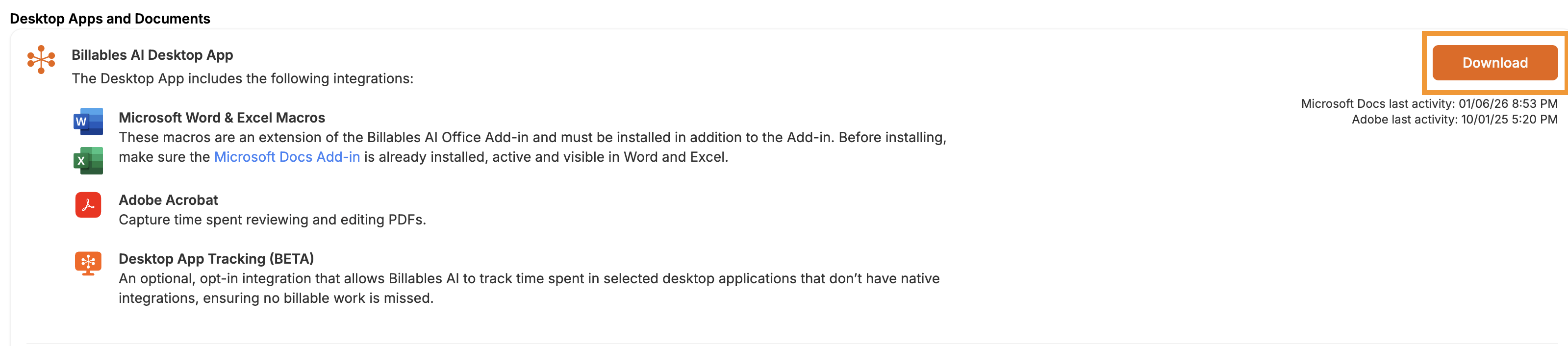
3. Click to download the installer (it will populate with your operating system). A download of the installer file will automatically begin.
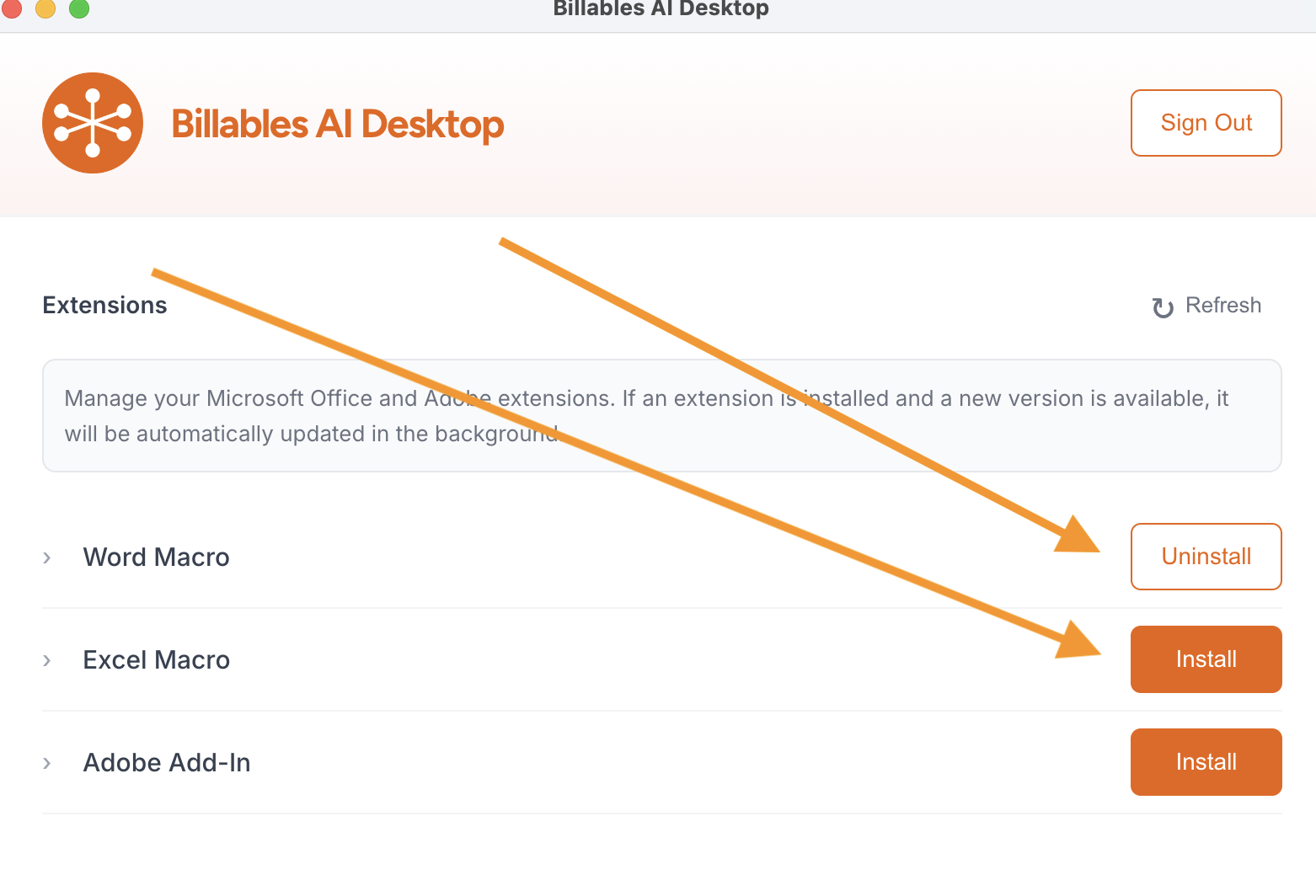
4. When the installer has finished downloading, open the file. Check the Word Macro and Excel Macro boxes, then click "Install". Note: Make sure you have closed out of Word and Excel before installing.
Adobe users: You will use this same installer to integrate Adobe into Billables AI. For more information, see this article.
Mac users: You may need to allow accessibility access.
6. Upon successfully deploying the Macro, the "install" button will change to "uninstall."
The macro is now active! Each time you open or create a Word or Excel document, you’ll briefly see the Billables Add-In task pane appear on the right—this confirms everything is working correctly. You can close the pane; Billables Assistant will continue to track your activity seamlessly in the background.I want to manually activate the Billables AI assistant.
This is only required for Word or Excel documents if you are unable to or do not wish to install the Word macro
In order to integrate with Microsoft, the Billables Add-In must be activated one time for each doc that is created. Once it's activated, it will remain activated for the lifetime of that document.
To activate the Billables Add-In on a new doc, click the Billables Add-In icon in the top right:
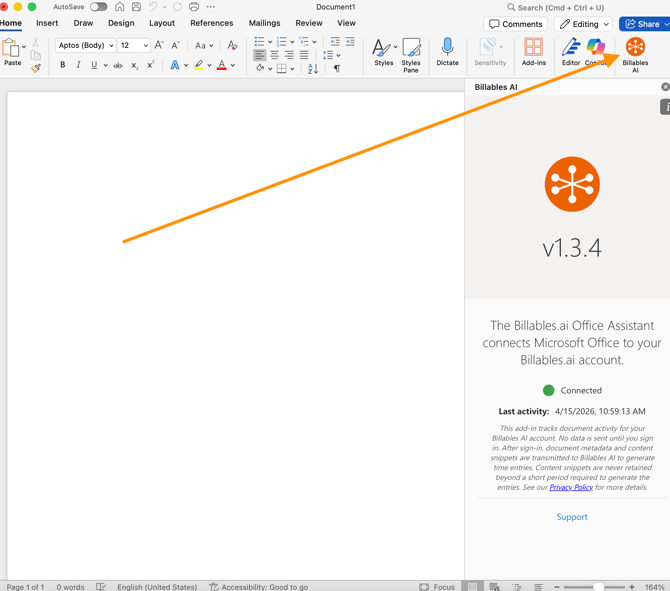
You’ll see a side panel show up on the right, confirming you are connected to the Billables app. Each time you open your doc, you will see this panel as a reminder that the Add-in is activated.
Not seeing the Billables Add-In in your docs? See "Finding the Microsoft Add-In
FAQ
I'm getting the following error: "An error occurred activating the Billables assistant. Please activate it manually for this document, or try quitting and re-starting Word." What's going on?
This error occurs when the macro is unable to activate the Add-In. This could happen for a couple of reasons:
-
Most common: The Add-in was not installed before the Macro was installed. The Add-in needs to be installed by a system administrator first before the Macro can be installed and activated. See: Finding the Microsoft Add-in
-
The doc was opened but quickly closed, switched or minimized before the Macro could activate the Add-In. Try giving the doc a couple seconds in order for the Add-In to load.
If the Add-in was not deployed, see IT instruction for Add-in
If the Add-in is deployed, an immediate fix is to manually activate the Add-In yourself by clicking on the Billables Assistant icon in your Word, Powerpoint or Excel toolbar.
If you continue to get this error, please reach out to support@billables.ai for help troubleshooting.
Does the side panel need to be open the entire time for Billables AI to track activity?
Once you've initiated the Add-in and opened the side panel, you can minimize it—activity tracking will continue in the background.
For Word or Excel macro users, the side panel may briefly appear and close automatically, but tracking remains active. If an error occurs, the side panel will stay open and display an error message.
Will the Add-in work for all accounts?
The Billables Add-in only works for Microsoft business accounts (Business Basic, Standard, Premium or E3 accounts), not personal accounts.
I am getting the following error: "You don’t have permission to use this Add-in. Contact your system administrator to request access." What do I do?
There’s a known Microsoft-side limitation that can cause odd errors during the first 1–3 days after installing the Add-in. We recommend refreshing the Add-in in Word/Excel by following these steps:
-
Open Excel/Word
-
Navigate to Home on the ribbon, then click Add‑ins icon, followed by More Add‑ins.

-
When the Office Add‑ins dialog opens up. At the top, you’ll see two tabs:
-
My Add‑ins — for your personally installed add-ins.
-
Admin Managed — for centrally deployed add-ins by your organization.
-
-
Click Admin Managed reveals any add‑ins the IT team has deployed. Then click the Refresh button (located in the top-right) to update the view.