
Before installing the Macros, confirm that the Microsoft Add-in is enabled and appears when you open Word or Excel. If you do not see the Add-in, stop and follow this article to enable it. Installing the Macros without the Add-in will cause an error.
-
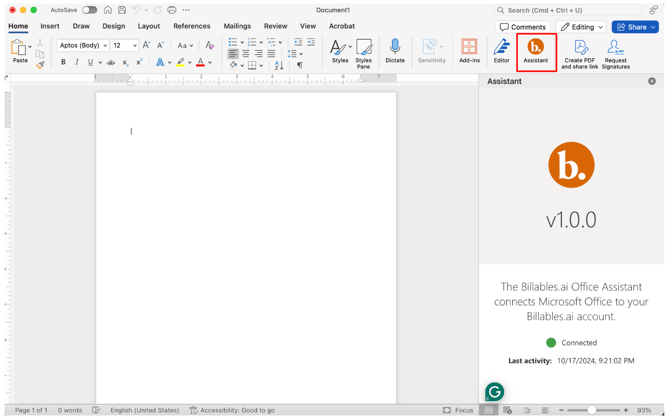
First, make sure that the Billables Assistant Add-In is visible in Word and Excel. For the macro to work, the Billables Assistant Add-in must be visible in the home ribbon.
- Go to the Integrations page on Billables and scroll to the Documents > Desktop Applications section:
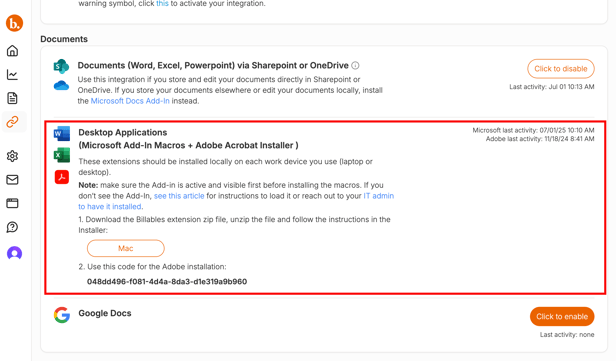
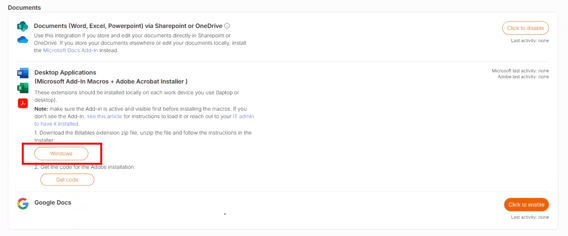
- Click to download the installer (it will populate with your operating system). A download of the installer file will automatically begin.
- When the installer has finished downloading, open the file. Check the Word Macro and Excel Macro boxes, then click "Install". Note: Make sure you have closed out of Word and Excel before installing.
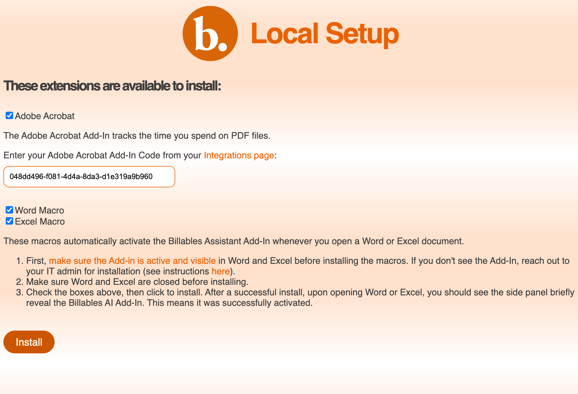
Adobe users: You will use this same installer to integrate Adobe into Billables AI. For more information, see this article.
Mac users: You may need to allow accessibility access.
You should see a Success message when complete.
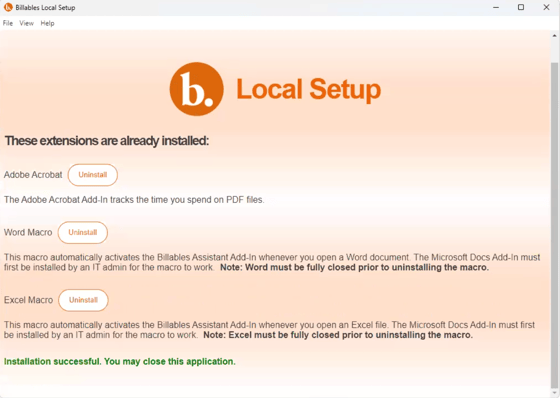
The macro is now active! Each time you open or create a Word or Excel document, you’ll briefly see the Billables Add-In task pane appear on the right—this confirms everything is working correctly. You can close the pane; Billables Assistant will continue to track your activity seamlessly in the background.