
Within Add from Notes, you can speak your description out loud instead of typing it.
This is great for capturing work between meetings, while you're on the move, or any time it's faster to talk than to type.
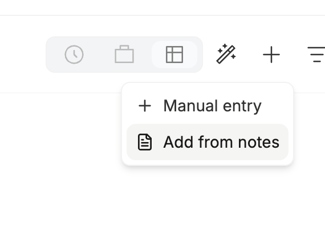
How to use voice entry- Click the + (plus) icon in the top toolbar and select Add from notes.
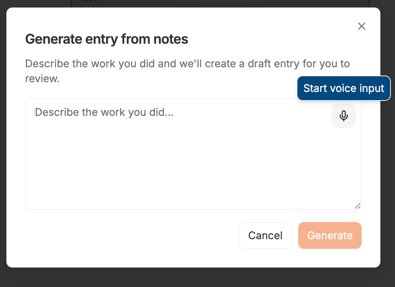
- In the Generate entry from notes window, click the microphone icon in the top right corner of the text field.
- If your browser asks for permission to use your microphone, click Allow. You only need to do this once.
- Describe the work you did out loud. You'll see your words appear in the text field as you speak.
- When you're finished, click the microphone icon again to stop recording.
- Review the transcribed text and edit anything you'd like to adjust.
- Click Generate.
Billables AI will create a draft entry from your spoken description. Review, edit if needed, and save.
Tips for accurate voice capture- Speak naturally and at a normal pace.
- Find a quiet spot if you can. Background noise can affect accuracy.
- Say the client or matter name clearly.
- Mention the type of work and roughly how much time you spent.
- You can always edit the transcribed text before clicking Generate.
The microphone icon isn't responding. Check that your browser has permission to use the microphone. You may also need to check your system settings to confirm a microphone is connected and selected.
The transcription isn't picking up my voice. Confirm the correct microphone is selected in your system audio settings, and try moving closer to it.
Related articles